Open Source Cursor Alternatives: 8 to Compare
Cursor is a popular AI code editor, but open source tools offer the same idea: an editor that reads your code and helps you write it. Here are eight to compare.
On this page
Short answer
Cursor is an AI code editor that suggests code, explains files and edits across a project. Several open source tools offer the same idea with a different trade-off: you can run them with your own model, inspect the code and change how they work. This guide compares eight open source Cursor alternatives so you can pick the one that fits your editor, your model and your privacy needs.
Which open source Cursor alternatives are worth comparing?
An open source Cursor alternative is a tool that brings AI help into coding without locking you into one vendor. Some are editors with AI built in, some are assistants that run in your terminal, and some are plugins for editors you already use.
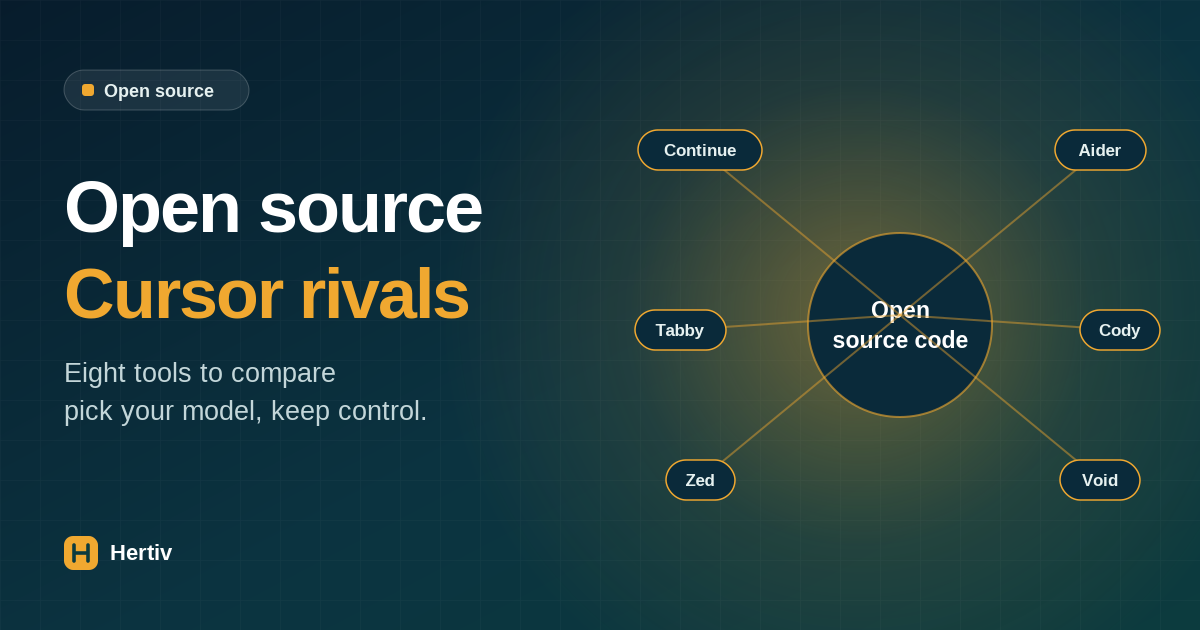
The table below compares eight of them. The main differences are the editor they work with, whether you can choose your own model, and whether the code runs on your machine or in the cloud.
| Tool | What it is | Model choice | Best for |
|---|---|---|---|
| Continue | Assistant inside VS Code and JetBrains | Your own model or API | Teams already on VS Code |
| Aider | Terminal pair programmer | Your own API key | Editing whole projects |
| Tabby | Self-hosted code completion | Your own server | Private codebases |
| Cody | Sourcegraph assistant | Your own model or API | Searching large codebases |
| Zed | Fast open source editor | Your own API key | Speed and simplicity |
| Void | Open source AI editor | Your own model or API | A Cursor-like editor |
| PearAI | Open source AI editor | Your own model or API | An open Cursor fork |
| Melty | Open source AI editor | Your own API key | Simple AI editing |
Try one tool for a week on your real project before you switch. A tool that feels good on a demo can slow you down on a large codebase. If you want a head-to-head on the closed tools first, read Cursor vs Copilot and which fits your team.
Continue and Aider: best for VS Code and the terminal
1. Continue: best for teams already on VS Code
Continue is an open source assistant that runs inside VS Code and JetBrains editors. It adds a chat panel next to your code, lets you highlight a function and ask for an explanation or a change, and can edit files across your project. You choose the model: run one locally or connect an API key.
Because it lives in the editor you already use, there is almost nothing new to learn. The trade-off is that it is an assistant, not a full AI editor, so it does less on its own than a tool built around AI from the start.
- Pros: works in your editor, free and open source, your choice of model.
- Cons: less automatic than a full AI editor, needs some setup.
2. Aider: best for editing whole projects
Aider is a terminal tool that works like a pair programmer. You tell it what to change, and it edits the files, runs your tests and fixes what fails. It works with a Git repository, so every change is a commit you can review and undo.
Aider suits developers who like the terminal and want the AI to make real changes across many files. It is less friendly for people who prefer a visual editor, and it needs an API key for a model, so check the cost on the vendor site first.
- Pros: strong multi-file editing, Git-based, works with many models.
- Cons: terminal only, needs an API key, no visual interface.
Tabby and Cody: best for private code and large codebases
3. Tabby: best for private codebases
Tabby is a self-hosted code completion server. You run it on your own machine or server, and it suggests code as you type, trained on your own codebase. Nothing leaves your network, which matters for companies with strict rules about code.
Tabby is a good choice when privacy is the main concern. The trade-off is that you run the server yourself, so someone on your team needs to set it up and keep it updated.
- Pros: your code stays on your server, open source, works in common editors.
- Cons: you host and maintain it, setup takes time.
4. Cody: best for searching large codebases
Cody is Sourcegraph's open source assistant. It reads your whole codebase and answers questions about it, such as where a function is used or why a test fails. It can also write and edit code, with the model of your choice.
Cody suits teams with a large codebase spread over many repositories, where finding the right code is half the job. For a small project, a simpler tool will do the same work with less setup.
- Pros: strong codebase search, your choice of model, open source core.
- Cons: more setup than a simple plugin, some features need a paid plan.
Zed and Void: best for speed and a Cursor-like editor
5. Zed: best for speed and simplicity
Zed is a fast open source code editor with AI assistance built in. It opens quickly, handles large files well, and lets you chat with a model about the code you have open. You bring your own API key for the model.
Zed suits developers who want a light, fast editor rather than a heavy one. It is newer than VS Code, so it has fewer extensions, but for plain editing with AI help it is a strong choice.
- Pros: very fast, clean interface, open source.
- Cons: fewer extensions, newer ecosystem.
6. Void: best for a Cursor-like editor
Void is an open source editor built to work like Cursor: a code editor with an AI chat panel, inline edits and the ability to apply changes across files. You connect your own model, so you are not tied to one vendor's pricing or model.
Void is the closest open source match to Cursor's feel. Because it is a newer project, expect rough edges and check that it supports the languages and extensions your team needs before you switch.
- Pros: Cursor-like experience, open source, your choice of model.
- Cons: newer project, smaller community.
PearAI and Melty: best for an open fork and simple editing
7. PearAI: best for an open Cursor fork
PearAI is an open source AI editor that started as a fork of the VS Code-based AI editor idea. It adds a chat panel, inline completions and file editing, with support for several models through your own API keys.
PearAI suits developers who want an editor built around AI but with open code they can inspect and change. As with any young project, try it on a small task first and check that it keeps up with updates.
- Pros: open source, Cursor-like workflow, several models supported.
- Cons: young project, fewer features than mature editors.
8. Melty: best for simple AI editing
Melty is a small open source AI editor focused on one job: helping you edit code with an AI assistant. It keeps the interface simple, with a chat panel and a clear view of what the AI changed before you accept it.
Melty suits developers who want AI help without a large, complex editor. It does less than the bigger tools on this list, but what it does is easy to understand and quick to start.
- Pros: simple to use, open source, clear change review.
- Cons: fewer features, small community.
How to choose an open source Cursor alternative
The right tool depends on where you write code today and how much control you want over the model. Answer these questions before you switch, and you will pick the right one first time.
- Decide whether you want a plugin for your current editor or a new editor.
- Check whether the tool lets you use your own model or API key.
- Test it for a week on your real project, not on a sample.
- Check that it supports your languages, your tests and your Git workflow.
- Read the licence and the privacy notes so you know what leaves your machine.
Start with Continue if you use VS Code, Aider if you like the terminal, and Tabby if your code must stay private. For a comparison of the closed tools, see Claude Code vs Cursor and which fits you.
Common mistakes
The most common mistake is picking a tool for its feature list instead of your workflow. A tool with fifty features that does not fit your editor or your Git setup will slow you down. Pick the tool that fits the way you already work.
Another mistake is forgetting the model cost. Open source does not mean free to run: most of these tools need an API key for a model, and the price depends on how much code you send. Check the model pricing on the vendor site and set a budget before your team starts using it.
A third mistake is sending private code to a cloud model without checking the rules. Some models keep what you send for training. If your code is private, use a self-hosted model or a tool like Tabby, and check your company's rules first. Teams that test AI tools should also read how to test AI models before you rely on them.
Key takeaways
- Open source does not mean free to run: most tools still need a model API key.
- Continue fits VS Code users, Aider fits the terminal, Tabby fits private code.
- Pick the tool that fits your editor and Git workflow, not the longest feature list.
- Test for a week on your real project before you switch the whole team.
- Check where your code goes before you send it to a cloud model.
Frequently asked questions
Is there a free open source alternative to Cursor?
Yes. Continue, Aider, Tabby, Zed, Void, PearAI and Melty are all open source. Most are free to download, but many need an API key for a model, so check the model pricing on the vendor site before you budget for them.
Which open source Cursor alternative is best for privacy?
Tabby is the strongest choice for privacy, because you run the completion server on your own machine or server and your code never leaves your network. Running a model locally with Continue or Aider is another good option.
Can I use these tools with my own model?
Most of them let you choose the model: Continue, Aider, Cody, Void and PearAI all accept your own API key or a local model. Tabby runs its own server. Check each tool's docs for the models it supports.
Do open source AI editors work as well as Cursor?
For common tasks such as completions, explanations and small edits, the best open source tools are close. Cursor still leads on deep multi-file edits and polish, so test your top choice on your real project before you switch.
Which one should a beginner try first?
Continue is the easiest start if you already use VS Code: install it, add an API key and chat with your code. Aider is a good second choice if you are comfortable in the terminal and want the AI to edit files for you.
Are these tools safe for company code?
It depends on where the code goes. Tools that send code to a cloud model need a check against your company's rules. Self-hosted tools such as Tabby, or local models with Continue, keep your code inside your own network.