Cursor vs Copilot: Which AI Coding Assistant Fits Your Team?
Cursor is a full AI editor, while Copilot adds AI help to the editors you already use. Compare how each handles your codebase, multi-file edits and team controls.
On this page
Short answer
Cursor is a code editor with AI built in, while GitHub Copilot is an AI assistant that works inside editors such as VS Code and JetBrains. Cursor suits teams that want an agent to work across the whole codebase, while Copilot suits teams that want help without changing editors.
What is the difference between Cursor and Copilot?
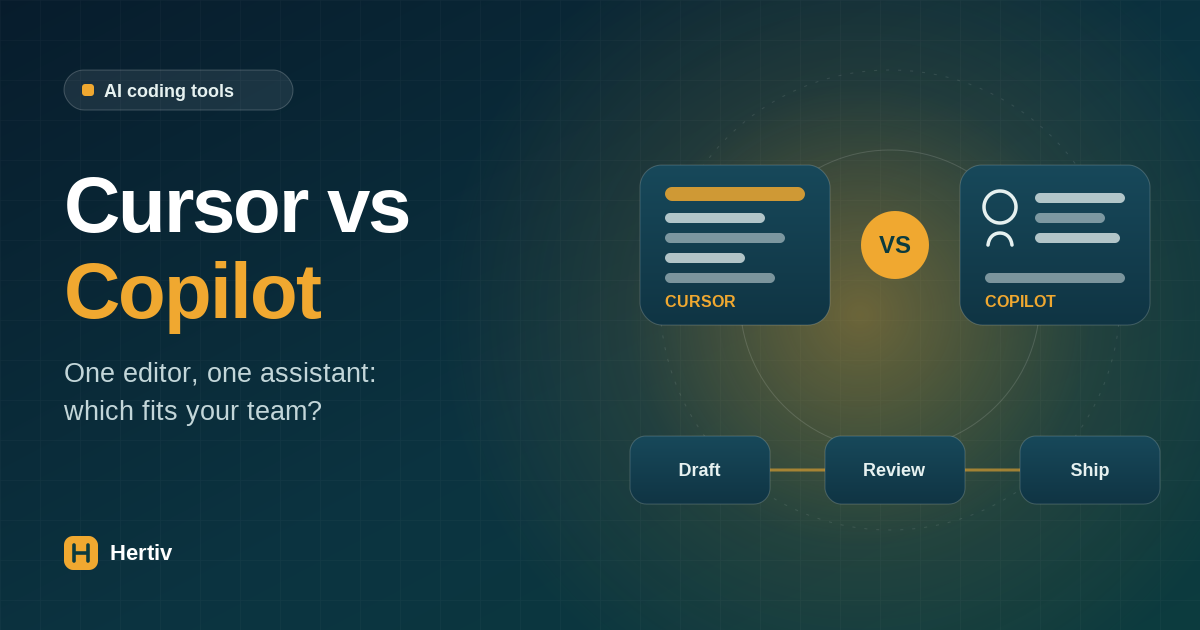
Cursor and GitHub Copilot are both AI coding assistants, but they work in different places: Cursor is a full code editor with AI built in, while Copilot is an assistant that plugs into editors you already use, such as Visual Studio Code. Cursor changes how you move through a codebase; Copilot adds AI help to the editor you already know.
The practical difference shows up in how each tool sees your project. Cursor indexes the whole codebase and lets you ask questions about it, edit several files at once and run a chat agent that can make changes across the project. Copilot focuses on the file you are editing: it suggests the next lines, explains code and answers questions in a side panel, with broader agent features added through its own workspace tools.
Both tools use large language models trained on code, and both need a paid plan for serious team use. The choice is less about which model is smarter and more about whether your team wants a new editor or an assistant inside the editor it already uses. That is why teams often trial both before deciding.
How does Cursor work?
Cursor works as a standalone editor built on Visual Studio Code, so it looks familiar to anyone who has used VS Code, but AI is part of every workflow rather than an add-on. You can highlight code and ask for a change, open a chat panel to discuss the codebase, or let an agent plan and apply edits across several files.
Its best-known feature is codebase awareness. Cursor builds an index of your project, so questions such as "where is authentication handled?" get answers drawn from your own files, not generic advice. It also supports tab completion that predicts the next edit based on recent changes, and a composer mode that applies a planned change across multiple files in one pass.
Cursor runs on a subscription with a set amount of fast model requests, and it lets you pick the underlying model for a task. Teams that adopt it usually do so because they want the agent to handle multi-file refactors and codebase questions, and they are willing to move the whole team onto one editor to get that.
How does GitHub Copilot work?
GitHub Copilot works as an assistant inside editors such as Visual Studio Code, JetBrains IDEs and Neovim, and it is also built into GitHub itself for pull request summaries and code review. As you type, it suggests completions for the current line or block, drawing on the surrounding code and the files you have open.
Beyond completions, Copilot offers a chat panel where you can ask it to explain code, write tests, fix errors or draft documentation. It can also work as an agent that takes a task, makes changes in a branch and opens a pull request for review. Because it lives inside GitHub, it can use pull request context, issues and repository history as part of its answers.
Copilot is sold per user with business and enterprise plans that add organisation-wide controls, such as blocking suggestions that match public code and managing who can use which models. Teams that already live in GitHub often pick Copilot because it fits their existing workflow with no editor change.
Cursor vs Copilot: side-by-side comparison
The two tools overlap on completions and chat, but they differ in editor, codebase handling and pricing shape. This table compares the points that matter most when choosing.
| Point | Cursor | GitHub Copilot |
|---|---|---|
| Form | Standalone editor, built on VS Code | Assistant inside VS Code, JetBrains and GitHub |
| Codebase awareness | Indexes the whole project for chat and edits | Uses open files and repository context |
| Multi-file edits | Composer applies planned edits across files | Agent mode edits in a branch and opens a pull request |
| Model choice | Pick a model per request | Pick a model per request on paid plans |
| Team controls | Team plan with shared billing and privacy settings | Organisation controls, policy and audit on business plans |
| Pricing | Monthly subscription, see vendor site | Monthly per-user subscription, see vendor site |
The table shows why the decision is about workflow, not raw model quality. If your team wants one editor where the agent can roam the whole codebase, Cursor fits. If your team wants AI help without changing editors, and already works in GitHub, Copilot fits better.
Which one fits your team?
The right choice depends on your editor habits, your codebase and how much control your organisation needs. Work through these steps with a small trial group before rolling out to everyone.
- Check what editors the team uses. If most developers already use VS Code or JetBrains and resist switching, Copilot is the lower-friction option. If the team is willing to standardise on one editor, Cursor becomes viable.
- Test a real multi-file task. Give both tools the same refactor, such as renaming an API field across five files, and compare how much manual cleanup each leaves behind.
- Test codebase questions. Ask each tool where a feature is implemented and how data flows through it, then check the answers against the real code.
- Review privacy and admin controls. Confirm how code is stored, whether training on your code can be switched off, and who can manage seats and policies.
- Compare the real monthly cost. Count seats, check what is included in each plan and add any extra model usage, since prices change and the vendor site is the only reliable source.
Run the trial for at least two weeks on real work, not demos. A tool that feels fast on a small example can slow down on a large, older codebase, and that only shows up in daily use.
Example: a small team picks a coding assistant
Example (hypothetical): a 12-person product team builds a booking web app and wants AI help with routine coding. Six developers use VS Code and four use JetBrains, so the team trials both tools for two weeks on the same tasks.
In week one, the team measures time on three routine jobs: writing tests for a new endpoint, renaming a field across the codebase, and explaining an unfamiliar module. With Copilot, the test-writing job takes 40 minutes instead of 60, and the rename takes 25 minutes instead of 35. With Cursor, the same jobs take 35 and 20 minutes, and the module explanation is more accurate because Cursor reads the whole project.
The team also checks cost. Copilot at 12 seats and Cursor at 12 seats both fall in the same rough band per month, so price does not decide it. The deciding factor is the split editors: moving four JetBrains users onto Cursor would cost a week of setup and lost habits, while Copilot works in both editors. The team picks Copilot and revisits Cursor in six months if the multi-file work grows.
The numbers are made up for this example, but the method is the point: measure the same jobs on both tools, count the seats, and weigh the cost of switching editors against the time saved.
What are the common mistakes?
The most common mistakes when choosing between Cursor and Copilot are picking on model hype, skipping the trial, and ignoring how the tool handles your code.
- Choosing by demo speed. A polished demo on a small project says little about a large codebase with years of history.
- Skipping privacy review. Some plans allow code to be used for training unless you switch it off, so check the setting before the first real file is opened.
- Accepting suggestions without review. AI code can look right and still miss an edge case, so every suggestion still needs a human review and a test run.
- Forgetting the switch cost. Moving a whole team to a new editor costs setup time and breaks habits, which can wipe out the first month of time saved.
- No usage rules. Without agreed rules on when to use the agent and when to write code by hand, junior developers can lean on it for work they should learn to do themselves.
Key takeaways
- Cursor is an editor with AI built in; Copilot is an assistant inside editors you already use
- Cursor indexes the whole codebase for questions and multi-file edits, while Copilot works mainly from open files and GitHub context
- Both offer completions, chat and agent modes, so the choice turns on workflow and editor fit
- Trial both tools on the same real tasks for two weeks before deciding
- Check privacy settings, admin controls and per-seat pricing on the vendor site before rollout
Frequently asked questions
Is Cursor a replacement for VS Code?
Cursor is built on VS Code, so it looks and feels similar, and it can use many VS Code extensions. It is a separate editor rather than a plug-in, so a team that adopts it moves its daily work into Cursor instead of adding AI to the editor it already uses.
Does Copilot work outside VS Code?
Yes. Copilot works in JetBrains IDEs, Neovim and other supported editors, and it is built into GitHub for pull request summaries and review. It is designed to follow the developer into the tools they already use rather than asking them to switch.
Which tool is better for large codebases?
Cursor has an edge for large codebases because it indexes the whole project and answers questions from your own files. Copilot can still help, but its answers lean on the files you have open and the repository context it can reach. A trial on your own codebase is the best way to compare.
Can either tool train on my code?
Both vendors offer settings that control whether your code is used for training, and the defaults and options differ by plan. Check the privacy settings for the plan you buy before the team opens real code, and confirm the setting with your security reviewer.
Do I still need code review with AI assistants?
Yes. AI suggestions can contain bugs, miss edge cases or use outdated patterns, so every change still needs a human review and a test run. The tools save typing and research time, but they do not remove the need for review.
How much do Cursor and Copilot cost?
Both are sold as monthly subscriptions per user, with team and business plans that add admin controls. Prices change often, so check the vendor site for the current price and what each plan includes before budgeting.