10 Metaverse Platforms for Education to Explore
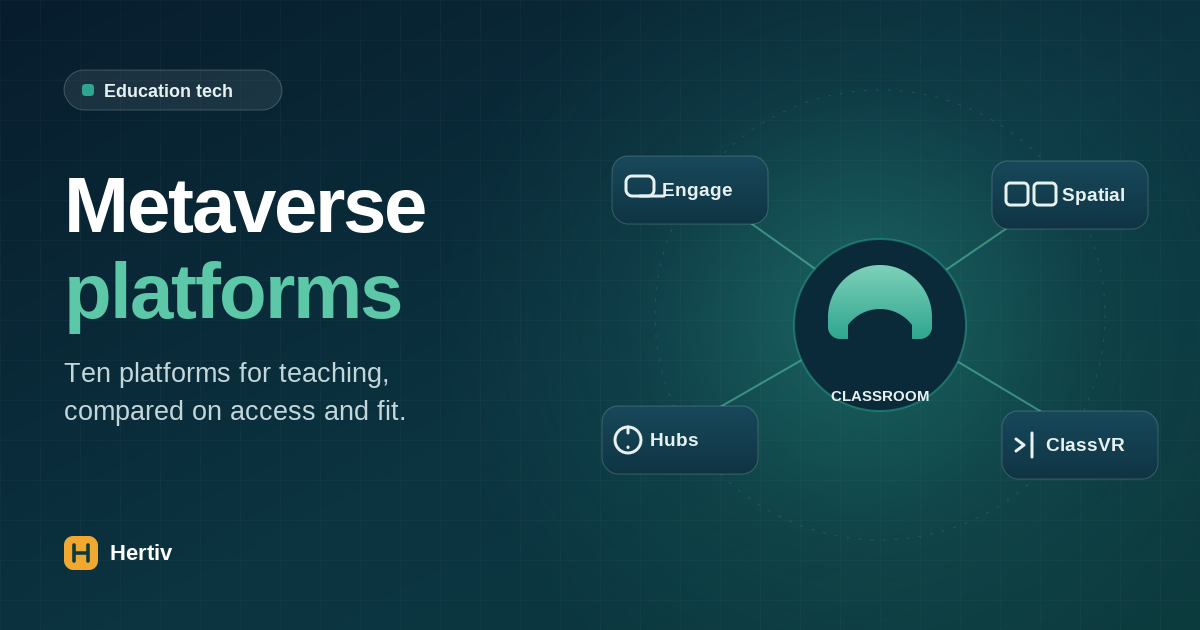
Ten metaverse platforms teachers actually use, from immersive classrooms to browser worlds, with the strengths and limits that decide which fits your class.
On this page
Short answer
The best metaverse platforms for education are Engage, Spatial, Mozilla Hubs, Frame, Virbela, ClassVR, CoSpaces Edu and VictoryXR, plus Rumii and Altspace-style social worlds where they still run. Browser-based platforms suit schools with basic hardware, while headset platforms suit immersive training, and the right choice depends on your devices, your budget and whether students build or only attend.
Which metaverse platforms work best for education?
Start with how your students will join: on a headset, on a laptop in a browser, or on a tablet. That one decision rules out half the list, because a platform that needs a headset will not work in a school where only the teacher has one.
Use this comparison to shortlist two or three platforms, then run one real lesson on each before you commit a term to it.
| Platform | Access | Best for | Pricing |
|---|---|---|---|
| Engage | Headset and PC | Immersive lectures | See vendor site |
| Spatial | Browser and headset | 3D galleries and talks | See vendor site |
| Mozilla Hubs | Browser | Free open rooms | Open source |
| Frame | Browser | Quick class sessions | See vendor site |
| Virbela | PC and headset | Virtual campuses | See vendor site |
| ClassVR | Headset set | School VR lessons | See vendor site |
| CoSpaces Edu | Browser and tablet | Students building worlds | See vendor site |
| VictoryXR | Headset | Science and campus twins | See vendor site |
Pricing for these platforms changes often and depends on seats and features, so check the vendor's own pricing page before you budget. The rest of this article compares what each platform is good at, not what it costs.
Immersive classrooms: Engage, Spatial and Mozilla Hubs
1. Engage: best for immersive lectures and training
Engage is a virtual reality platform built for lectures, training and events. Teachers present inside a 3D room, students join as avatars, and the platform supports slides, 3D models, video and live polls in one session.
Its strength is presence: a chemistry teacher can walk students around a molecule, and a medical trainer can stage a ward round. Its weakness is hardware. Every student needs a headset or a capable PC, which rules it out for many schools.
- Pros: strong presentation tools, 3D objects and models, works for lectures and training
- Cons: needs headsets or strong PCs, pricing is quoted per deployment
2. Spatial: best for 3D galleries and talks
Spatial started as a meeting space and grew into a gallery and event platform. Teachers build a room, hang student work or exhibits on the walls, and invite a class to walk through it together.
Its strength is ease of entry: it runs in a browser as well as on headsets, so a student on a school laptop can join the same room as a student on a headset. Its weakness is depth. It suits exhibitions and talks better than full courses with graded work.
- Pros: browser and headset access, easy to build a gallery, good for showcases
- Cons: limited course tools, no built-in grading or assignments
3. Mozilla Hubs: best for free, open virtual rooms
Mozilla Hubs is an open source virtual room that runs entirely in a browser. A teacher creates a room, shares a link, and students join with no install and no account on most setups.
Its strength is cost and control: the code is open, rooms can be self-hosted, and there is no per-seat fee to argue over. Its weakness is polish. Rooms are simple, avatars are basic, and there is no built-in classroom management.
- Pros: free and open source, runs in any browser, self-hosting possible
- Cons: basic visuals, no classroom management or grading tools
Browser-based and campus-scale: Frame, Virbela and ClassVR
4. Frame: best for quick browser class sessions
Frame is a browser-based 3D world where a class meets in a shared space without installing anything. Teachers set up a room in minutes, add slides and whiteboards, and run a session from a normal laptop.
Its strength is speed. A teacher can try a metaverse lesson with one link and no IT approval for installs. Its weakness is scale. It suits single sessions and small groups better than a whole school running many classes at once.
- Pros: no install, runs in a browser, fast to set up a room
- Cons: best for small groups, limited tools for long courses
5. Virbela: best for a persistent virtual campus
Virbela builds persistent virtual campuses where students return to the same place each week: lecture halls, libraries, common rooms and offices that stay in place between sessions.
Its strength is continuity. A remote programme gains a sense of place, and students bump into each other between classes the way they would on a real campus. Its weakness is the learning curve. New students need an orientation session before the platform feels natural.
- Pros: persistent campus, good for remote programmes, social spaces between classes
- Cons: needs orientation for new students, desktop app rather than pure browser
6. ClassVR: best for school VR lesson sets
ClassVR sells schools a complete set: headsets, a teacher portal and a library of ready-made VR lessons across science, geography, history and art. The teacher controls what every headset shows from one dashboard.
Its strength is that it is built for schools, with content matched to lessons and a portal a teacher can learn in an afternoon. Its weakness is cost and lock-in. The headsets, content and portal come as one package, so switching later is hard.
- Pros: ready-made lesson library, teacher dashboard, built for schools
- Cons: hardware and content sold as a package, see vendor site for pricing
For a wider view of how these tools are used in class, metaverse education use cases covers five formats that work in practice.
Build and create: CoSpaces Edu, VictoryXR and Rumii
7. CoSpaces Edu: best for students building their own worlds
CoSpaces Edu lets students build 3D scenes with block coding, then walk through them in a browser or on a headset. A history class can rebuild a Roman forum; a science class can model a cell.
Its strength is that students create rather than only attend. Building a scene teaches the topic twice: once while planning it and once while presenting it. Its weakness is that it is a creation tool first, so it suits project weeks better than daily lectures.
- Pros: students build with code, works in browser and on tablets, good for projects
- Cons: not built for lectures, needs teacher time to set up projects
8. VictoryXR: best for science labs and digital twins
VictoryXR builds virtual science labs and digital twins of real campuses and workplaces. Students run experiments that would be unsafe, slow or expensive in a real lab, and teachers can walk a class through a twin of their own campus.
Its strength is subject depth in science and technical training, with labs that match real curricula. Its weakness is that it is aimed at institutions, so a single teacher will find the sales and setup process heavier than a browser tool.
- Pros: science labs and digital twins, curriculum-matched content, headset immersion
- Cons: aimed at institutions, heavier setup than browser platforms
9. Rumii: best for small-group social learning
Rumii is a social virtual reality space for small classes and study groups. Students meet as avatars around a shared table, look at the same documents and whiteboards, and talk as if they were in one room.
Its strength is the small-group feel. A seminar of ten students works well, with everyone able to speak and be heard. Its weakness is size. It is not the tool for a lecture of two hundred, and its feature set is narrower than the big campus platforms.
- Pros: good for seminars and study groups, shared documents and whiteboards
- Cons: small groups only, fewer features than campus platforms
10. Social worlds: best for open events and showcases
Open social worlds such as VRChat-style spaces suit one-off events: a graduation showcase, a student exhibition or a guest talk where anyone can drop in. They are free to join and already have large communities.
Their strength is reach and cost: no licence, no setup, and students may already know how to use them. Their weakness is control. Public spaces are hard to moderate, so they suit public events rather than everyday teaching.
- Pros: free to join, large existing communities, good for public events
- Cons: hard to moderate, not suited to everyday classroom use
How to choose a metaverse platform for education
Choose by running one real lesson on your shortlist, not by comparing feature pages. A single class will show you what the demo never does: whether students can join, whether the audio works, and whether the lesson actually lands.
- List your devices. Count the headsets, laptops and tablets students will actually use, and drop any platform that does not run on them.
- Check the network. A school firewall or slow connection can block a platform that works fine at home, so test on the school network first.
- Match the format. Lectures need presentation tools, seminars need small rooms, and project work needs building tools.
- Test with real students. Run one lesson with a real class and ask what confused them, then fix the joining steps before the next session.
- Price the full year. Include headsets, licences, training and support, not just the first month. See the vendor site for current pricing.
Keep the shortlist short. Two platforms tested with a real class beat six compared on paper. For the broader picture, metaverse trends in education shows where classroom use is heading.
What are the common mistakes?
The most common mistakes are buying headsets before choosing a platform, skipping the network test, and treating the first session as the finished product.
- Buying hardware first. Headsets without a platform and a lesson plan sit in a cupboard. Choose the platform, then buy what it needs.
- Skipping the network test. A platform that works on home wifi can fail on a school network. Test where the class actually sits.
- No joining instructions. Students who cannot get in within two minutes give up. Send a short joining guide and a practice room link.
- One long lecture. A 60-minute talk in a headset tires students out. Split sessions into short parts with breaks and tasks.
- No owner after launch. Rooms, links and content go stale. Without someone checking them each term, the platform stops being used.
Key takeaways
- Browser platforms suit schools with basic hardware; headset platforms suit immersive training
- Engage and VictoryXR lead for lectures and science labs; Frame and Mozilla Hubs are fastest to try
- CoSpaces Edu is the pick when students should build worlds, not only attend lessons
- Test on the school network and with a real class before buying licences or headsets
- Price the full year, including hardware, training and support
- Split long sessions into short parts with breaks and tasks
Frequently asked questions
What is the best metaverse platform for schools?
There is no single best choice. Browser platforms such as Frame and Mozilla Hubs suit schools with basic hardware, while ClassVR suits schools that want a ready-made lesson library with headsets. Pick the platform that runs on the devices your students already have.
Do students need a VR headset for metaverse lessons?
Not always. Platforms such as Mozilla Hubs, Frame and Spatial run in a normal browser, so students can join on a laptop or tablet. Headsets add immersion for labs and training, but many lessons work well without them.
Is the metaverse free for education?
Some parts are free. Mozilla Hubs is open source, and several platforms offer free tiers for small groups. Full classroom use, headset sets and managed campuses are paid, so check the vendor site for current pricing before you plan a budget.
What subjects work best in the metaverse?
Science, geography, history and art work well, because students can walk through a cell, a city or a museum instead of reading about it. Language practice and soft-skills training also suit small-group virtual rooms where students talk to each other.
How long should a metaverse lesson last?
Short sessions work best. Plan 20 to 30 minutes inside the virtual space, with breaks and a task in between, rather than a full hour in a headset. Younger students and first-time users need even shorter sessions.
Can students build their own metaverse worlds?
Yes. CoSpaces Edu lets students build 3D scenes with block coding and walk through them, and platforms such as Frame and Spatial let classes arrange their own rooms. Building a world is a strong project format for history, science and design lessons.