How to Build a CMMS Mobile App Your Technicians Use
Build a CMMS mobile app that technicians actually open in the field. Learn the core features, the build steps and the field realities that decide adoption.
On this page
Short answer
A CMMS mobile app is a phone or tablet app that lets maintenance technicians receive work orders, record repairs, scan asset tags and close jobs from the field. CMMS stands for computerized maintenance management system, and the mobile app is the part technicians touch. A good one saves hours of paperwork a week; a bad one is ignored and the paper forms come back.
What is a CMMS mobile app?
A CMMS mobile app is a phone or tablet app that lets maintenance technicians receive work orders, record repairs, scan asset tags and close jobs from the field, instead of returning to a desk or a paper form. CMMS stands for computerized maintenance management system, and the mobile app is the part technicians touch.
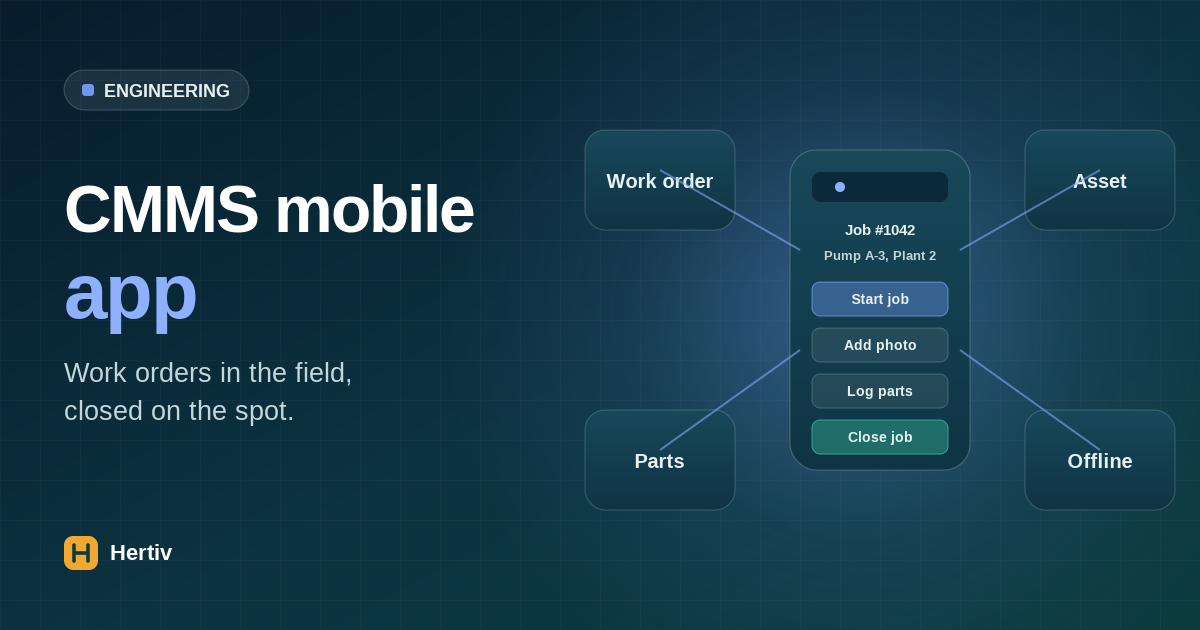
The desktop CMMS holds the asset register, the maintenance schedules and the history. The mobile app is the field view of that same system: a technician sees today's jobs, opens one, reads the asset history, records what was done, adds photos and parts used, and closes the job on the spot.
The core modules are:
| Module | What it does | Used by |
|---|---|---|
| Work orders | Jobs assigned, accepted and closed | Technicians |
| Assets | Equipment list with history | Technicians, planners |
| Preventive maintenance | Recurring checks on a schedule | Planners, technicians |
| Parts | Stock used and requested | Technicians, stores |
| Photos and notes | Evidence attached to a job | Technicians |
| Offline sync | Work without signal, sync later | Technicians |
The difference between a CMMS app and a generic task app is the asset link. Every job ties to a piece of equipment with a history, so a technician can see what failed last time and a manager can see which assets cost the most to keep running.
What should the first version do?
The first version of a CMMS mobile app should do four things well: show today's work orders, let a technician record what was done, work offline, and sync back to the desktop system without manual retyping.
Work orders are the heart of the app. A technician should see the job, the asset, the location and the priority in one glance, and accept or start it with one tap. The job view should show the asset history and any safety notes, because a technician who has to phone the office for that information will stop using the app.
Recording the work should be fast: a short checklist, a few photos, the parts used and a signature or close button. If closing a job takes ten minutes of typing, technicians will batch it at the end of the day or skip it.
Offline support is not optional. Basements, plants and remote sites often have no signal, and an app that stops working there is useless. The app must queue changes locally and sync when the signal returns, without losing or duplicating a job.
How to build a CMMS mobile app
Building a CMMS mobile app follows a clear sequence: map the field workflow, build the first version around work orders, test it with real technicians, then add the rest.
- Shadow the technicians. Spend days on site watching how jobs are received, done and recorded today, including the paper forms and the workarounds.
- Define the first version. Work orders, asset history, photo capture, parts used and offline sync. Nothing else until technicians use it daily.
- Connect to the CMMS. Build the API link to the existing system first, so the app reads and writes real data from day one.
- Design for gloves and sunlight. Large tap targets, high contrast, big text and simple navigation. A phone in a plant is not a phone on a sofa.
- Test in the field. Give the app to five technicians for two weeks on real jobs, and watch where they hesitate or go back to paper.
- Roll out in waves. One site or team at a time, with training on the job and a named person to call when the app misbehaves.
Before building, check that the idea is worth the effort: how to validate an app idea covers the cheapest checks.
For the ongoing cost, see what it costs to maintain an app.
Example (hypothetical): a maintenance team saves 15 hours a week
Example (hypothetical): a maintenance team of 10 technicians handles 60 work orders a week. Today each job needs about 20 minutes of paperwork after the repair: writing up the job, logging parts and filing photos. That is 60 x 20 minutes, or 20 hours a week of paperwork.
The team builds a CMMS mobile app where the technician records the work on the job itself, with a checklist, photos and parts picked from a list. Closing a job now takes about 5 minutes, so the same 60 jobs need 60 x 5 minutes, or 5 hours a week. The team saves 15 hours a week, which is almost two working days.
The saving only happens if technicians actually use the app, so the team measures it: jobs closed in the app versus jobs closed on paper, tracked weekly. If the paper count does not fall, the app is not working, however good it looks.
What field realities decide whether technicians use the app?
Field realities decide whether technicians use the app: signal, gloves, battery, sunlight and dirty hands. An app designed for an office will fail in a plant.
Signal is the first reality. The app must work fully offline, including viewing asset history and past jobs, and sync later without creating duplicates. Test it in the actual locations, not in the office.
Gloves and sunlight are the second. Tap targets must be large enough for a gloved finger, text must be readable in bright light, and the app must work with one hand while the other holds a tool.
Battery is the third. A technician's phone must last a full shift, so the app should not drain the battery with constant location tracking or syncing. Sync in batches, and let the technician control when it runs.
Finally, the app must respect the technician's time. Every extra field is a reason to go back to paper. Ask for only what the job needs, and pre-fill everything the system already knows.
What are the common mistakes?
The most common mistake is building the desktop CMMS again on a phone. A mobile app that shows every field, report and setting from the desktop system is unusable in the field. The app should show today's jobs and the few actions a technician needs, and nothing else.
Another mistake is skipping the offline design. Teams test the app in the office, where the signal is perfect, and discover in the field that jobs disappear or duplicate when the connection drops. Offline sync must be built from the start, not added later.
Teams also forget the asset data. If the asset register is incomplete or the history is wrong, technicians will not trust the app and will keep their own notes. Clean the asset data before launch, and assign someone to keep it clean.
Finally, do not launch to everyone at once. A big launch with no support means the first problem becomes the story of the app. Start with one team, fix the problems they find, and let them recommend it to the next team.
How do you roll out and measure a CMMS mobile app?
You roll out a CMMS mobile app in waves, one team or site at a time, and you measure adoption weekly until paper forms are gone.
The measures that matter are simple: the share of jobs closed in the app, the time from job completion to job closure, the number of jobs with photos attached, and the number of duplicate or lost jobs. Track them weekly on the same teams, so the trend is visible.
Training should happen on the job, not in a classroom. A technician learns the app by closing a real job with someone beside them, and the training should cover what to do when the app fails, because it will fail sometimes.
After rollout, keep a short feedback loop: a monthly check with technicians about what slows them down, and a named owner who fixes the top complaint. An app that improves every month keeps its users; one that never changes loses them. For release discipline, see what CI and CD are.
Key takeaways
- A CMMS mobile app is the field view of the maintenance system.
- The first version needs work orders, asset history, photos and offline sync.
- Design for gloves, sunlight, weak signal and one-handed use.
- Offline sync must be built from the start, not added later.
- Roll out in waves and measure jobs closed in the app weekly.
Frequently asked questions
What does CMMS stand for?
CMMS stands for computerized maintenance management system. It is software that tracks equipment, schedules preventive maintenance, manages work orders and records repair history. The mobile app is the field view of that system for technicians.
How much does it cost to build a CMMS mobile app?
Cost depends on whether you build from scratch or extend an existing CMMS, how many modules you include, and whether offline sync is needed. A first version with work orders, assets and offline sync is a mid-size app build. Ask vendors for phased pricing and check the vendor site for current rates.
Can a CMMS mobile app work offline?
Yes, and it must. The app should store jobs, asset history and photos locally, let the technician work without signal, and sync when the connection returns. Offline sync should be tested in the actual work locations before launch.
Do technicians need training to use a CMMS app?
Yes, but training works best on the job: a technician closes a real job with someone beside them. Classroom training alone rarely sticks. The app should also be simple enough that a new technician can close a job after a short demo.
Should we build a CMMS app or buy one?
Buy if an existing CMMS covers your workflow and has a good mobile app, and your asset data is already clean. Build if your workflow is unusual, your CMMS has no usable mobile app, or you need a custom integration. Most teams start by checking what their CMMS already offers.
What data does a CMMS mobile app need?
It needs the asset register, work orders, maintenance schedules and parts stock from the desktop CMMS, and it writes back job records, photos and parts used. The asset data must be clean before launch, or technicians will not trust what the app shows.