Data Sync Agent: What It Does and How to Set One Up
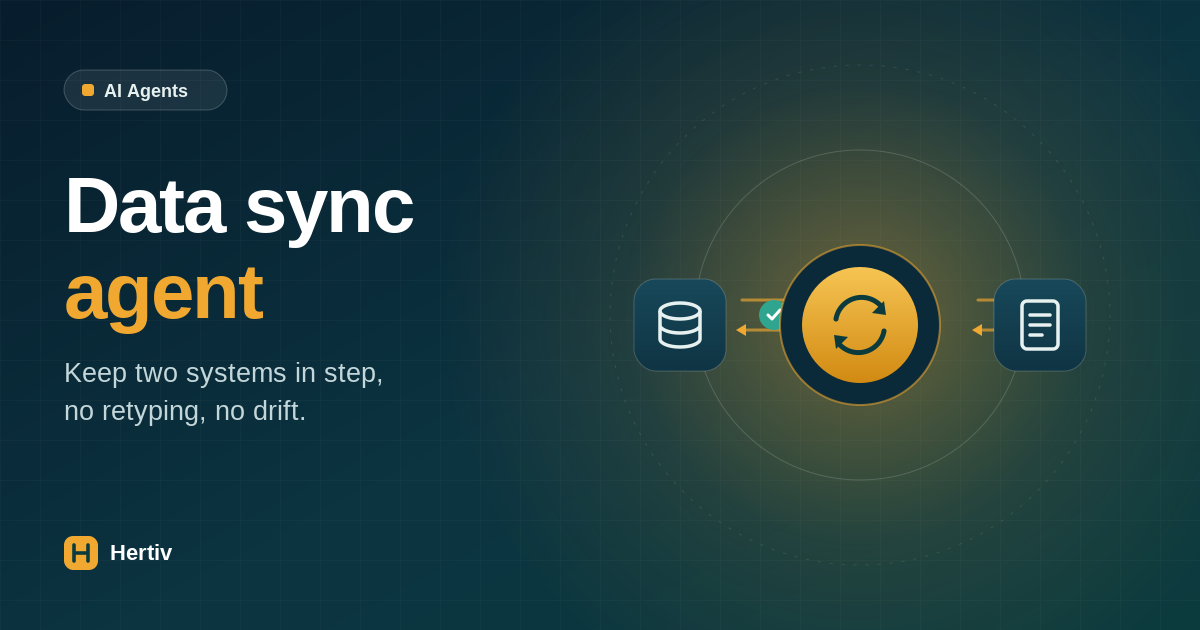
A data sync agent keeps the same records up to date in two systems by watching for changes and copying them across. Here is how it works and how to set one up.
On this page
Short answer
A data sync agent is a program that watches for changes in one system and copies them to another so both hold the same records. It maps fields, applies a conflict rule when the same record changes in both places, and logs every run. Start with one pair of systems, test the mapping on copies, then go live with alerts.
What is a data sync agent?
A data sync agent is a small software program that keeps the same records up to date in two or more systems by watching for changes in one place and copying them to the others. It runs on its own, on a schedule or when a change happens, so a record edited in the shop system also appears in the warehouse system without anyone retyping it.
The agent is different from a one-off import. An import moves a file once and then stops, while a sync agent keeps watching and keeps the systems in step over time. It also differs from a plain pipeline: a pipeline usually moves data in one direction for analysis, while a sync agent works in both directions and cares about the live records people use every day.
Teams use sync agents when two systems hold the same facts and both need to stay correct. Common pairs are a shop and a stock system, a customer database and a support desk, or a booking system and an invoicing tool. If the two copies drift apart, staff start working from different numbers and mistakes follow.
How does a data sync agent work?
A data sync agent detects a change, applies it to the other system, and records what it did. Most agents check in one of two ways: by polling, asking the source every few minutes whether anything is new, or by listening for events, where the source reports each change the moment it happens.
Before it copies anything, the agent maps the fields. A shop system might store a product code as "SKU" and stock as "on_hand", while the warehouse system calls them "item_code" and "quantity". The mapping table pairs each field in one system with its match in the other, so values land in the right place.
The agent also needs a rule for conflicts, because two people can edit the same record in two systems at once. Usually the most recent change wins, but some teams flag the clash for a person to decide. Either way, write the rule down before go-live.
| Sync pattern | How it runs | Best for |
|---|---|---|
| One-way | Changes flow from one system to the other | A master, read-only copies |
| Two-way | Changes flow in both directions | Two teams, shared records |
| Event-driven | Each change syncs at once | Stock, prices and bookings |
| Scheduled batch | Changes sync together on a schedule | Reports and slow data |
Every run should end with a log entry: changed, skipped and failed records. That log is the first place to look when a number looks wrong. For the background on moving data between systems, what a data pipeline is covers the one-direction case.
What data should a sync agent move first?
A sync agent should move the records that cause the most trouble when they are out of date, not the records that are easiest to move. Start with the facts that two teams both use and both complain about: stock counts, prices, customer contact details, order status and appointment times are the usual first candidates.
Keep the first version small. Pick one pair of systems and one or two record types, and get that sync reliable before adding more. A team that tries to sync everything at once ends up with a long list of half-working mappings and no clear owner for any of them.
Leave out records that do not need to match. Notes, drafts and working files are often personal to one system, and syncing them creates noise and privacy problems. Only sync a record type when someone can name the decision that goes wrong if the two copies disagree.
How to set up a data sync agent in 5 steps
Setting up a data sync agent takes five steps, and the order matters: the mapping and the conflict rule come before any data moves.
- Pick the pair and the records. Name the two systems, the record types to sync, and which system is the master for each field when the two disagree.
- Write the field map. List every field in one system next to its match in the other, including the format of dates, money and codes. Test the map with ten real records before going further.
- Set the conflict rule. Decide what happens when the same record changes in both places: latest change wins, or hold the record for a person to review.
- Run a trial on copies. Sync test data between copies of the two systems and check every record by hand. Fix the mapping, not the data, when a value lands in the wrong place.
- Go live with monitoring. Switch on the agent for real records, watch the log for the first week, and keep a named owner who checks it every day until the error rate settles.
The trial step is the one teams skip most often, and it is the one that saves the most trouble. A wrong mapping found in a trial costs an hour; the same mistake found in live data costs a day of corrections. The build steps for the underlying movement are close to how to implement a data pipeline, which covers the same staging discipline.
How do you know the sync is working?
You know a sync is working when three checks pass: the record counts match, a spot check of changed records matches, and the log shows no growing pile of failures. A daily count comparison between the two systems catches a sync that has quietly stopped, because the numbers start to drift apart within a day.
Spot checks matter because counts can match while values are wrong. Pick five records that changed yesterday and compare them field by field in both systems. If all five match, the mapping is holding; if one does not, read the log entry for that record before changing anything.
Set two alerts: one for a run that fails outright, and one for a run that succeeds but skips an unusual number of records. A sudden rise in skipped records usually means the source system changed a field name or a format, and the mapping needs an update. A sync agent with no alerts is a sync agent that fails silently.
Example (hypothetical): a retailer syncs stock between shop and warehouse
Example (hypothetical): a small retailer runs a shop system and a warehouse system that both hold stock counts for 240 products. Before the agent, a staff member spent 2 hours a day comparing the two lists and fixing mismatches, which is 10 hours a week.
The team sets up a sync agent that checks for stock changes every 5 minutes, which is 12 checks an hour and 288 checks a day. On a typical day about 90 products change, so the agent moves about 90 updates a day, and a staff member spends 15 minutes a day reviewing the log instead of 2 hours reconciling by hand.
The saving is 1 hour 45 minutes a day, or about 8 hours 45 minutes a week, and the stock counts now match within 5 minutes instead of within a day. The team keeps the daily count check as well: if the two totals differ by more than 3 products, the owner investigates the same day.
What are the common mistakes?
The most common mistake is syncing in both directions without a conflict rule, so two edits to the same record overwrite each other in a loop and neither side ends up correct. A second mistake is mapping fields by name alone: two fields can share a name and hold different things, such as a price with tax in one system and without tax in the other.
Another mistake is letting the agent move records nobody owns. When a sync fails, someone has to decide whether to retry, fix the mapping or correct the data, and that person should be named before go-live.
A final mistake is skipping the trial on copied data; a mapping error found in a trial is a quick fix, while the same error in live records means correcting every record it touched.
For choosing the tools that move the data, the best data pipeline tools for startups lists the common options.
For the batch-moving side, the best ETL tools for startups covers the tools that move data in scheduled batches.
Key takeaways
- A data sync agent keeps live records in step across systems; a one-off import does not.
- Map fields by meaning, not by name, and test the map on ten real records first.
- Write the conflict rule down before go-live: latest change wins, or hold for review.
- Check the sync daily with a count comparison and a five-record spot check.
- Alert on failed runs and on sudden rises in skipped records.
Frequently asked questions
What is a data sync agent?
A data sync agent is a program that watches one system for changes and copies them to another system so both hold the same records. It runs on a schedule or when a change happens, and it logs every run so you can check what moved.
How is a sync agent different from a data pipeline?
A data pipeline usually moves data in one direction for analysis, while a sync agent works in both directions and keeps live records in step. A pipeline feeds reports; a sync agent keeps the records staff work from every day correct in both systems.
How often should a sync agent run?
It depends on how fast the data changes and how costly a stale copy is. Stock, prices and bookings usually need event-driven syncing or checks every few minutes, while summaries and reports can sync once a day. Start with the interval the business can afford to be wrong for.
What happens when the same record changes in two places?
The agent follows the conflict rule you set in advance. The usual rule is that the most recent change wins, but some teams hold the record for a person to review instead. Without a rule, the two edits can overwrite each other and leave both copies wrong.
Do I need a sync agent or just an import?
Use an import when data moves once, such as a migration to a new system. Use a sync agent when two systems both stay in use and both need current records. If staff are retyping the same change in two places, a sync agent is the right tool.
What should I check each day?
Compare the record counts in both systems, spot check five records that changed yesterday, and read the log for failures and skipped records. If the counts drift or skipped records suddenly rise, investigate the same day before the gap grows.