Do You Need to Update Your App? How to Decide
Most apps need an update when users report crashes, a platform changes its rules, or a feature stops working. Here is how to tell a small fix from a full rebuild.
On this page
Short answer
You need to update your app when it crashes, when a phone system or store rule changes, when a key feature breaks, or when users keep asking for the same fix. Small fixes ship as minor updates, while larger changes need a planned release with testing. If the app works well and nothing has changed around it, a forced update usually adds risk without value.
What counts as an app update?
An app update is a new version of your app that users download from the store, carrying fixes, small improvements or new features. It replaces the version on the user's phone, so the user gets the change without reinstalling anything. Updates are the normal way apps stay working as phones, systems and store rules change.
Not every update is the same size. A bug fix changes a few lines, a minor update adds a feature, and a major update can change how the app looks or works. The table below shows the four kinds of update and what each one usually carries.
Users see updates in the store with a short note about what changed. That note is the only message most users ever read about the work, so a clear note matters. A vague note leaves users unsure whether the update is worth the download.
| Update type | What changes | Typical example |
|---|---|---|
| Bug fix | One fault repaired | A crash on one phone model |
| Minor update | Small features and fixes | A new filter or a faster search |
| Major update | Big changes to features or design | A new booking flow |
| Security patch | A weakness closed | A fix for a login flaw |
What are the signs your app needs an update?
The clearest sign is users telling you something is broken. Crash reports, support messages and store reviews that repeat the same fault are a direct signal. A second sign is a platform change: a new phone system version, a new store rule, or a service you depend on changing its interface. A third sign is a feature that quietly stops working, such as a payment flow that fails for some users.
Less obvious signs matter too. If a feature gets very little use, it may need a simpler design rather than a new version. If users keep asking for the same small thing, that request is a vote for the next minor update. Listen to the pattern, not one loud voice. See how to update a mobile app UI when the design itself is the problem.
What happens if you skip updates?
Skipping updates is fine for a while, but the cost grows quietly. Phone systems move on, and an old app can start crashing on new phones. Store rules change, and an app that breaks a new rule can lose its listing. Security flaws stay open, and a service the app depends on may stop answering old requests.
The risk is not one big failure but many small ones. Each skipped update adds work to the next one, because the gap between your code and the current platform grows. Teams that update little and often spend less time on each release than teams that wait a year and face a rebuild.
Support load is the early warning. When the same fault produces more tickets each month, the cost of answering them starts to pass the cost of fixing the fault. A team that tracks tickets by fault can see the crossing point and plan the fix before users give up on the app.
How often should you update?
Most apps do well with small updates every few weeks and a larger release a few times a year. Bug fixes and security patches should ship as soon as they are ready, because waiting leaves users with a known fault. Minor updates can wait for a batch of small changes, and major updates need planning, testing and a clear message to users.
There is no rule that fits every app. An app with many users and daily use needs faster fixes than a niche tool used once a month. Watch your crash reports and support load: if they are flat and users are happy, you can slow down. If they rise, speed up.
Seasonal apps are a special case. An app used mainly at one time of year should be updated well before that season starts, with time to test on real devices. An update shipped during the busy season risks breaking the app when users need it most, so the calendar matters as much as the code.
How do you plan an update in 5 steps?
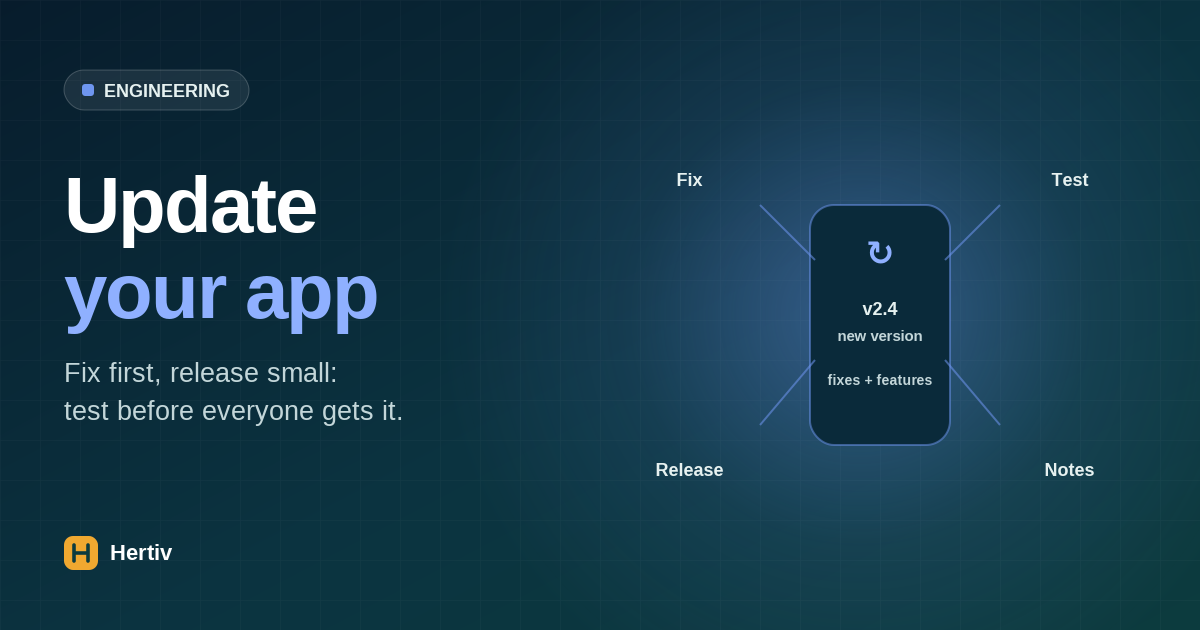
A planned update is cheaper than a rushed one. Start by listing the faults and requests, then rank them by how many users they touch and how much harm they cause. Fix the worst first, test on real phones, and tell users what changed so they know the update is worth downloading.
- List every fault and request from crash reports, support and reviews.
- Rank them by users affected and harm caused, and cut the rest.
- Build the fix and test it on the phone models your users own.
- Release to a small group first and watch crash reports for a day.
- Roll out to everyone and note what changed in the release notes.
Example (hypothetical): a booking app plans its next release
A booking app has 5,000 users and 300 of them report the same crash, which is 6 in every 100 users. Support gets 120 tickets a month about the crash, and each ticket takes about 10 minutes to answer, which is 120 x 10 minutes, or 20 hours a month of support time.
The fix takes 40 hours of development and 8 hours of testing, which is 48 hours of work. After the release, crash tickets fall to 30 a month, which is 30 x 10 minutes, or 5 hours a month. The team saves about 15 hours of support time every month, so the fix pays for itself in a little over three months.
See how to validate an app idea before adding new features instead of fixing faults.
Common mistakes
The most common mistake is shipping a large update to fix one small fault. A big release carries new risk, so small fixes should ship small. Another mistake is skipping testing on older phones, where most crashes happen. A third is writing release notes that say nothing, so users see no reason to update.
A fourth mistake is adding new features to an update that should only fix faults. New features need their own testing and their own release. A fifth is ignoring the store review: if the app breaks a new rule, it can lose its listing while the team is still fixing it. See app development cost when weighing a rebuild against steady updates.
Key takeaways
- Update when users report crashes, a platform changes, or a feature breaks.
- Bug fixes and security patches should ship as soon as they are ready.
- Small updates every few weeks cost less than one big rebuild a year.
- Test on the phone models your users own, and release to a small group first.
- A forced update on a healthy app adds risk without value.
Frequently asked questions
How do I know if my app needs an update?
Check crash reports, support messages and store reviews for the same fault repeated by many users. A platform change or a broken feature is also a clear signal. One loud user is not enough.
How often should an app be updated?
Most apps do well with small updates every few weeks and larger releases a few times a year. Bug fixes and security patches should ship as soon as they are ready.
What happens if I never update my app?
It will slowly break as phone systems and store rules change, security flaws stay open, and services it depends on stop answering old requests. The fix then costs far more.
Should I update or rebuild my app?
Update when the faults are small and the code is healthy. Rebuild only when the code is so old that each fix costs more than the last one. Ask your developers for an honest call.
Do users need to reinstall after an update?
No. Users download the new version from the store, and it replaces the old one without losing their data or settings. They keep their accounts, history and saved work, so the update feels painless.
What should release notes say?
Say what was fixed and what is new, in plain words. Users update faster when they can see the reason in one short sentence. Skip the jargon and name the benefit.