Open Source OpenAI API Alternatives: 6 to Compare
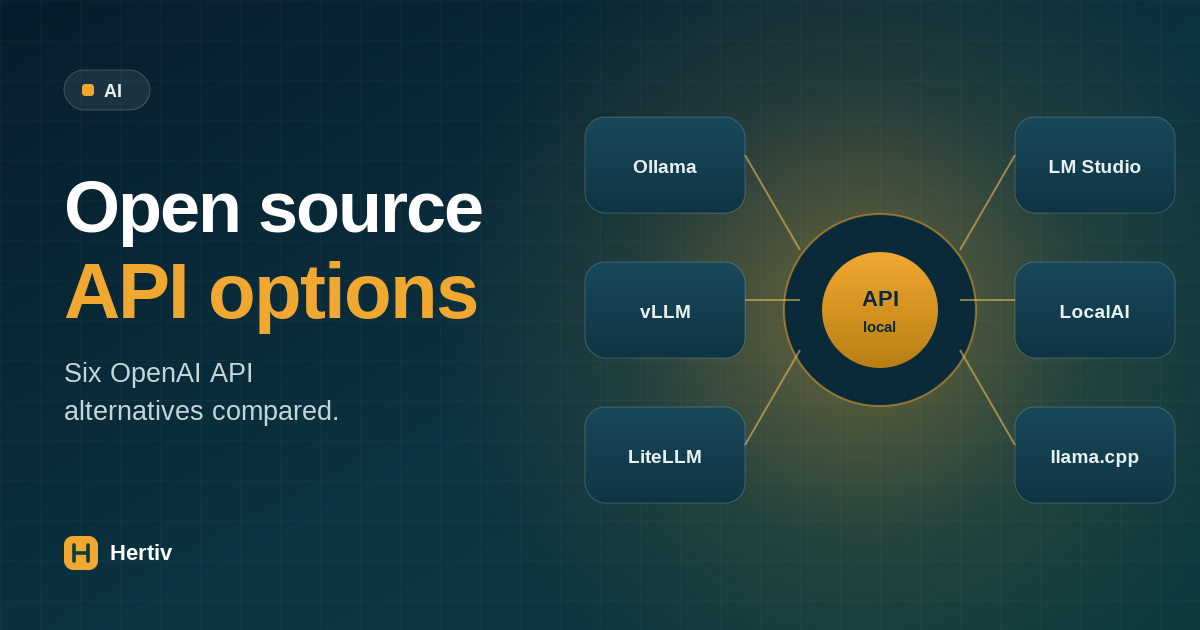
Open source OpenAI API alternatives let you run chat models on your own servers. Compare Ollama, LM Studio, vLLM, LocalAI, LiteLLM and llama.cpp.
On this page
Short answer
The best open source OpenAI API alternatives are Ollama, LM Studio, vLLM, LocalAI, LiteLLM and llama.cpp, because each serves chat models through an interface that matches the OpenAI API. Ollama and LM Studio suit running models on a laptop or small server, while vLLM suits serving many users at once. Pick by where the model runs, how much traffic you expect and whether you need GPU support.
Which open source OpenAI API alternatives are worth comparing?
The open source OpenAI API alternatives worth comparing are the ones that serve a chat model through an interface your existing code can call without rewriting. Ollama, LM Studio, vLLM, LocalAI, LiteLLM and llama.cpp all do this, so you can point your app at a local server instead of a hosted API.
The point of switching is control: your data stays on your servers, the model keeps working when the network is down, and the cost is the hardware you already have instead of a per-token bill. The trade-off is that you run the model yourself, which means choosing the model, the hardware and the serving setup.
| Tool | Runs where | OpenAI API compatible | Best for |
|---|---|---|---|
| Ollama | Laptop or small server | Yes, chat and embeddings | Getting started fast |
| LM Studio | Desktop | Yes, local server mode | Trying models by hand |
| vLLM | GPU server | Yes, chat completions | Serving many users |
| LocalAI | Server or container | Yes, drop-in API | Replacing a hosted API |
| LiteLLM | Server or gateway | Yes, unified interface | Routing between providers |
| llama.cpp | Laptop or CPU server | Yes, with its server mode | Running on modest hardware |
Compatibility is close but not identical, so test your app against the local server before you switch. A call that works against the hosted API may need a small change, such as a different model name or a missing feature. For cost context, LLM API cost per month shows what the hosted route usually involves.
Ollama and LM Studio
1. Ollama: best for getting started fast
Ollama is a command-line tool that downloads and runs open models on your laptop or server with a single command. It serves the model through a local API that matches the OpenAI chat interface, so your existing code can call it with only the base URL changed.
Ollama suits a first local setup, a prototype or a small team that wants to test a model without a cloud bill. It handles one model at a time well and keeps the setup simple, but it is not built for high-volume serving.
Pros: very easy to install; model library built in; runs on a laptop.
Cons: limited serving features; not built for many users at once.
2. LM Studio: best for trying models by hand
LM Studio is a desktop app that lets you download open models, chat with them in a window and serve them through a local API server. It is the most visual of the six, which makes it good for trying models before you commit to one.
LM Studio suits exploring models, testing prompts and running a local server for a single user or a small team. It is a desktop tool first, so it is not the right choice for a server that must stay up around the clock.
Pros: friendly interface; easy model downloads; built-in local server.
Cons: desktop only; not built for production serving.
vLLM and LocalAI
3. vLLM: best for serving many users
vLLM is a serving engine built for running large models on GPU servers with high throughput. It batches requests efficiently, so one server can handle many users at once, and it serves an OpenAI-compatible chat endpoint.
vLLM suits a production service, an internal API or any setup where many people call the same model. It needs a GPU server and more setup than Ollama, but it is the fastest option here for heavy traffic.
Pros: high throughput on GPUs; OpenAI-compatible endpoint; built for production.
Cons: needs a GPU server; more setup than the desktop tools.
4. LocalAI: best for replacing a hosted API
LocalAI is a server that mimics the OpenAI API, including chat, image and audio endpoints, while running open models locally. It runs in a container, so it fits a server setup, and it can also call other local backends under the hood.
LocalAI suits teams that want to drop a local server in place of a hosted API without changing their code. It covers more of the API surface than most alternatives, but it needs a server to run on and some care to configure well.
Pros: wide API coverage; runs in a container; drop-in replacement.
Cons: needs a server; configuration takes care.
LiteLLM and llama.cpp
5. LiteLLM: best for routing between providers
LiteLLM is a gateway that presents one OpenAI-compatible interface and routes calls to many providers and local models. You can send some calls to a local model and others to a hosted one, and switch between them without changing your code.
LiteLLM suits teams that run a mix of local and hosted models, or that want a single place to control costs, keys and logging. It is a routing layer rather than a model runner, so you still need a model running somewhere, local or hosted.
Pros: one interface for many models; easy switching; central logging and cost control.
Cons: needs a model behind it; adds a layer to debug.
6. llama.cpp: best for running on modest hardware
llama.cpp is a lightweight engine that runs large models on CPUs and modest GPUs, with a built-in server mode that speaks the OpenAI chat API. It is the engine behind many of the other tools here, and it works well where a GPU is not available.
llama.cpp suits a laptop, a small server or an edge device where a GPU is not an option. It is fast on CPU for smaller models, but it takes more command-line work than Ollama or LM Studio to set up.
Pros: runs on CPU; very fast for its size; the base for many other tools.
Cons: command-line setup; fewer built-in features.
How to choose
You choose an open source OpenAI API alternative in five steps, starting with where the model will run and ending with a test of your real app against it.
- Decide where the model runs. A laptop suits Ollama, LM Studio or llama.cpp, while a server suits vLLM or LocalAI.
- Count the users. One user or a small team can use a desktop tool, but many users need a serving engine such as vLLM.
- Pick the model first. Choose the model that answers your test questions well, then pick the tool that runs it best.
- Test your app against it. Point your code at the local server and run your real requests, checking for missing features or different behaviour.
- Plan the running costs. Count the hardware, the power and the time to keep it updated, and compare that with the hosted API bill. For the hosted side, self-hosting LLMs cost covers what running your own models usually involves.
Start with Ollama for a first test, and move to vLLM or LocalAI only when the traffic or the uptime needs it. A simple setup that works beats a powerful one that no one maintains.
What are the common mistakes?
The most common mistakes with open source OpenAI API alternatives are assuming full compatibility, picking a model by size alone, and forgetting the running costs.
- Assuming full compatibility. The local API matches the common calls, but some features, such as fine-tuning or specific tools, may be missing. Test your app first.
- Picking a model by size alone. A bigger model is slower and needs more memory, and a smaller model often answers just as well for a narrow task.
- Forgetting the running costs. Hardware, power and maintenance are real costs, even when the software is free.
- No update plan. Models and tools change often, so schedule updates and re-test after each one.
- Skipping the evaluation. A local model that was never tested on your real questions may answer worse than the hosted one it replaces.
- Exposing the server by accident. A local API with no authentication is open to anyone on the network, so lock it down before it goes live.
Key takeaways
- Ollama and LM Studio suit a first local setup; vLLM suits serving many users
- LocalAI mimics the OpenAI API most widely; LiteLLM routes between local and hosted models
- llama.cpp runs on modest hardware where a GPU is not available
- Test your real app against the local server before switching, because compatibility is close but not identical
- Count hardware, power and maintenance, not just the software licence, when comparing costs
Frequently asked questions
Can I use my existing OpenAI code with these alternatives?
Yes, in most cases. These tools serve an interface that matches the OpenAI chat API, so you usually only change the base URL and the model name. Test your real requests first, because some features, such as specific tools or fine-tuning, may not be available locally.
Which open source alternative is easiest to start with?
Ollama is the easiest start: one command downloads a model and serves it locally. LM Studio is the easiest if you prefer a visual app. Both suit a first test, and you can move to vLLM or LocalAI later if you need more users or uptime.
Do I need a GPU to run these alternatives?
No, not for a first test. llama.cpp and Ollama run smaller models on a CPU, and LM Studio runs on a laptop. A GPU matters when you serve many users at once or run a large model, which is where vLLM on a GPU server fits.
Is it cheaper to run models locally than to use the OpenAI API?
It depends on volume. For light use, the hosted API is usually cheaper, because you pay only for what you use. For heavy, steady use, a local server can cost less, but you must count the hardware, power and maintenance time. See vendor site for current hosted prices.
Can these tools run the same models as OpenAI?
No. They run open models, such as Llama, Mistral and Qwen, not OpenAI's own models. The interface matches, but the model behind it is different, so test the answers on your real questions before you switch.
Are open source API alternatives safe for private data?
Your data stays on your servers, which helps, but the server still needs authentication, network limits and logging. A local API with no password is open to anyone on the network, so lock it down, keep it updated and review who can reach it.