Multi-Cloud GPU Infrastructure: How It Works and When to Use It
Multi-cloud GPU infrastructure runs graphics processors across two or more cloud providers, so a team can find capacity, cut costs and avoid one vendor.
On this page
Short answer
Multi-cloud GPU infrastructure is a setup that runs GPU-powered workloads, such as AI training, rendering or data processing, across two or more cloud providers instead of one. The team keeps one way of working while the jobs run wherever capacity, price or features are best at the time.
What is multi-cloud GPU infrastructure?
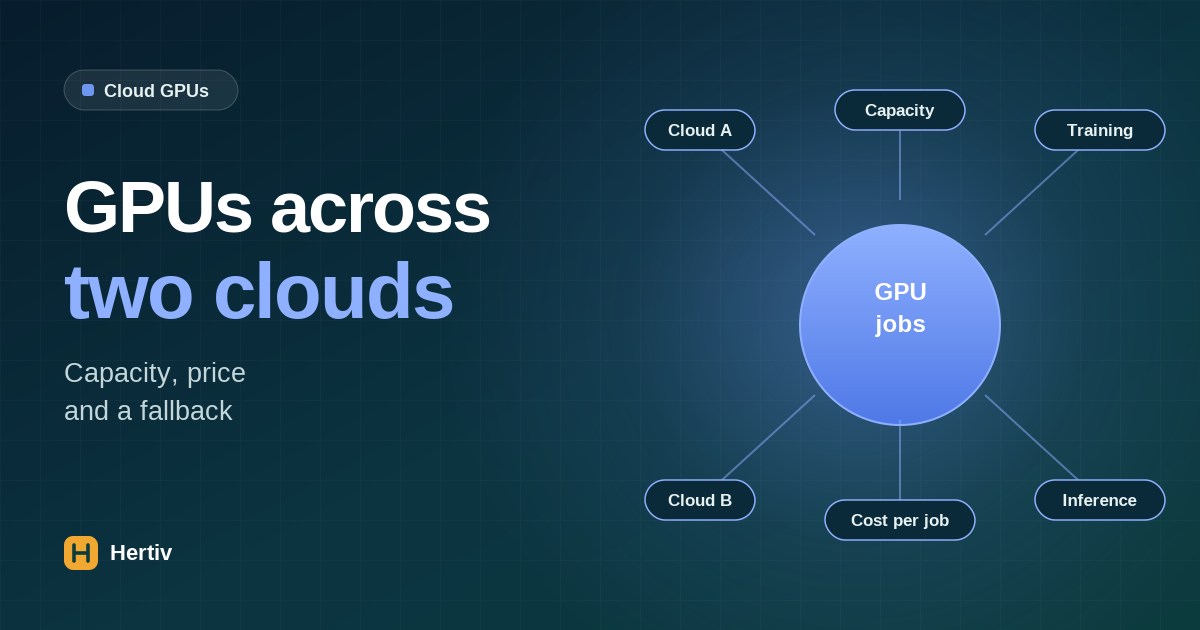
Multi-cloud GPU infrastructure is a setup that runs GPU-powered workloads, such as AI training, rendering or data processing, across two or more cloud providers instead of one. The team keeps one way of working while the jobs run wherever capacity, price or features are best at the time.
GPUs are the hard part. They are expensive, they sell out in popular regions, and each cloud prices them differently. A team that needs a hundred GPUs for a week may find only forty on its usual cloud. A second cloud can supply the rest, if the setup is built to move jobs between them.
Multi-cloud is not the same as using two clouds by accident. It means one set of tools, one way to package jobs, and one way to watch costs, with the clouds treated as interchangeable capacity. Without that shared layer, the team is really running two separate systems, which costs more than it saves. The idea grows out of cloud computing itself: rent the machines you need, from wherever they are available.
Why do teams spread GPU work across clouds?
Capacity is the first reason. GPU supply is uneven. One cloud may have the newest chips in one region and none in another. A team with a deadline cannot wait for supply, so it takes what is available where it is available.
Price is the second. The same GPU type can cost a different amount on each cloud, and prices change with demand. A job that can run anywhere can be sent to the cheaper cloud, or to a cloud offering spare capacity at a discount.
The third reason is independence. A team that builds everything around one cloud's tools finds it hard to leave, and hard to negotiate. A setup that works on two clouds keeps the team free to move, and gives it a fallback when one cloud has an outage or a price change.
| Reason | What it solves | What it costs |
|---|---|---|
| Capacity | GPUs sell out in one region | Jobs must move between clouds |
| Price | Same GPU, different cost | Time spent comparing prices |
| Independence | Freedom to leave one vendor | Standard tools instead of vendor extras |
| Resilience | One cloud outage stops work | Data must exist in two places |
| Features | One cloud has a better tool | Team must learn two platforms |
The main ways to set it up
Most teams pick one of three shapes. The simplest is a shared job queue: jobs wait in a queue, and a scheduler sends each job to whichever cloud has free GPUs. The team submits jobs the same way every time and never picks a cloud by hand.
The second shape is split by workload. Training runs on the cloud with the best price for long jobs, while inference runs on the cloud closest to the users. This is easy to reason about, but it means the team maintains two setups.
The third shape is a common platform layer, usually Kubernetes with a GPU scheduler, running the same way on each cloud. This takes the most work to build, but it makes moving a job as simple as changing a setting. Teams that expect to grow usually end up here, even if they start with the simpler queue.
Whatever the shape, three pieces are shared: the way jobs are packaged, usually as containers; the way data moves, usually through a shared storage bucket or a copy step; and the way costs are tracked, with one dashboard for all clouds. If any of these is missing, the setup will drift apart.
A six-step setup plan
Start small. The goal of the first version is one job running on two clouds, not a perfect platform. Each step below can be done in days, and the whole first version should be working within a few weeks.
- Package one job as a container. The job, its libraries and its model go into one image that runs the same way anywhere.
- Pick two clouds and one region each. Choose regions close to your data so copying files stays fast and cheap.
- Set up a shared job queue. Jobs wait in one queue and a scheduler sends each one to a cloud with free GPUs.
- Move the data once. Copy the training data to shared storage both clouds can reach, and measure how long the copy takes.
- Track cost per job. Record the GPU hours and the price on each cloud so you can see which cloud is cheaper for each job type.
- Test a failure. Turn off one cloud's capacity and check that jobs move to the other without manual work.
Only after these steps work should the team add extras such as automatic price comparison or a shared dashboard. A working simple setup beats a planned perfect one, and the lessons from running it shape what to build next. The same step-by-step habit applies to building AI infrastructure on a single cloud.
Costs and what drives them
GPU time is the largest cost, usually by far. The hourly price of a GPU can differ by a large amount between clouds and between regions, and the cheapest option changes with demand. Teams that compare prices before each large job can save a real share of the bill.
Data movement is the hidden cost. Clouds charge for data leaving their network, and a large dataset copied between clouds can cost more than the GPUs. Keep the data in one place where possible, and move the job to the data, not the data to the job.
Idle GPUs are the third cost. A reserved GPU that sits empty still bills. Use the queue to keep GPUs busy, shut down jobs that finish early, and check weekly for machines that ran with nothing to do. A short weekly cost review, with the bill split by team and by job, catches most waste before it grows.
Example (hypothetical): training a model across two clouds
Imagine a team that needs to train a model for 200 GPU hours. Its usual cloud has only 100 hours of the GPU type it needs free this week, at 2 dollars per GPU hour. A second cloud has the same GPUs at 1.60 dollars per hour.
The team splits the job: 100 hours on the first cloud cost 200 dollars, and 100 hours on the second cost 160 dollars. The total is 360 dollars. Running all 200 hours on the first cloud would have cost 400 dollars and taken twice as long, because only 100 hours were free this week.
Copying the training data to the second cloud costs 15 dollars in transfer fees, and the team spends about 4 hours of an engineer's time setting up the second cloud. The saving is 40 dollars on GPUs, minus 15 dollars of transfer, so the team saves 25 dollars and finishes a week earlier.
The real gain is the week, not the 25 dollars: the saving grows when the same setup is used for the next ten jobs.
Common mistakes
Building for two clouds before one cloud works is the most common mistake. If a job does not run reliably on a single cloud, adding a second cloud doubles the debugging. Get one cloud working first, then add the second.
Ignoring data transfer costs is another. A team that moves a large dataset between clouds for every job can spend more on transfers than on GPUs. Keep the data close to the GPUs, and move jobs instead of data whenever you can.
Finally, do not use a feature that exists on only one cloud for a job you plan to move. Vendor-specific tools tie a job to one provider, which defeats the purpose of the whole setup. Use standard tools for anything that must run on both clouds, and keep vendor extras for jobs that will never move. That discipline is part of preparing data for AI work that may run in more than one place.
Key takeaways
- GPUs sell out, so two clouds give a team more capacity than one.
- Price and availability change, so jobs should move to where they fit.
- Package jobs as containers so they run the same way anywhere.
- Data transfer can cost more than the GPUs; move jobs to the data.
- Start with one job on two clouds, then grow the setup.
Frequently asked questions
When does multi-cloud GPU work make sense?
It makes sense when a team needs more GPUs than one cloud can supply, when prices differ enough to matter, or when an outage on one cloud would stop important work. A small team with one steady job usually gains little from it.
Is multi-cloud the same as hybrid cloud?
No. Hybrid cloud mixes a private data centre with a public cloud. Multi-cloud uses two or more public clouds. A team can do both, but the problems are different: hybrid cloud is about connecting your own machines, multi-cloud is about moving work between providers.
Which GPU should we choose?
Pick the GPU type your job actually needs, not the newest one. Training large models needs fast, high-memory GPUs. Smaller jobs and inference often run fine on cheaper ones. Test with a short run first, and measure the cost per completed job, not per hour.
How do we keep costs under control?
Track the cost of every job, split by cloud and by team, and review it weekly. Shut down idle GPUs, move jobs to cheaper capacity when it appears, and keep data close to the GPUs. A weekly review catches waste before it grows into a large bill.
What is the hardest part of running two clouds?
Keeping the two setups the same. Each cloud has its own names, limits and quirks, and a job that works on one may fail on the other for a small reason. A shared container image and a shared job queue remove most of this pain.
Can a small team run multi-cloud GPUs?
Yes, if it starts small. One containerised job, one queue and two clouds are enough to begin. The work grows only when the team adds more jobs. A team that cannot spare a few days to set this up should stay on one cloud until the need is clear.