Microsoft Copilot vs Google Gemini: Which Fits Your Work?
Copilot lives in Microsoft 365 and Gemini lives in Google Workspace. Here is how they compare, and which one fits your team.
On this page
Short answer
Microsoft Copilot is the AI assistant inside Microsoft 365 apps such as Word, Excel, Outlook and Teams, while Google Gemini is the assistant inside Google Workspace apps such as Docs, Sheets, Gmail and Meet. Both draft, summarise and analyse, so the choice usually follows the office suite your team already uses.
What is the difference between Microsoft Copilot and Google Gemini?
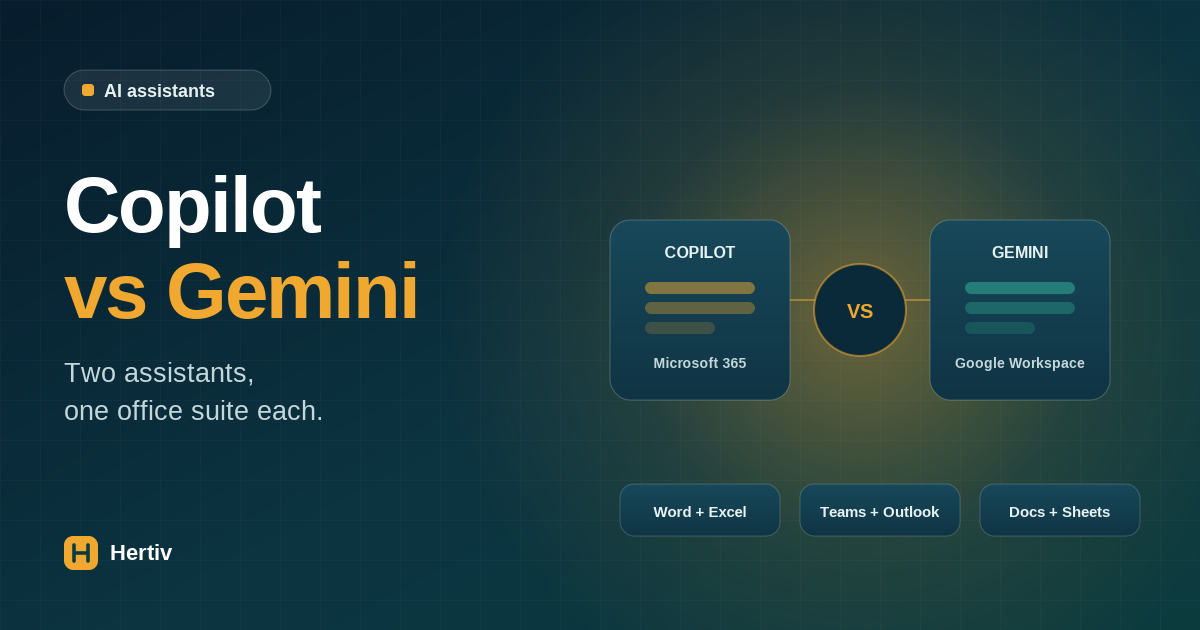
Microsoft Copilot and Google Gemini are both AI assistants built on large language models, but they live in different ecosystems. Copilot is built into Microsoft 365 apps such as Word, Excel, Outlook and Teams, while Gemini is built into Google Workspace apps such as Docs, Sheets, Gmail and Meet.
Both can draft text, summarise documents, answer questions and help with spreadsheets. The practical difference is where your work already lives: Copilot works on files in OneDrive and SharePoint and reads your Outlook mail, while Gemini works on files in Google Drive and reads your Gmail.
How do Copilot and Gemini compare?
The two assistants differ in ecosystem, model access, document handling and admin controls. Use this table to see the trade-offs side by side.
| Aspect | Microsoft Copilot | Google Gemini |
|---|---|---|
| Home apps | Word, Excel, Outlook, Teams | Docs, Sheets, Gmail, Meet |
| File storage | OneDrive and SharePoint | Google Drive |
| Drafting | Drafts in Word and Outlook | Drafts in Docs and Gmail |
| Spreadsheets | Formulas and analysis in Excel | Formulas and analysis in Sheets |
| Meetings | Recaps and action items in Teams | Notes and summaries in Meet |
| Admin controls | Microsoft 365 admin centre | Google Workspace admin console |
The feature lists look similar because both vendors are building the same idea: an assistant inside the office suite. The choice usually follows the suite your team already pays for, not a single feature. Switching suites to chase one assistant feature is rarely worth the migration.
When does Microsoft Copilot fit better?
Microsoft Copilot fits better when your team already works in Microsoft 365. Documents, mail and meetings sit in OneDrive, SharePoint, Outlook and Teams, and Copilot can read across them without moving files or changing habits.
It also fits regulated work where Microsoft's admin controls, retention policies and compliance tooling are already in place. If your IT team already manages identities and data in Microsoft Entra, Copilot inherits that setup instead of adding a second one.
- Your files are in OneDrive or SharePoint. Copilot grounds its answers in documents it can already reach.
- Your team lives in Teams and Outlook. Meeting recaps and mail drafting land where the work happens.
- You need Excel help. Copilot explains formulas and builds analyses from tables your team already keeps.
- Admins already manage Microsoft 365. Permissions and retention follow the rules you already set.
Copilot is not a reason to move to Microsoft 365 on its own. If your team runs on Google Workspace, the migration cost will swamp any assistant benefit. For a broader look at AI helpers at work, see how AI agents are used at work.
When does Google Gemini fit better?
Google Gemini fits better when your team already works in Google Workspace. Docs, Sheets, Gmail and Drive are where the work happens, and Gemini drafts, summarises and searches inside them without extra setup.
It also fits teams that share and comment on documents heavily, since Gemini can read a long thread of comments and produce a summary or a next draft. Small teams that live in Gmail and Meet often find Gemini needs less training than a new suite would.
- Your files are in Google Drive. Gemini grounds its answers in documents it can already reach.
- Your team lives in Gmail and Meet. Drafts and meeting notes land where the work happens.
- You collaborate in Docs and Sheets. Gemini works on the same live document your team is editing.
- You want a low-friction start. Gemini is available inside the apps your team already opens daily.
Gemini is not a reason to move to Google Workspace on its own either. The suite decision should come first; the assistant follows it. If you are comparing models rather than suites, read how Google Gemini compares with ChatGPT.
How do you choose between Copilot and Gemini?
You choose between Copilot and Gemini by checking which suite holds your work, then testing the assistant on real tasks. A short trial on your own documents beats a long comparison of feature lists.
- List where your work lives. Note the suite, the file store and the mail system your team actually uses.
- Try the assistant in that suite. Draft a document, summarise a long mail thread and analyse a spreadsheet.
- Check grounding quality. Ask questions only your own documents can answer, and check the answers against the source.
- Check admin and privacy controls. Confirm who can see what, how long data is kept, and what admins can audit.
- Compare the real price. Add the assistant licence to what you already pay, and see the vendor site for current pricing.
Keep the test tasks identical in both suites if you run a comparison, and score the outputs against the source documents. A trial that uses your own files will tell you more than any demo. A plan for testing AI tools is covered in how to build an AI proof of concept.
Example: a finance team picking an assistant
Example (hypothetical): a finance team of 12 people keeps budgets in Excel, contracts in SharePoint and mail in Outlook. They spend about 6 hours a week each writing status updates and summarising long mail threads, which is 72 hours a week across the team.
They trial Copilot for a month. Drafting and summarising cut that work to about 3 hours a week each, saving roughly 36 hours a week. The team checks the drafts against the source files and finds about 1 in 10 needs a correction, so they keep a human review step for anything sent outside the team.
The same trial in Gemini would have meant moving files and mail to Google Workspace first, which the team estimates at several weeks of migration work. They stay with Copilot because it works where their files already are, not because it scored better on a feature list.
What are the common mistakes?
The most common mistakes are choosing the assistant before the suite, trusting drafts without checking them, and assuming the assistant can see every file.
- Picking the assistant first. The suite holds your work; the assistant follows it, not the other way round.
- Sending drafts unchecked. Assistants invent details, so a human should check anything that leaves the team.
- Assuming full access. An assistant only sees files its permissions allow, and shared-drive settings matter.
- Judging on one task. Drafting, summarising and spreadsheet work stress different strengths.
- Ignoring the licence cost. Assistant licences add to the suite price, so check the vendor site before budgeting.
Both assistants improve when they can read your own documents, and both need a human check on anything important. Start with one real workflow, measure the time it saves, and expand from there.
Key takeaways
- Copilot lives in Microsoft 365; Gemini lives in Google Workspace
- Both draft, summarise and analyse, with similar feature lists
- The suite holding your files matters more than any single assistant feature
- Trial the assistant on real documents and check its answers against the source
- Always have a human check drafts before they leave the team
Frequently asked questions
Can I use Copilot without Microsoft 365?
Copilot is built into Microsoft 365, so its document and mail features need that suite. Microsoft also offers a standalone Copilot experience, but the deep integration with Word, Excel, Outlook and Teams only works inside Microsoft 365.
Can I use Gemini without Google Workspace?
Gemini is built into Google Workspace, so its Docs, Sheets, Gmail and Meet features need that suite. Google also offers Gemini as a standalone chat, but the integration with your documents and mail only works inside Google Workspace.
Which is better for spreadsheets, Copilot or Gemini?
Both help with formulas and analysis, and the better pick is the one that opens the spreadsheet you already use. Copilot works in Excel and Gemini works in Sheets, so the file format your team keeps decides the answer.
Do Copilot and Gemini see all my files?
No. Each assistant only sees files its permissions allow, and it respects the sharing and access rules of the suite. Check the admin controls in your suite to confirm who can see what, and review retention settings before rolling it out.
Which one is cheaper?
Both are paid add-ons on top of the office suite, and prices change, so check the vendor site for current pricing. Compare the total cost of the suite plus the assistant licence, not the assistant price alone.
Can I switch from Copilot to Gemini later?
You can, but the switch means moving files, mail and habits to the other suite, which is the expensive part. The assistant itself is the easy bit. Decide on the suite first, then live with the assistant that comes with it.