React 18 Features Explained: What Changed and Why
React 18 added concurrent rendering, automatic batching, transitions, Suspense and a new root API. Learn what each feature does and when to use it.
On this page
Short answer
React 18 is the version of React released in 2022 that introduced concurrent rendering, automatic batching, transitions and a new root API. Its headline idea is concurrency: React can pause, resume and prioritise rendering work, so urgent updates such as typing stay responsive while heavier work such as filtering a long list happens in the background.
What is React 18?
React 18 is the version of React released in 2022 that introduced concurrent rendering, automatic batching, transitions and a new root API. It changed how React schedules work behind the scenes while keeping most existing code working as before.
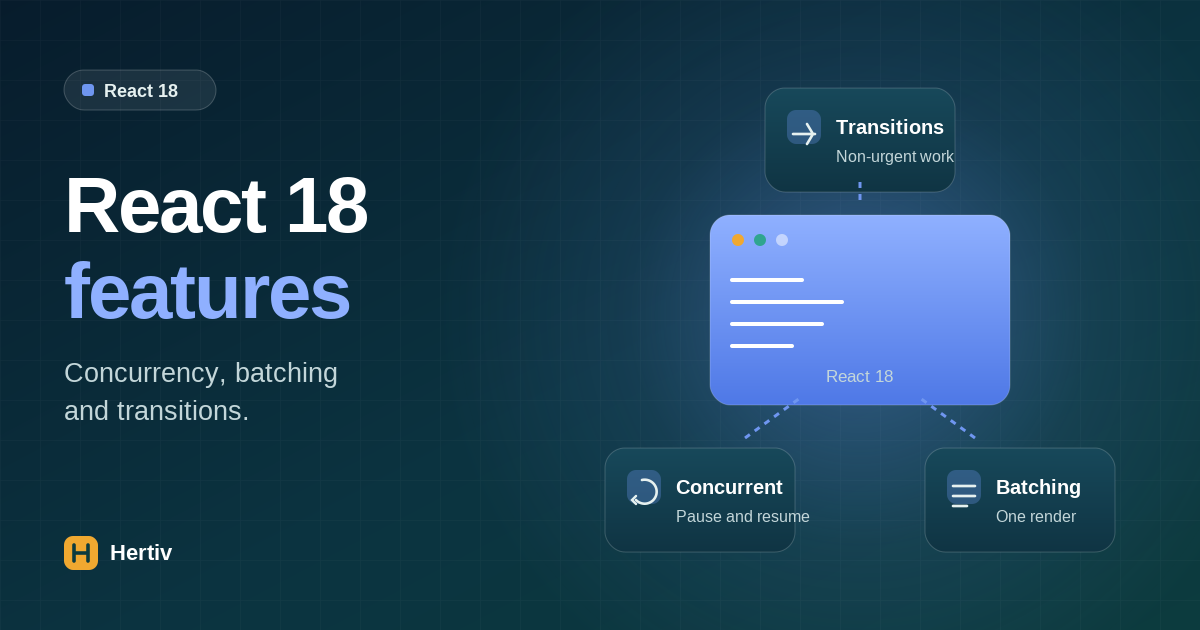
The headline idea is concurrency: React 18 can pause, resume and prioritise rendering work instead of doing it all in one blocking pass. That lets urgent updates, such as typing in a search box, stay responsive while heavier work, such as filtering a long list, happens in the background.
| Feature | What it does | When it helps |
|---|---|---|
| Concurrent rendering | Pauses and resumes rendering work | Heavy lists and slow devices |
| Automatic batching | Groups state updates into one render | Events, timers and promises |
| Transitions | Marks updates as non-urgent | Search, tabs and filters |
| Suspense | Shows a fallback while data loads | Code splitting and data fetching |
| New root API | Replaces ReactDOM.render | Every new React 18 app |
| StrictMode checks | Double-invokes effects in development | Catching side-effect bugs early |
Most React 18 features work without rewriting your app. Upgrading usually means changing the root API call, then adopting transitions and Suspense where they help most.
How does concurrent rendering work?
Concurrent rendering lets React prepare a new screen in the background and interrupt that work if something more urgent arrives. In older React, rendering was synchronous: once it started, it blocked the browser until it finished, which made typing feel slow on heavy pages.
React 18 breaks rendering into small units of work. If a user types while a list is rendering, React can pause the list, handle the keystroke, and then resume the list. The user sees the typed character at once, and the list appears a moment later.
Nothing about concurrency changes what your components render, only when React does the work. Your code stays the same; React decides the order. That is why most apps upgrade without changing component logic, and why the gains show up most on slow devices and heavy pages.
One warning: concurrent rendering can call your component functions more than once, so components must not rely on side effects during render. Keep rendering pure and move side effects into event handlers and effects. What is React covers the basics if you are new to the library.
What is automatic batching?
Automatic batching groups multiple state updates into a single re-render, so React does less work and your app feels faster. In React 17, batching only happened inside event handlers; in React 18 it happens everywhere, including timeouts, promises and native event handlers.
Consider a fetch handler that sets loading to false, stores the data and clears an error. In React 17 outside an event handler, each of those three updates could trigger its own render. In React 18 they are batched into one render, which cuts wasted work.
The change is automatic and usually invisible. If you relied on reading the updated DOM between two state updates, that code may need adjusting, but most apps simply get faster without any changes. You can still force separate renders with flushSync if a rare case needs it, though most teams never do.
Batching is one of the quiet wins of React 18. It does not add a new API to learn, yet it removes a whole class of wasted renders that used to need manual workarounds.
What are transitions in React 18?
Transitions mark a state update as non-urgent so React can keep urgent updates, such as typing, responsive while the transition runs in the background. You wrap the slow update in startTransition, and React treats it as interruptible work.
A search box is the classic example. Typing is urgent: the character must appear at once. Filtering a long list of results is not urgent: it can wait a moment. Wrapping the filter in a transition keeps the input smooth while the list catches up.
React also gives you useTransition, which returns a pending flag you can use to show a subtle loading state, such as dimming the old results while the new ones load. The old content stays visible instead of flashing a spinner, which feels better to users.
Use transitions for updates that change a lot of the screen at once: switching tabs, filtering lists, and sorting tables. Do not use them for updates the user is waiting on directly, such as submitting a form, since those should feel instant. Mobile app development checklist is a useful reminder that responsiveness matters most on small, slow devices.
What changed with Suspense and the root API?
Suspense lets a component say it is not ready yet and show a fallback, such as a loading message, until its data or code arrives. React 18 made Suspense a first-class part of data fetching and server rendering, and it pairs with code splitting so large apps load faster.
The root API also changed. ReactDOM.render is replaced by createRoot, which enables all React 18 features for your app. The old call still works in a compatibility mode, but the new features stay off until you switch, so upgrading the root call is the first step of any migration.
StrictMode got stricter too. In development, React 18 mounts, unmounts and remounts components to surface effects that are not safe to run twice. That can look like a bug at first, but it catches real problems, such as subscriptions that are never cleaned up, before they reach users.
Server components, introduced later in the React 18 era, let components run on the server and send only their result to the browser. They are a separate feature from the React 18 core, but they build on the same Suspense and streaming ideas, so learning Suspense first pays off.
Example (hypothetical): speeding up a slow product search
Example (hypothetical): a shop app lists 2,000 products and its search box feels slow. Each keystroke filters the list, and filtering takes 300 milliseconds, so typing lags behind the user's fingers.
The team wraps the filter update in a transition. Typing now updates the input at once, and the list updates a moment later. The filter still takes 300 milliseconds, but the user no longer feels it, because the urgent work is done first.
The team then splits the product list code with lazy loading and Suspense, so the first page loads in 1.2 seconds instead of 2.4 seconds. Together the two changes cut the perceived delay from 300 milliseconds per keystroke to near zero, and the first load is twice as fast. No component logic changed; only how React schedules the work.
What are the common mistakes?
The most common mistakes are upgrading without switching to createRoot, wrapping urgent updates in transitions, and writing effects that break under StrictMode's double mount.
- Skipping createRoot. If you keep the old root call, React 18 features stay off and the upgrade changes nothing.
- Transitions on urgent work. Wrapping a form submit in a transition makes it feel slow, which is the opposite of what transitions are for.
- Effects that assume one mount. StrictMode mounts twice in development, so subscriptions and timers must clean up properly.
- Side effects during render. Concurrent rendering can call components more than once, so rendering must stay pure.
- Overusing Suspense fallbacks. A spinner for every small load feels worse than keeping the old content visible with a pending state.
React 18's biggest wins are invisible: fewer wasted renders, smoother typing and faster first loads, all from changes in how React schedules work. How to validate an app idea is a useful next step if you are planning a product on React 18.
Key takeaways
- Concurrent rendering lets React pause and resume work so typing stays responsive
- Automatic batching groups state updates into one render, everywhere in React 18
- Transitions mark slow updates as non-urgent so the interface stays smooth
- Suspense shows a fallback while data or code loads, and pairs with code splitting
- Upgrade with createRoot first, then add transitions where they help most
Frequently asked questions
What is the biggest change in React 18?
The biggest change is concurrent rendering. React 18 can pause, resume and prioritise rendering work instead of doing it all in one blocking pass. That keeps urgent updates such as typing responsive while heavier work, such as filtering a long list, happens in the background.
Do I need to rewrite my app for React 18?
No, in most cases. The main change is switching from ReactDOM.render to the new createRoot API, which enables the React 18 features. Most existing components work as before, and you can adopt transitions and Suspense gradually where they help most.
What is automatic batching in React 18?
Automatic batching groups multiple state updates into a single re-render. In React 17, batching only happened inside event handlers; in React 18 it happens everywhere, including timeouts, promises and native event handlers. It removes wasted renders without any code changes.
When should I use transitions?
Use transitions for updates that change a lot of the screen at once, such as filtering a list, switching tabs or sorting a table. Wrap the slow update in startTransition so React treats it as non-urgent. Do not use transitions for urgent work such as submitting a form.
What is Suspense in React 18?
Suspense lets a component say it is not ready yet and show a fallback, such as a loading message, until its data or code arrives. It pairs with code splitting so large apps load faster, and it is the basis for server components, which run on the server and send only their result to the browser.
Is React 18 faster than React 17?
It can be, but the gains depend on your app. Automatic batching removes wasted renders, transitions keep typing smooth during heavy updates, and Suspense with code splitting cuts first-load time. Measure your slowest interactions before and after the upgrade to see the real difference.