iPhone Automation Ideas: 10 Worth Trying First
iPhone automations run small tasks for you when a trigger fires, such as arriving home or plugging in to charge. Here are ten that save time without extra apps.
On this page
Short answer
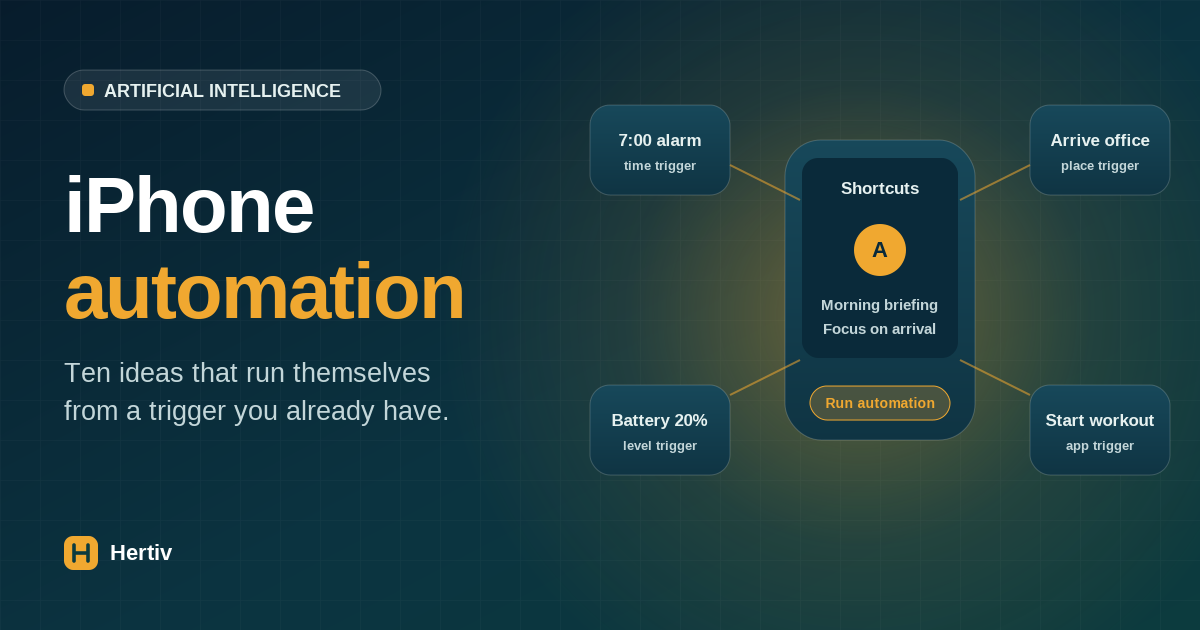
iPhone automation ideas are small rules that make your phone do a task on its own when a trigger fires, such as a time of day, a place, or a battery level. You build them in the Shortcuts app, which is free and already on the iPhone, and most take a few minutes to set up. The best ones remove a repeated tap or a forgotten step from your day.
What can you automate on an iPhone?
You can automate many small iPhone tasks with the Shortcuts app, which runs a set of actions when a trigger fires. A trigger can be a time, a place, a battery level, a mode change, or connecting to a charger or headphones.
| Idea | What it does | Best for |
|---|---|---|
| Morning briefing | Reads weather, calendar and reminders | Starting the day |
| Focus on arrival | Turns on Work focus at the office | Fewer distractions |
| Low-power saver | Switches on Low Power Mode at 20% | Long days out |
| Driving reply | Texts a reply while driving | Safer driving |
| Photo backup check | Reminds you to back up photos weekly | Never losing photos |
| Commute ETA | Texts your arrival time home | Family updates |
| Meeting prep note | Opens the note for your next meeting | Back-to-back meetings |
| Bedtime wind-down | Dims the screen and silences alerts | Better sleep |
| Receipt capture | Opens the camera when you open expenses | Expense tracking |
| Workout playlist | Starts music when a workout begins | Gym sessions |
Start with one or two ideas that fix a real annoyance. An automation you never notice is a good one; an automation that fires at the wrong time will be switched off within a week. For the trust side of the phone, how to trust an app on iPhone explains the permissions behind these steps.
Start the day and stay focused
1. Morning briefing: best for starting the day
A morning briefing automation runs when your alarm stops and reads out the weather, your first meetings and any reminders. You hear the day in a few seconds instead of opening three apps and piecing it together yourself.
Set it to run only on weekdays if your weekends look different. Keep the briefing short: weather, first event and one reminder list is enough, because a long briefing becomes noise you stop listening to.
- Pros: one tap gives the whole day; easy to set up with built-in actions.
- Cons: spoken briefings can annoy others nearby; needs location access for weather.
2. Focus on arrival: best for fewer distractions
A focus automation turns on Work focus when you arrive at the office and turns it off when you leave. Calls and messages from outside your work list stay silent, so the first hour of the day is not lost to notifications.
Check the allowed contacts before you rely on it. A focus mode that blocks a school or family call is worse than no focus mode at all, so add the people who must always reach you.
- Pros: no daily setup; protects deep work without thinking about it.
- Cons: location triggers can fire late; a missed call from an allowed contact still needs a check.
Save battery and drive safely
3. Low-power saver: best for long days out
A low-power automation switches on Low Power Mode when the battery drops to 20%, and can also turn off Bluetooth or lower brightness at the same time. It stretches the last part of the day without you watching the battery icon.
Do not set the trigger too high. Turning on Low Power Mode at 50% slows the phone for half the day and saves little, because the phone would have lasted anyway.
- Pros: saves battery when it matters most; fully automatic once set.
- Cons: slower background refresh; mail and photos may update less often.
4. Driving reply: best for safer driving
A driving automation sends a short reply to people who message you while you drive, telling them you will answer when you stop. It runs when CarPlay connects or when driving is detected, and it stops when the drive ends.
Keep the reply short and honest, such as "I am driving and will reply soon." A long message or one that promises a time you cannot keep creates a new problem instead of solving one.
- Pros: no need to touch the phone; friends know you are not ignoring them.
- Cons: may reply to group chats you would rather ignore; driving detection is not perfect.
Never lose photos and keep family updated
5. Photo backup check: best for never losing photos
A photo backup automation reminds you every Sunday to check that your photos are backed up, or opens the backup app directly. It is a small nudge that prevents the worst kind of loss: photos that only existed on one phone.
Pair the reminder with a real backup, not just a second copy on the same phone. A cloud backup or a copy on another device is what saves photos when a phone is lost or broken.
- Pros: weekly habit with no effort; catches a failed backup early.
- Cons: a reminder is easy to dismiss; needs a backup service set up first.
6. Commute ETA: best for family updates
A commute automation texts your arrival time to a family member when you leave work, using your current location and travel time. It replaces the "are you on your way" message with a fact, and it only sends when you choose to trigger it.
Send it to one person, not a group, and check the message before it goes out the first few times. Travel times change with traffic, so a message that says 20 minutes when the trip takes 50 will cause more worry than silence.
- Pros: one tap updates family; no need to type while leaving.
- Cons: shares your location; travel estimates can be wrong in heavy traffic.
Meetings and bedtime routines
7. Meeting prep note: best for back-to-back meetings
A meeting prep automation opens the note for your next meeting five minutes before it starts. Instead of searching for the note while the call is ringing, you have the agenda and your points in front of you.
This works best when your notes follow a simple pattern, such as one note per meeting with the same title format. If notes live in different places, the automation will open the wrong one and waste the time it was meant to save.
- Pros: faster meeting starts; fewer missed agenda items.
- Cons: needs tidy notes to work well; only helps if the note exists.
8. Bedtime wind-down: best for better sleep
A bedtime automation dims the screen, turns on Do Not Disturb and opens a reading or sleep app at your chosen time. It makes the wind-down a routine instead of a decision you have to make when you are already tired.
Set the time a little earlier than you think you need. An automation that starts at midnight when you wanted to sleep at 11 does not help, and you will switch it off after a few nights.
- Pros: quieter evenings; fewer late-night notifications.
- Cons: can silence an urgent call if the allowed list is empty; strict timing feels rigid.
Expenses and workouts
9. Receipt capture: best for expense tracking
A receipt automation opens the camera when you open your expenses app, so you can photograph a receipt the moment you pay. It removes the step most people forget: the photo itself, which is why expenses pile up at month end.
Keep the flow short. One tap to open the camera and one to save is enough; a form with five fields will be skipped at the till, and the receipt will be lost anyway.
- Pros: expenses recorded on the spot; fewer lost receipts.
- Cons: only helps if the expenses app is used; photos still need sorting later.
10. Workout playlist: best for gym sessions
A workout automation starts your playlist when a workout begins, so the music is already playing when you start moving. It runs when the Workout app starts, and it can also turn on Do Not Disturb for the session.
Pick one playlist for workouts and keep it updated. An automation that starts the wrong playlist every time is a small annoyance you will notice at the worst moment: the start of a run.
- Pros: music without fumbling; focus mode blocks calls during the workout.
- Cons: needs a workout started in the app; a stale playlist gets boring fast.
How to choose which automations to build
You choose iPhone automations by starting with the repeated task that annoys you most, then building one automation and living with it for a week before adding more.
- List your repeated tasks. Write down the phone tasks you do every day, such as silencing alerts or checking the calendar.
- Pick the one that wastes the most time. A task you do five times a day beats a task you do once a month.
- Build it with built-in actions first. The Shortcuts app has most actions already; third-party apps add complexity.
- Test it for a week. If it fires at the wrong time or annoys you, change the trigger before adding another automation.
- Add one at a time. Ten automations built in a day will clash; ten built over a month will fit together.
If you want more ideas, AI agents use cases shows how the same idea of a trigger and an action scales up to work tasks.
And for the apps themselves, mobile app development covers how the apps behind these automations are built.
What are the common mistakes?
The most common iPhone automation mistakes are building too many at once, using triggers that fire at the wrong time, and giving an automation access it does not need.
- Too many at once. Ten new automations in one day will clash and confuse you; build one, test it, then add the next.
- Wrong trigger. A location trigger with a wide radius fires when you drive past, not when you arrive.
- Too much access. An automation that sends messages or shares location should be limited to the people and places it needs.
- No off switch. Every automation should be easy to pause; a bad one you cannot stop will be deleted, not fixed.
- Long chains. An automation with twenty steps will break on step three and leave the rest undone.
Key takeaways
- iPhone automations run tasks on their own when a trigger fires
- Start with one repeated annoyance, not ten ideas at once
- Built-in Shortcuts actions cover most everyday tasks
- Test each automation for a week before adding the next
- Keep chains short and give every automation an easy off switch
Frequently asked questions
Do I need extra apps for iPhone automation?
No. The Shortcuts app is free and already on the iPhone, and it covers most everyday automations such as focus modes, messages, reminders and music. Third-party apps add options, but start with the built-in actions first.
Are iPhone automations safe?
Yes, if you keep them simple and check what each action does. Review the actions before you save, limit message and location sharing to the people who need it, and turn off any automation you no longer trust.
Why does my automation fire at the wrong time?
The trigger is usually too broad, such as a location radius that covers a road you drive past, or a time that overlaps with another routine. Narrow the trigger, add a condition, and test it for a few days.
Can automations run without asking me first?
Some can, and some ask for confirmation first, depending on the trigger. Location, time and battery triggers usually run on their own, while others ask. Check the automation settings if one keeps asking.
Do automations drain the battery?
A few simple automations have almost no effect on battery life. The cost comes from what they trigger, such as keeping the screen bright or location on, so keep the actions short and the triggers sensible.
Can I share an automation with someone else?
Yes. Shortcuts can be shared as a link, and the other person can add it to their own phone. They will need to check the actions first, because triggers and contacts will be different on their device.


