How to Integrate Siri into an iOS App
Siri integration lets users run parts of your iOS app by voice, through App Intents or SiriKit. This guide covers the options and the build steps.
On this page
Short answer
Integrating Siri into an iOS app means letting users run parts of the app with a voice command instead of opening it and tapping through screens. A user says a phrase such as start my run, and Siri opens the app or runs the action directly, then confirms the result out loud.
What does integrating Siri into an iOS app mean?
Integrating Siri into an iOS app means letting users run parts of the app with a voice command, instead of opening the app and tapping through screens. A user says a phrase such as 'start my run' or 'pay the electricity bill', and Siri opens the app or runs the action directly, then confirms the result out loud.
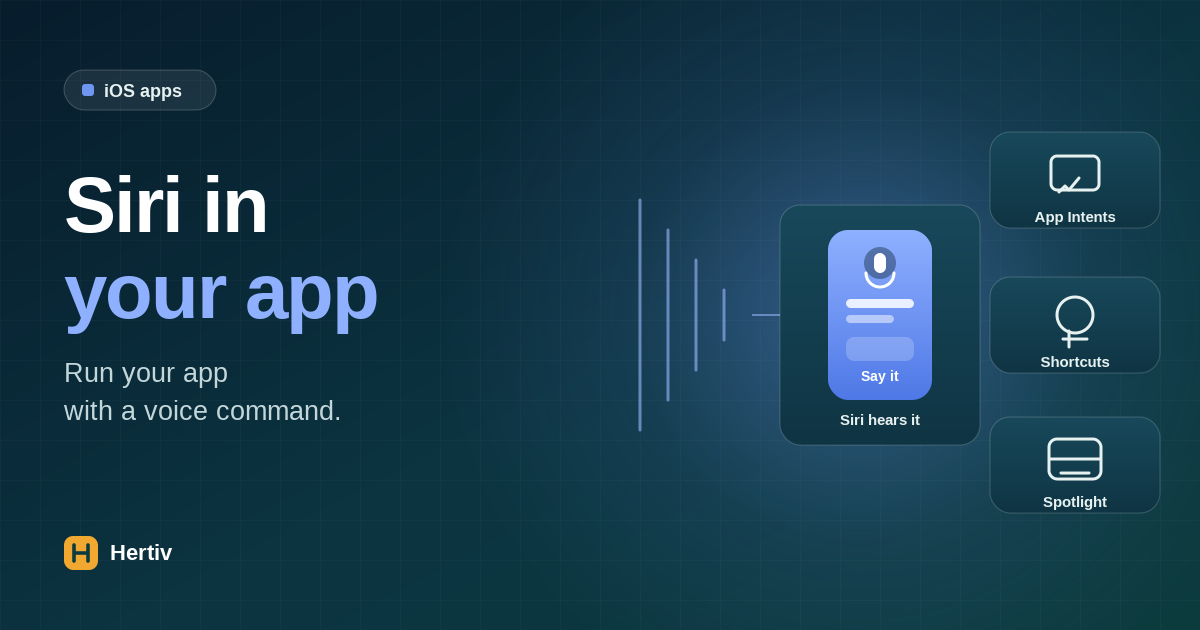
Apple provides two main routes. SiriKit, introduced with iOS 10, handles a fixed set of domains such as messaging, payments, workouts and ride booking. The App Intents framework, introduced with iOS 16, lets almost any app expose its own actions to Siri, Shortcuts and Spotlight, with far more freedom over what the action does.
The two routes can be combined. An app can use SiriKit for the domains Apple defines and App Intents for everything else, so users get voice access to the features they use most. The choice depends on what the app does and how much control the team wants over the voice experience.
Which Siri approach fits your app?
The right approach depends on the actions your app offers and how much you want Siri to understand. The table below compares the four options most teams consider.
| Approach | What it does | Best for |
|---|---|---|
| App Intents | Exposes custom actions to Siri, Shortcuts and Spotlight | Any action unique to your app |
| SiriKit intents | Handles Apple's defined domains such as messages and payments | Standard actions in those domains |
| App Shortcuts | Pre-built phrases that work without setup | The app's most common actions |
| Shortcuts app | User-built flows combining several apps | Power users who automate tasks |
Most new integrations start with App Intents and App Shortcuts. App Intents cover the custom actions, and App Shortcuts make them work out of the box, so users do not need to open the Shortcuts app and build anything themselves. SiriKit still makes sense for messaging, payments and workouts, where Apple defines the behaviour.
The iPhone platform has changed a lot since Siri arrived; see how iOS evolved for the history.
How to add Siri with App Intents
Adding Siri with App Intents is a small, well-defined job. The team defines each action as an intent, wires it to the code that already performs the action, and tests it by voice before release. The steps below cover the full path.
- Pick one action. Choose the single most-used action in the app, such as starting a timer or logging a workout, and build voice support for that first.
- Define the intent. Create an AppIntent struct that names the action, its parameters and a short phrase users will say.
- Connect it to existing code. Call the same function the app's buttons already use, so voice and touch stay in sync.
- Add an App Shortcut. Register the intent as an App Shortcut so it works with no setup.
- Handle parameters by voice. Let Siri ask for missing details, such as an amount or a name, instead of failing.
- Test on a real device. Speak the phrases on an iPhone with the app installed, in a noisy room as well as a quiet one.
- Ship one action, then add more. Release the first intent, watch how users phrase it, and add the next action from what you learn.
The first intent is the hardest because the team learns the framework. Later intents reuse the same pattern, so each new action takes less time than the one before.
How to design voice commands people actually say
Good voice commands sound like something a person would say, not like a menu label. 'Log my morning run' works better than 'open the workout logging screen', because people speak in verbs and objects, not in the names of screens.
Keep phrases short and give each action one main phrase plus one or two alternates. If two actions sound alike, Siri cannot tell them apart, so test the phrases out loud with real users before release. Avoid words the recogniser often mishears, such as brand names that sound like common words.
Plan for what happens when Siri mishears. The intent should ask a clarifying question or show a confirmation screen, rather than running the wrong action. A payment or a booking should always confirm before it completes.
How do you test Siri before release?
Test on a real device, not only in the simulator, because voice recognition and the Siri interface behave differently on hardware. Install the app, speak each phrase several times, and check that Siri opens the right action and passes the right parameters.
Test with different voices, accents and background noise, and with the phone locked and with it open. Some actions need the phone to be open, and the team should know which ones before users find out. Check what Siri says back after each action, because a confusing confirmation is a bug, not a detail.
Keep a list of every phrase that failed during testing and fix the worst ones first. A phrase that fails once in five tries will fail for thousands of users, so the test list is the release checklist. Teams building a new app from scratch should start with mobile app development before adding voice.
Example (hypothetical): a recipe app adds three voice commands
Example (hypothetical): a recipe app adds three voice commands: start a timer, add an ingredient to the shopping list, and read the next step. The team builds one intent per command, reusing the timer, list and recipe code the app already has. Each intent takes about two days of work, so the whole job is six days for one developer.
Testing takes another two days. The team speaks each phrase 20 times on two iPhones, in a kitchen with a running extractor fan, and finds that 'add tomatoes' is misheard as 'add potatoes' once in ten tries. They add 'tomatoes' as a confirmed item, so Siri asks before adding it, and the error stops mattering.
The arithmetic is simple: six days to build, two days to test, and three voice commands live. The team ships the timer first, watches how users phrase it for two weeks, and then releases the other two commands with the phrasing users actually used.
What are the common mistakes?
The most common mistakes are adding voice to every screen at once, writing commands that sound like menu labels, and shipping without testing on a real device. Voice is a shortcut for the actions people repeat, not a replacement for the app.
- Voice-enabling everything. An app with forty intents is hard to test and harder for users to remember; start with one or two.
- Commands that sound like menus. 'Navigate to the workout logging interface' is a label, not a phrase anyone says.
- No confirmation for risky actions. A payment or a booking that runs on a misheard phrase is a support ticket waiting to happen.
- Skipping locked-phone testing. An action that only works with the phone open will fail for users who speak to Siri hands-free.
- Ignoring Siri's reply. If Siri confirms with a confusing sentence, users will not trust the next command.
The fix for most of these is the same: pick one action, write the phrase a user would say, test it on a real phone, and ship it before adding the next one.
Key takeaways
- Siri integration lets users run app actions by voice, through App Intents or SiriKit
- App Intents cover custom actions; SiriKit covers Apple's defined domains
- Start with one action, test it on a real device, then add more
- Voice commands should sound like spoken phrases, not menu labels
- Risky actions such as payments must confirm before they complete
Frequently asked questions
What is the difference between SiriKit and App Intents?
SiriKit handles a fixed set of domains Apple defines, such as messaging, payments and workouts. App Intents lets almost any app expose its own actions to Siri, Shortcuts and Spotlight, with far more freedom over what the action does.
Do users need to set up voice commands before using them?
Not with App Shortcuts, which work out of the box once the app is installed. Users can also build their own flows in the Shortcuts app, but the common actions should work without any setup.
Can Siri run an action while the phone is locked?
Some actions work while locked and some need the phone to be open, depending on what the action does. The team should test each intent in both states and tell users which actions need the phone open.
How long does it take to add Siri to an app?
A single intent usually takes a few days, including testing on a real device. The first intent takes longest because the team learns the framework; later intents reuse the same pattern and take less time.
Does Siri integration work with older iPhones?
App Intents needs iOS 16 or later, while SiriKit works on older versions. The team should check which iOS versions its users run and pick the approach that covers the largest share of them.
What happens when Siri mishears a command?
The intent should ask a clarifying question or show a confirmation screen instead of running the wrong action. For payments and bookings, confirmation is essential, because a misheard phrase should never complete a transaction.