How to Submit an App to Google Play Store, Step by Step
Submitting an app to Google Play means uploading a signed bundle, completing the store listing and passing review. Follow the seven steps to get it live.
On this page
Short answer
Submitting an app to Google Play means uploading a signed app bundle, completing the store listing, and passing Google's review so the app can be installed from the Play Store. Review usually takes a few days for a first submission, and new accounts may need to start with a closed test.
What does it mean to submit an app to Google Play?
Submitting an app to Google Play means uploading a signed app bundle, completing the store listing, and passing Google's review so the app can be installed from the Play Store. It is the last step before users can find and download your app on Android.
The process has three parts: a Google Play developer account, a release-ready app bundle built and signed with a key you control, and a store listing with the details Google requires. Review usually takes a few days for a first submission, though it can take longer if the app is flagged for a policy check.
New accounts face extra checks: Google may ask for identity verification and may limit a new account's first release to a closed test before it can go public. Planning for these steps avoids a last-minute delay.
Before you submit: account, signing and policy checks
Before you submit, set up the account and the app's technical base. A Google Play developer account is created through the Play Console, and Google charges a one-time registration fee; see the Play Console for the current amount.
Signing is the part teams most often get wrong. Your app bundle must be signed with a release key, and Google recommends using Play App Signing, where Google holds the final signing key and you keep an upload key. If you lose your upload key, you can ask Google to reset it, but losing a self-managed signing key can lock you out of updates.
| Item | What to prepare | Why it matters |
|---|---|---|
| Developer account | Verified identity and payment | Required to publish anything |
| App bundle | Signed release bundle (.aab) | The file Google reviews and serves |
| Store listing | Title, description, screenshots, icon | What users see before installing |
| Privacy policy | Public URL with data practices | Required for most apps |
| Content rating | Questionnaire answers | Sets the age rating shown in the store |
Also check the data safety section: you must declare what personal data the app collects, why, and whether it is shared. A mismatch between the declaration and the app's behaviour is a common reason for rejection.
How to submit your app, step by step
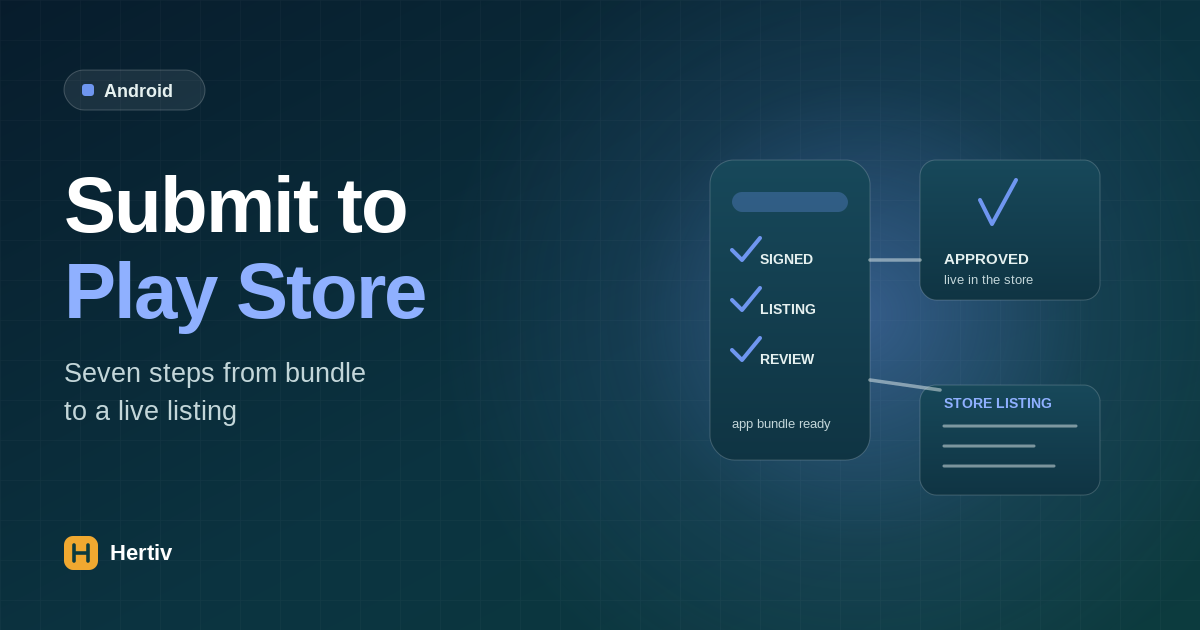
Submitting your app follows a fixed sequence in the Play Console. Each step must be complete before the release can go to review.
- Create the app. In the Play Console, create the app entry, choose the default language, and pick whether it is an app or a game.
- Complete the setup tasks. Fill in the privacy policy, app access details, ads declaration, content rating questionnaire and data safety section.
- Set up the store listing. Add the title, short and full description, screenshots, feature graphic and icon, plus the app's category and contact details.
- Upload the app bundle. Create a release track, upload the signed .aab file, and add release notes describing what is new.
- Choose the rollout. New accounts often start with a closed test track; established accounts can use a production track or a staged rollout to a share of users.
- Submit for review. Send the release for review and wait for Google's decision, watching the Play Console inbox for questions.
- Fix and resubmit if needed. If Google rejects the release, read the reason, fix the issue, upload a new bundle and submit again.
Keep a checklist of these steps for each release. The same flow repeats for updates, and teams that document it spend less time on each submission. For a broader view of the platform choice, native vs hybrid app development explains how the build approach affects the submission.
How long does review take, and what happens next?
Review for a first submission usually takes a few days, though Google states that some reviews take longer, especially for new accounts or apps that handle sensitive data. Updates to an existing app are usually faster.
During review, Google checks the app against its policies: permissions, data handling, content, ads and malware. If everything passes, the app appears in the store. If not, Google sends a message explaining the problem and what to change.
After approval, monitor the release: check crash reports, read the first user reviews, and watch the store listing for the country availability you set. A staged rollout to a small share of users first lets you catch a crash before it reaches everyone. The time from submission to a live listing is covered in more detail in how long it takes to publish an app on the store.
Example (hypothetical): a first submission in seven days
Example (hypothetical): a small team finishes a booking app and plans its first Play Store submission. On day 1, the developer creates the Play account and starts identity verification, which takes 1 day. On day 2, the team builds the signed app bundle and takes screenshots, which takes 2 days.
On day 4, they complete the store listing, privacy policy and data safety section, which takes 1 day. On day 5, they upload the bundle to a closed test track and invite 20 testers. The closed test runs for 2 days, and on day 7 they submit the production release for review.
Review takes 3 more days, so the app goes live on day 10. The total is 1 + 2 + 1 + 2 + 3 = 9 days of elapsed time, with 7 days of work before review. The team had planned for 14 days, so the buffer covered the test period without stress.
The lesson is to start the account and verification early: those steps cannot be rushed, and they are the ones that most often delay a launch.
What are the common mistakes?
The most common mistakes are losing the signing key, declaring the wrong data practices, and submitting without testing on real devices.
- Losing the signing key. Without the right key, you cannot update the app. Use Play App Signing and store the upload key safely.
- Wrong data safety declaration. If the app collects data the declaration does not mention, Google can reject or remove it.
- No real-device testing. Emulators miss problems with permissions, cameras and low-end phones.
- Missing privacy policy. Most apps need a public privacy policy URL, even simple ones.
- Skipping the closed test. A first release straight to production risks a crash reaching every user.
If the app is still being built, mobile app development services can help you plan the build so the submission steps are ready when the code is.
What to do after your app is live
After your app is live, the work shifts to monitoring and updates. Check the Play Console daily for the first week: crashes, install numbers and user reviews tell you quickly whether the release is healthy.
Plan updates in the same way as the first submission: build the signed bundle, write release notes, choose a staged rollout, and submit. Each update goes through review again, though updates are usually faster than a first submission.
Also keep the store listing current. Screenshots, descriptions and the data safety section should match the app as it changes, or a later review can flag a mismatch. A listing that matches the app builds trust with users and with Google's reviewers.
Key takeaways
- A Play developer account, a signed app bundle and a complete store listing are the three requirements
- Use Play App Signing and keep the upload key safe, or you may not be able to update the app
- First submissions usually take a few days in review; new accounts may start with a closed test
- The data safety declaration must match what the app actually collects and shares
- Start account verification early: it is the step most likely to delay a launch
Frequently asked questions
How much does a Google Play developer account cost?
Google charges a one-time registration fee for a developer account. The amount can change, so check the Play Console for the current fee before budgeting. There is no yearly renewal fee for the account itself.
What is the difference between an APK and an app bundle?
An APK is a single installable package, while an app bundle (.aab) is a publishing format that lets Google build optimised APKs for each device. Google Play requires the bundle format for new apps, so you upload a signed .aab, not an APK.
Can I submit an app without a privacy policy?
Most apps need a public privacy policy URL, including apps that collect little or no personal data. The policy should explain what data the app collects and how it is used. Without it, the submission is likely to be rejected.
What happens if Google rejects my app?
Google sends a message explaining the policy issue and what to change. Fix the issue, upload a new app bundle if the code changed, and submit again. Repeated rejections for the same issue can lead to account warnings, so read the reason carefully.
Do I need a closed test before publishing?
Google may require new personal developer accounts to run a closed test with a minimum number of testers before the first production release. Even when not required, a closed test is a good way to catch crashes before they reach all users.
How do updates work after the first release?
Updates follow the same flow: build a signed bundle, add release notes, choose a rollout, and submit for review. Updates are usually reviewed faster than a first submission. A staged rollout to a small share of users helps catch problems early.