Kubernetes Tools for Startups: 6 That Fit Small Teams
The Kubernetes tools that fit startups cut manual work without adding a platform team: packaging, delivery, daily checks, a visual view, spend and the control plane.
On this page
Short answer
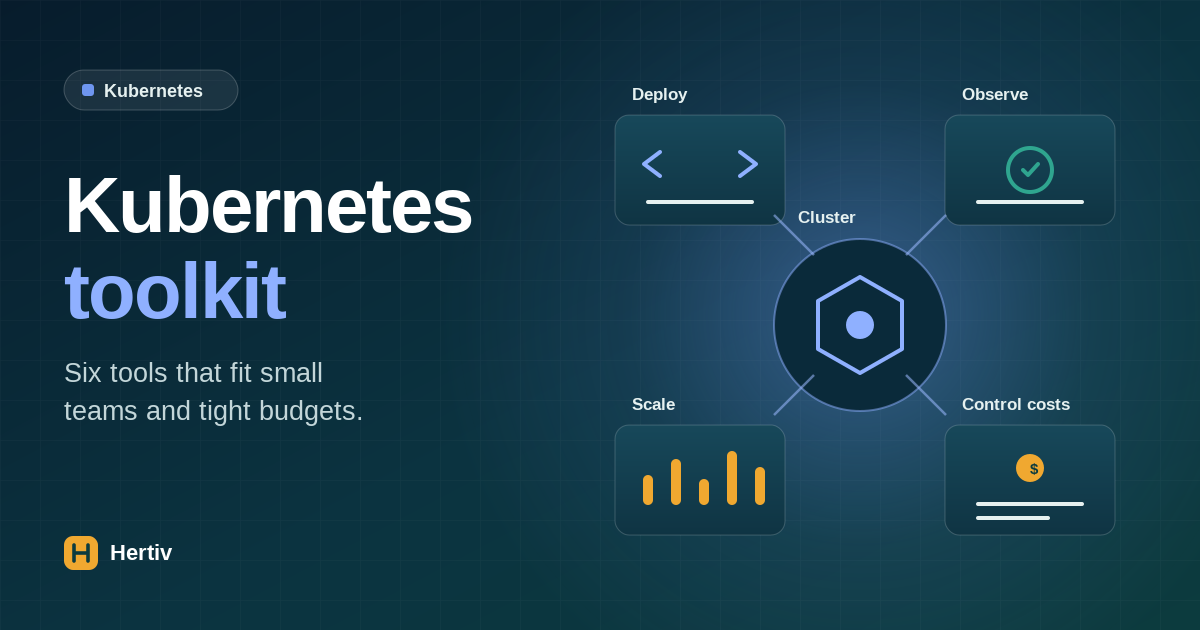
The best Kubernetes tools for startups are the ones that cut manual work without adding a platform team: Helm for packaging, Argo CD for delivery, k9s for day-to-day checks, Lens for a visual view, Kubecost for spend, and a managed cluster or Rancher for the control plane. Pick by cluster size and how much you want to run yourself.
Which Kubernetes tools fit a startup?
The Kubernetes tools that fit a startup are the ones that remove manual work without adding a platform team to run. A startup usually has one or two clusters, a small engineering team, and no one whose full-time job is Kubernetes. The tools below match that shape.
| Tool | What it does | Best for | Cost model |
|---|---|---|---|
| Helm | Packages and installs apps | Repeatable deploys | Open source |
| Argo CD | Delivers from Git automatically | Git-based releases | Open source |
| k9s | Terminal view of the cluster | Fast daily checks | Open source |
| Lens | Visual desktop view | Teams new to Kubernetes | Open source, paid extras |
| Kubecost | Shows what each workload spends | Controlling cloud bills | Open source, paid extras |
| Rancher | Manages several clusters | Teams with more than one cluster | Open source, paid support |
All six are open source at their core, which matters for a startup: the team can try each one without a sales call or a licence negotiation. Prices for paid extras change, so see vendor site before budgeting. Start with Helm and one delivery tool, then add the rest only when a real pain appears.
Helm and Argo CD: packaging and delivery
1. Helm: best for repeatable deploys
Helm packages an application and its settings into a chart, so the same app can be installed in staging and production with different values. A chart holds the deployments, services, config and secrets in one versioned unit, which means a deploy is a single command instead of a folder of YAML files applied by hand.
It fits startups because it removes the most common deployment mistake: a config that works in one environment and breaks in another. Charts are also how most third-party software is distributed for Kubernetes, so the team will meet Helm even if it does not adopt it on day one.
Pros:
- One package per app, with values per environment
- Rollbacks built in when a release goes wrong
- Large library of existing charts to start from
Cons:
- Chart templates can get hard to read as they grow
- Values spread across files need discipline
2. Argo CD: best for Git-based releases
Argo CD watches a Git repository and keeps the cluster matching it. When a developer merges a change, Argo CD applies it, and the cluster state is always visible in the repository history. That pattern, often called GitOps, makes releases reviewable like code.
It fits startups that already use Git well, because the release process becomes a pull request instead of a manual deploy. The trade-off is that the team must treat Git as the source of truth and stop making manual changes in the cluster, or the two will drift apart.
Pros:
- Releases are pull requests, with review and history
- Automatic drift detection and sync
- Easy rollback to any earlier Git state
Cons:
- Needs Git discipline; manual cluster edits cause drift
- More setup than a simple deploy script
k9s and Lens: seeing what the cluster is doing
3. k9s: best for fast daily checks
k9s is a terminal interface for Kubernetes that shows pods, logs, events and resource use in one screen, with keyboard shortcuts to jump between them. It starts in seconds and needs no server component, which makes it the fastest way to answer the question "what is wrong right now".
It fits engineers who live in the terminal and want to check a failing pod without opening a browser. The trade-off is that it is a single-user view: it shows the cluster to one person at a time, and it does not replace dashboards for the whole team.
Pros:
- Starts instantly, no server to run
- Logs, events and pod status in one view
- Very light on resources
Cons:
- Terminal only, so non-terminal users stay out
- No shared team dashboard
4. Lens: best for teams new to Kubernetes
Lens is a desktop application that shows the cluster visually: workloads, services, config, logs and events, all clickable. It is the easiest way for a developer who is new to Kubernetes to understand what is running and where, without memorising command-line flags.
It fits startups where several developers share cluster duty and not everyone is a Kubernetes specialist. The trade-off is that the free version covers the basics, while team features and support sit behind a paid plan, so check the current pricing on the vendor site before relying on them.
Pros:
- Visual view that new team members learn quickly
- Works across several clusters at once
- Extensions for common workflows
Cons:
- Team features need a paid plan
- Heavier than a terminal tool for quick checks
Kubecost and Rancher: spend and multiple clusters
5. Kubecost: best for controlling cloud bills
Kubecost shows what each namespace, workload and team costs inside a Kubernetes cluster, using the cloud bill and the resources each pod requests. Without it, a startup usually learns its Kubernetes spend from a monthly invoice with no breakdown, which is too late to act on.
It fits startups where the cloud bill is growing faster than revenue, because it turns a single number into a list of workloads to fix. The trade-off is that it needs accurate resource requests to be useful: pods without limits report misleading costs, so the team must set requests and limits first.
Pros:
- Cost per workload, namespace and team
- Shows waste from over-provisioned pods
- Alerts when spend crosses a threshold
Cons:
- Needs resource requests set to be accurate
- Advanced reporting needs a paid plan
6. Rancher: best for teams with more than one cluster
Rancher manages several Kubernetes clusters from one interface: provisioning, access, policies and upgrades across staging, production and any extra clusters. A startup with one cluster rarely needs it, but the moment a second cluster appears, managing each one separately becomes slow and error-prone.
It fits teams that run clusters in more than one cloud or region, or that need consistent access rules across environments. The trade-off is that Rancher is itself a system to run and upgrade, so it only pays off when the cluster count justifies it.
Pros:
- One place to manage all clusters
- Consistent access and policies everywhere
- Handles provisioning and upgrades
Cons:
- Overkill for a single cluster
- Another system to maintain and upgrade
How to choose Kubernetes tools for your startup
You choose Kubernetes tools for a startup by matching them to the pain you actually have, not by collecting a full platform on day one. Start with the two questions that rule most options out: how many clusters do you run, and who will maintain the tools?
- Start with Helm. Package every app as a chart from the first deploy, so staging and production stop drifting apart.
- Add one delivery tool. If the team trusts Git, pick Argo CD; if releases are still manual, a simple pipeline is enough for now.
- Pick one way to look at the cluster. Terminal users take k9s, visual users take Lens. Do not run both as the team standard.
- Add cost visibility early. Install Kubecost once the bill matters, and set resource requests and limits first so the numbers mean something.
- Wait on multi-cluster tools. Add Rancher only when a second cluster exists and managing two by hand is already slow.
If you are still deciding whether Kubernetes itself is the right call, the Kubernetes vs Docker guide explains when a cluster earns its keep.
The guide on what Kubernetes is covers the parts these tools sit on top of.
For help wiring the chosen tools into a delivery flow, a partner for DevOps services can set up the pipeline, the cluster and the cost controls together.
What are the common mistakes?
The most common mistakes are adopting every tool at once, running the cluster without limits, and treating the tools as a substitute for understanding the cluster.
- Installing the full platform on day one. Six tools with no real pain behind them become six things to upgrade and debug. Add a tool when a job hurts, not before.
- No resource requests or limits. Without them, one pod can take all the memory on a node, and Kubecost cannot report honest costs.
- Manual edits after adopting GitOps. A change made directly in the cluster will be overwritten by Argo CD, or worse, left to drift silently.
- Ignoring upgrades. Kubernetes, Helm charts and the tools themselves all need updates, and an unmaintained cluster is a risk, not a saving.
- Measuring success by tool count. The goal is fewer manual deploys and faster recovery, not a longer list of installed software.
These are the same habits that make a small cluster reliable, and the tools only make them more important. A tool amplifies good practice and bad practice alike, because it applies them to every workload at once.
Key takeaways
- Helm and Argo CD cover packaging and delivery for most startups
- k9s suits terminal users; Lens suits teams new to Kubernetes
- Kubecost turns a monthly invoice into a list of workloads to fix
- Rancher only pays off once a second cluster exists
- Add a tool when a job hurts, not to complete a platform
Frequently asked questions
Do startups need all six of these Kubernetes tools?
No. Most startups start with Helm and one delivery tool, then add a cluster viewer and cost visibility as the pain appears. Rancher only makes sense once a second cluster exists. Adding tools before the pain appears creates maintenance work without value.
Is Helm still needed if we use Argo CD?
Yes, the two do different jobs. Helm packages an application and its settings into a chart, while Argo CD delivers whatever is in Git to the cluster. Many teams use Helm charts as the unit Argo CD deploys, so the tools complement each other.
What is the cheapest way to run Kubernetes as a startup?
Use a managed cluster from a cloud provider, which removes the work of running the control plane, and set resource requests and limits so pods do not waste capacity. Kubecost shows where the spend actually goes, so the team can fix the biggest waste first.
How do I learn Kubernetes without breaking production?
Run a small local or staging cluster first, and practise deploys, rollbacks and pod failures there. Lens gives a visual view that helps beginners, and k9s gives fast feedback in the terminal. Do not experiment on the production cluster.
When should a startup move from Docker alone to Kubernetes?
When the application has several services, needs more than one machine, or must keep running while parts of it fail or update. One or two containers on one machine are usually simpler with Docker alone, and a cluster adds cost before it adds value.
Does Kubecost work with any cloud provider?
Kubecost reads cloud billing data and cluster resource usage, and it supports the major cloud providers. It needs resource requests set on pods to report accurate per-workload costs, so set those first and check the vendor site for current pricing.