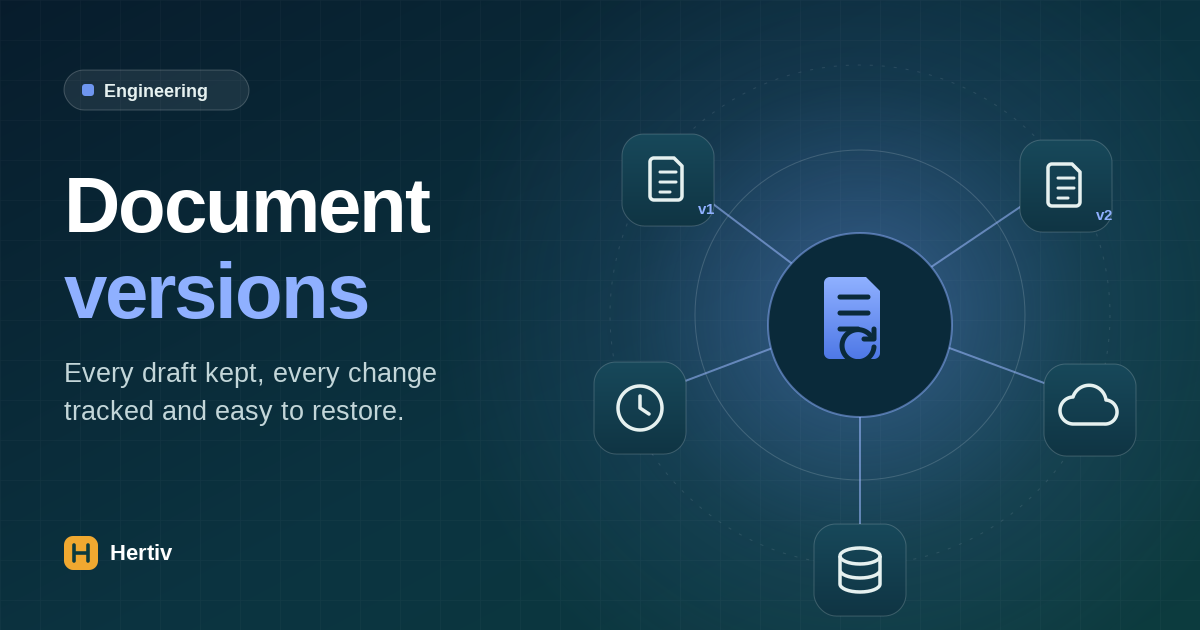
Cloud Document Tools With Versioning That Teams Trust
The cloud document tools with the strongest versioning keep every draft, restore any version in seconds, and show who changed what — here are eight that do it well.
On this page
Short answer
Google Drive, Microsoft SharePoint, Dropbox Business, Box, Egnyte, M-Files, DocuWare and Zoho WorkDrive are the strongest cloud document tools for versioning. Each keeps a full history of every change, lets you restore an earlier version with one click, and records who changed what. The best choice depends on the software your team already uses and how long you need versions kept.
Which cloud document tools handle versioning best?
The cloud document tools with the strongest versioning keep every draft automatically, let you restore any earlier version in seconds, and show who changed what and when. That history is what turns a shared folder into a system your team can rely on.
Use this comparison to shortlist. Version history assumes the paid business plan unless stated otherwise.
| Tool | Version history | Restore | Best for |
|---|---|---|---|
| Google Drive | 100 versions or 30 days | One click, any version | Google Workspace teams |
| Microsoft SharePoint | 500 versions by default | One click, any version | Microsoft 365 teams |
| Dropbox Business | 180 days on most plans | One click, any version | Simple file sharing |
| Box | Unlimited on business plans | One click, any version | Regulated industries |
| Egnyte | Unlimited, with retention rules | One click, any version | Hybrid cloud and on-prem |
| M-Files | Full history with metadata | One click, with audit log | Metadata-driven filing |
| DocuWare | Full history with audit trail | One click, with audit log | Document-heavy departments |
| Zoho WorkDrive | 100 versions per file | One click, any version | Small teams on Zoho |
Start with the two or three tools that match the software your team already uses. Versioning only helps if people actually work inside the tool every day.
Google Drive and Microsoft SharePoint
1. Google Drive: best for teams already on Google Workspace
Google Drive saves a new version every time you edit a Google Doc, Sheet or Slide, and it keeps up to 100 versions or 30 days of history for uploaded files. You can name a version, compare it with the current file, and restore it with one click.
Version naming is the feature that matters most in practice. A team that names the version sent to a client can find it again in seconds, while a team that relies on timestamps has to open several versions.
Pros: versioning is automatic and free on business plans; naming and comparing versions is simple; works well with shared drives.
Cons: uploaded non-Google files keep fewer versions; history is limited to 100 versions or 30 days.
2. Microsoft SharePoint: best for teams already on Microsoft 365
SharePoint keeps 500 versions of each document by default, and site owners can raise that limit. Every version records who changed the file and when, and you can restore any version from the version history panel without asking IT.
SharePoint is strongest when documents live inside a team site with clear libraries, rather than in scattered personal OneDrive folders. Check-out and approval flows add control for contracts and policies that need sign-off.
Pros: deep version history with full audit data; check-in, check-out and approval flows; tight with Teams and Outlook.
Cons: needs a Microsoft 365 subscription; setup is heavier than simpler tools; version limits vary by plan.
Dropbox Business and Box
3. Dropbox Business: best for simple file sharing with strong recovery
Dropbox Business keeps 180 days of version history on most plans, and every change is a new version you can restore with one click. Deleted files and folders can be recovered from the same window, which saves teams that share files with outside partners.
Dropbox is a good fit when your documents are mostly Office files, PDFs and images rather than Google or Microsoft formats. Its version history works the same way for every file type.
Pros: same versioning behaviour for every file type; long recovery window; easy sharing with people outside your team.
Cons: no built-in document editing; advanced admin controls sit on higher plans; pricing is per user, so large teams pay more.
4. Box: best for regulated industries and strict controls
Box keeps unlimited versions on business plans and pairs that history with an audit log that records every view, download and edit. Retention policies can lock versions for a set period, which is why regulated teams pick it for contracts and clinical documents.
Box also supports file locking, so one person can stop others editing a document while it is under review. That matters when a version must stay frozen while a client or auditor reads it.
Pros: unlimited versions on business plans; strong audit log and retention policies; file locking for review cycles.
Cons: costs more than simpler tools; the interface has more settings to learn; smaller teams may not need its controls.
Egnyte and M-Files
5. Egnyte: best for teams with files both in the cloud and on site
Egnyte keeps unlimited versions and lets you set retention rules per folder, so a finance folder can keep versions for years while a marketing folder keeps them for months. Files can live on local servers and in the cloud at the same time, with the same version history in both places.
That hybrid setup suits teams moving to the cloud in stages. People keep working from the folders they know, while the cloud copy provides version history, sharing links and mobile access.
Pros: unlimited versions with per-folder retention; hybrid cloud and on-prem storage; strong permission controls.
Cons: setup takes longer than cloud-only tools; pricing is quoted per deployment; the admin console has a learning curve.
6. M-Files: best for filing by what a document is, not where it sits
M-Files stores every version of a document and tags it with metadata such as client, project and document type, so you find the right version by searching for what it is rather than remembering which folder it lives in.
Metadata filing changes how versioning feels in daily work. Instead of hunting through folders for the latest contract draft, you search by client and document type and open the newest version.
Pros: metadata search finds versions fast; full audit trail on every version; good for document-heavy teams.
Cons: needs planning to set up metadata well; costs more than simple storage tools; less familiar than Drive or SharePoint.
DocuWare and Zoho WorkDrive
7. DocuWare: best for departments that process many documents
DocuWare keeps a full version history with an audit trail that records who changed each document and when. It is built for departments that scan, file and approve large numbers of invoices, contracts and forms.
Version stamps and workflow history work together here: you can see not only that a document changed, but which approval step it was at when it changed. That helps when an auditor asks how a number in a contract moved.
Pros: full version history with audit trail; approval workflows built in; strong for scanned paper documents.
Cons: aimed at departments, not whole companies; setup needs planning; pricing is quoted per deployment.
8. Zoho WorkDrive: best for small teams already using Zoho
Zoho WorkDrive keeps 100 versions of each file and lets you restore any of them with one click. It includes team folders, file locking and a simple approval flow, and it fits naturally alongside Zoho CRM and Zoho Projects if your team already uses them.
WorkDrive is the simplest tool on this list to set up, which is its main strength. A small team can move its shared folders in an afternoon and have version history working the same day.
Pros: quick setup and low cost; versioning works out of the box; fits well with other Zoho apps.
Cons: version history is capped at 100 versions; fewer advanced controls than Box or SharePoint; smaller third-party integration list.
How to choose a document tool with versioning
Choosing well is mostly about matching the tool to how your team already works, not about chasing the longest version history on paper. A tool your team avoids will not protect any version at all.
- List the file types your team edits most. Pick a tool whose versioning covers those formats, not just its own native files.
- Check the version limit and the retention window on the plan you would actually buy. Free tiers often keep far fewer versions than business plans.
- Test restoring a version. Open a test document, change it, and restore the earlier version. If that takes more than a minute, the tool will not save you in a real incident.
- Check who can see the history. Version history should show who changed what, and access should follow the same permissions as the file itself.
- Agree naming rules before you migrate. Name the versions you send out or sign off, so anyone can find the approved copy without opening five versions.
Run a short trial with one real folder before you move everything. Two weeks with real documents will show whether the version history, restore flow and permissions fit your team. For teams building a document workflow around these tools, document workflow automation tools covers the routing and approval side.
What are the common mistakes?
Most versioning problems come from how teams use the tool, not from the tool itself. A few habits cause most of the lost work.
- Working on a downloaded copy and uploading it later, which creates a new file instead of a new version.
- Never naming versions, so nobody can tell which draft was sent to the client.
- Giving everyone edit access to a folder that should have one owner and a few reviewers.
- Keeping the only copy of a contract in one person's personal drive instead of a shared team folder.
- Assuming the free plan keeps the same history as the business plan, then finding old versions gone.
- Skipping the restore test until the day a file is overwritten by mistake.
The fix for most of these is simple: work inside the shared tool, name the versions that matter, and test a restore once a quarter. A version history you never test is a safety net you have never checked. Teams that handle sensitive documents should also read how AI agents help with legal document management for the audit side of the same problem.
Key takeaways
- Versioning only helps if the team works inside the shared tool, not on downloaded copies.
- SharePoint keeps 500 versions by default and Box keeps unlimited versions on business plans.
- Name the versions you send out or sign off, so the approved copy is easy to find.
- Test restoring a version before you need to — a restore that takes a minute is a restore that works.
- Check the version limit on the plan you would buy; free tiers keep far less history.
Frequently asked questions
What is document versioning in a cloud tool?
Versioning means the tool saves a new copy every time a document changes, and keeps the earlier copies. You can open any earlier version, compare it with the current one, and restore it if a change was wrong.
How many versions do cloud document tools keep?
It varies by tool and plan. SharePoint keeps 500 versions by default, Box keeps unlimited versions on business plans, and Google Drive keeps up to 100 versions or 30 days of history. Check the plan you would buy.
Can I restore a deleted document?
Most tools on this list can recover deleted files for a set window, often 30 to 180 days depending on the plan. Deleted files usually sit in a trash or recycle area first, so check there before asking support.
Does versioning work for files I upload, not just files I create in the tool?
Yes, but the history may be shorter. Google Drive keeps fewer versions for uploaded files than for its own Docs, while Dropbox and Box treat every file type the same. Check the rules for your main file types.
Who can see a document's version history?
Version history usually follows the same permissions as the file, so only people who can view the document can see its history. Admins and file owners can usually see more detail, including who changed what and when.
Do I need to pay for versioning?
Basic versioning is included in most paid business plans, and some free plans include a short history. Longer history, unlimited versions and retention policies are usually paid features, so check the plan before you rely on them.