What Is OCR, and How Does It Turn Scans Into Text?
OCR reads text from scanned pages, photos and PDFs and turns it into searchable data. Here is how it works, where it helps, and where it still needs a human.
On this page
Short answer
OCR, or optical character recognition, is software that finds text inside images and scanned documents and converts it into machine-readable characters. It lets teams search, copy and process paper documents as data instead of retyping them. Modern OCR uses machine learning to handle varied fonts, handwriting and poor-quality scans, but results still need checking.
What is OCR?
OCR, or optical character recognition, is software that finds text inside images and scanned documents and converts it into machine-readable characters. It turns a photo of a page, a scanned invoice or a PDF into text you can search, copy and process as data.
Before OCR, a scanned document was just a picture: the words were visible to a person but invisible to software. OCR closes that gap, which is why it sits behind invoice processing, form handling, archive search and many document workflows.
Modern OCR uses machine learning to handle varied fonts, layouts and image quality. It still makes mistakes, especially with handwriting and poor scans, so most serious uses pair it with a human review step for the fields that matter.
OCR is not the same as understanding a document. It reads the characters; deciding what the document means, such as which number is the total, is a separate step that usually sits on top of it.
How does OCR work?
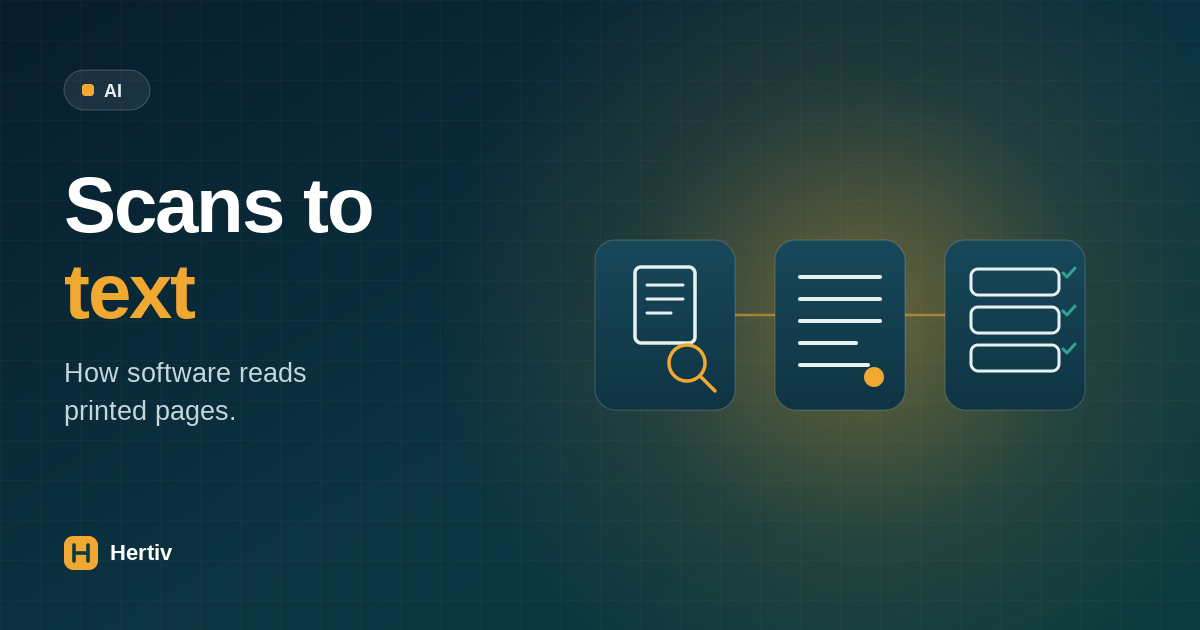
OCR works by cleaning up the image, finding where the text sits, recognising the characters, and then rebuilding the text in reading order. Each step fixes a different kind of mess that scans introduce.
- Clean the image. The software straightens skewed pages, removes speckles and boosts contrast so letters stand out from the background.
- Find the text regions. It locates blocks of text, tables and headings, and separates them from photos, logos and lines.
- Split into lines and characters. Text blocks are cut into lines, then words, then single characters or character groups.
- Recognise the characters. A trained model matches each shape to a letter, digit or symbol, using the surrounding words to resolve unclear cases.
- Rebuild the layout. The recognised text is placed back in reading order, with tables and columns kept intact where possible.
- Output the result. The text is saved as plain text, a searchable PDF, or structured fields for a database.
Language models now help with step four: when a character is unclear, the model can use the sentence around it to pick the most likely reading. That is why accuracy has improved on real-world documents with messy layouts.
What types of OCR are there?
The type of OCR you need depends on the documents you handle. A clean printed invoice and a handwritten form are different problems, and they need different tools.
| Type | Best for | What to expect |
|---|---|---|
| Printed-text OCR | Clean scans of typed pages | High accuracy on good scans |
| Handwriting recognition | Filled-in forms and notes | Lower accuracy, needs review |
| Table and form extraction | Invoices, receipts, applications | Fields pulled into structured data |
| Document AI | Mixed documents with meaning | Reads fields and checks them against rules |
Document AI is the step beyond plain OCR: it combines recognition with rules that check totals, dates and required fields, and routes anything that fails to a human. For teams processing documents at volume, that checking step is what makes the system usable.
Choosing between types is mostly about volume and variety. A small set of identical forms can use simple OCR, while varied documents from many senders need the stronger tools. See document AI for how the checking layer works.
Where is OCR used?
OCR is used anywhere paper still arrives faster than structured data. The common pattern is the same: a document arrives as an image, OCR reads it, and the useful fields land in a system without retyping.
- Finance. Invoices, receipts and expense claims are read and matched against purchase orders, with totals checked automatically.
- Healthcare. Referral letters, lab results and intake forms are turned into searchable records, with sensitive fields routed for review.
- Legal. Contracts and case files are made searchable so teams can find clauses and dates without opening every file.
- Logistics. Delivery notes, customs forms and bills of lading are read at the point of arrival.
- Archives. Libraries and public bodies digitise old records so they can be searched instead of browsed by hand.
In each case the value is not the reading itself but what happens next: the fields feed a workflow, a search index or a database. OCR that produces a text file nobody reads has not saved any work.
What limits OCR accuracy?
OCR accuracy depends on the quality of the image and the variety of the documents. The same tool can read a clean scan almost perfectly and struggle with a crumpled photo of a handwritten form.
- Scan quality. Low resolution, shadows, skew and blur all reduce accuracy. A flat, well-lit scan at 300 dots per inch is a good baseline.
- Handwriting. Cursive and mixed handwriting are harder than print, and accuracy varies widely between writers.
- Unusual layouts. Multi-column pages, tables that span pages and stamps over text all confuse the layout step.
- Language and scripts. Accuracy depends on whether the tool was trained on the script and language in your documents.
- Special characters. Currency symbols, decimal marks and mixed alphabets need the right configuration.
The practical fix is measurement: run a sample of your real documents through the tool and count the errors on the fields that matter. A tool that is accurate on clean samples can still fail on your worst documents, and those are the ones that cost time.
For a shortlist of tools to test, see the best OCR tools for startups.
Example: a clinic that stops retyping forms
Example (hypothetical): a small clinic receives 400 paper intake forms a month. Staff retype each form by hand, taking about 6 minutes per form, which adds up to 40 hours a month of typing.
The clinic scans the forms and runs OCR with a review step. The software reads the form in seconds, and a staff member checks the flagged fields, which takes about 1 minute 30 seconds per form. That is 400 forms times 1.5 minutes, or 600 minutes, which is 10 hours a month.
The saving is 40 hours minus 10 hours, or 30 hours a month, and the typed errors fall because the review focuses on the fields the software flagged as uncertain. The clinic keeps a human in the loop for medical details, and only the routine fields are trusted to the software.
The arithmetic is simple; the work is in the setup. The clinic had to agree which fields matter, how to handle illegible handwriting, and what happens when a scan is too poor to read.
What are the common mistakes?
The most common mistakes are expecting perfect accuracy, skipping the review step, and choosing a tool on clean samples instead of real documents.
- Trusting every character. OCR makes mistakes, and the mistakes land in the fields you care about. Always check high-value fields.
- No review queue. Without a step for uncertain results, errors flow straight into your systems.
- Testing on clean samples only. Your worst documents decide the real accuracy, so test on those.
- Ignoring layout. A tool that reads words but scrambles tables produces data you cannot use.
- No plan for poor scans. Some documents will be unreadable; decide in advance whether they go to manual entry or back to the sender.
- Forgetting privacy. Scanned documents often contain personal data, so the OCR service needs the same handling as the documents themselves.
Image-based understanding is part of computer vision development when OCR needs to sit inside a larger product.
Key takeaways
- OCR turns images of text into machine-readable characters you can search and process
- It works in steps: clean the image, find the text, recognise the characters, rebuild the layout
- Handwriting, poor scans and unusual layouts are the main limits on accuracy
- The value comes from what happens next: fields feeding a workflow, not a text file nobody reads
- Measure accuracy on your own documents and keep a human review step for important fields
Frequently asked questions
What does OCR stand for?
OCR stands for optical character recognition. It is the technology that reads text from images, scanned pages and photos and converts it into characters a computer can search, copy and process.
Is OCR the same as scanning?
No. Scanning creates an image of a page, while OCR reads the text inside that image. A scanned document without OCR is a picture; with OCR it becomes searchable, editable text.
Can OCR read handwriting?
It can, but accuracy is lower than for printed text and varies between writers. Handwritten forms usually need a human review step for the fields that matter, such as amounts and names.
How accurate is OCR?
On clean printed scans, accuracy is high. On poor photos, handwriting or unusual layouts it drops sharply. The only reliable measure is testing on your own documents and counting errors on the fields you use.
What is the difference between OCR and document AI?
OCR reads the characters; document AI adds understanding, such as pulling out the invoice total and checking it against rules. Document AI sits on top of OCR and routes uncertain results to a human.
Does OCR work on PDFs?
Yes, if the PDF contains images of text. Many PDFs already have a text layer, in which case no OCR is needed. OCR is used for scanned PDFs where the text exists only as an image.