SaaS Examples: 10 Products That Show the Model at Its Best
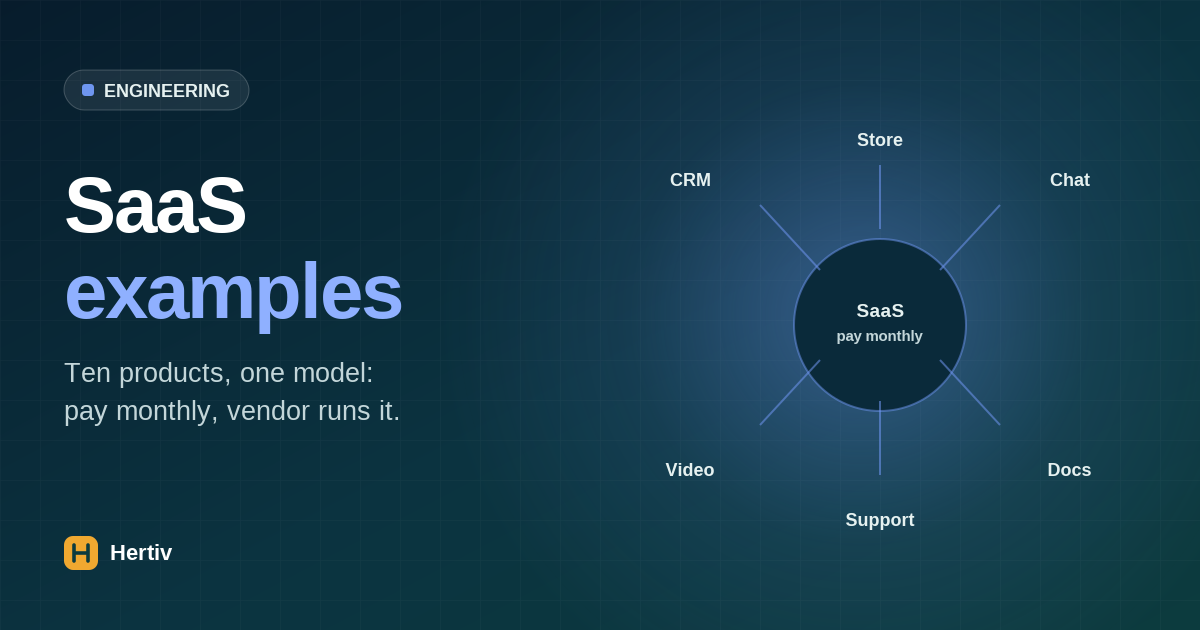
These SaaS examples show what software as a service does well: CRM, chat, video, docs, files, stores, projects, support and accounting, all paid by subscription.
On this page
Short answer
SaaS examples are software products you use in a browser or app and pay for by subscription, with the vendor running the servers, updates and backups. The best-known ones cover sales, marketing, team chat, video meetings, documents, file storage, online stores, project work, support and accounting.
Which SaaS examples show the model best?
The SaaS examples worth studying are the ones that replaced a desktop program or an in-house system with a product you open in a browser and pay for monthly. Each one below does one job well, and each one earns its subscription by removing work the customer used to do themselves.
Use this comparison to see the range. Every product here is a well-known service operating today, priced by subscription; check the vendor site for current plans.
| Product | Category | What it does | Typical user |
|---|---|---|---|
| Salesforce | CRM | Tracks leads, deals and customers | Sales teams |
| HubSpot | Marketing and sales | Combines CRM, email and reporting | Small and mid-size teams |
| Slack | Team chat | Channels, messages and file sharing | Any team that works remotely |
| Zoom | Video meetings | Calls, webinars and recordings | Teams, schools, clinics |
| Notion | Docs and wikis | Notes, pages and databases in one place | Product and ops teams |
| Dropbox | File storage | Syncs and shares files across devices | Freelancers and teams |
| Shopify | Ecommerce | Storefront, checkout and orders | Online sellers |
| Asana | Project work | Tasks, timelines and ownership | Marketing and ops teams |
| Zendesk | Customer support | Tickets, chat and help centre | Support teams |
| QuickBooks Online | Accounting | Invoices, expenses and reports | Small businesses |
Notice the pattern: each product owns one workflow end to end, and the customer never installs or maintains anything. That is the core of the SaaS model, and it is why these ten are useful examples even outside their own categories.
Sales and marketing: Salesforce and HubSpot
1. Salesforce: best for sales teams that need a full CRM
Salesforce is the classic SaaS example because it turned customer records into a shared system that a whole sales team works from. Reps log calls and deals, managers see the pipeline in one view, and nobody keeps a private spreadsheet of contacts.
It fits large teams with a defined sales process. Smaller teams often find it heavy at first, because it needs someone to set up fields, stages and reports before it feels useful.
- Pros: deep reporting, a large app marketplace, and strong permission controls.
- Cons: setup takes time, and the price rises as you add features and users.
2. HubSpot: best for marketing and sales in one place
HubSpot combines a CRM with email marketing, landing pages and reporting, so a small team can run campaigns and follow up leads without stitching tools together. Its free CRM tier is a common starting point for teams that outgrow spreadsheets.
The trade-off is depth. It is simpler to run than a full enterprise CRM, but teams with unusual sales processes can hit limits in how far they can shape it.
- Pros: quick to start, clear reporting, and a free CRM to learn on.
- Cons: advanced marketing features sit on higher-priced plans.
Team communication: Slack and Zoom
3. Slack: best for day-to-day team chat
Slack replaced long email threads with channels organised by topic, project or team. Messages are searchable, files sit next to the discussion, and integrations bring alerts from other tools into the same window.
It works best when a team agrees on how channels are used. Without that, channels multiply and important messages get buried under chatter.
- Pros: fast search, many integrations, and a clear channel structure.
- Cons: message history limits on the free plan, and constant notifications need managing.
4. Zoom: best for video meetings that just work
Zoom became the default video meeting tool because joining a call takes one click and the quality holds up on ordinary home internet. It covers scheduled meetings, webinars and recordings, and most people already know how to use it.
Its weakness is what happens around the meeting: notes, decisions and follow-ups still need another tool, and back-to-back calls leave no time to act on what was agreed.
- Pros: reliable calls, simple joining, and recording built in.
- Cons: meeting fatigue, and limited tools for what happens after the call.
Documents and files: Notion and Dropbox
5. Notion: best for docs, wikis and light databases
Notion lets a team keep notes, plans and small databases in one workspace, with pages that link to each other like a wiki. Product and operations teams use it for specs, handbooks and meeting notes that everyone can find.
Its flexibility is also its risk. A workspace with no structure turns into a pile of pages, so someone needs to own the layout and keep it tidy.
- Pros: flexible pages, linked databases, and a gentle learning curve.
- Cons: needs housekeeping, and offline use is limited.
6. Dropbox: best for simple file sharing
Dropbox is one of the oldest SaaS examples: files sync across devices, shared folders replace email attachments, and version history lets you recover an earlier copy. It does one job and does it quietly in the background.
It is less useful as a place to work on documents together. Teams that need live co-editing usually pair it with, or move to, a docs-first tool.
- Pros: dependable sync, easy sharing, and version history.
- Cons: weak live collaboration, and storage costs grow with the team.
Selling and planning: Shopify and Asana
7. Shopify: best for starting an online store
Shopify gives a seller a storefront, checkout, payments and order management without building any of it. A small shop can list products, take orders and print shipping labels from the same dashboard, and add apps for taxes, discounts or email.
The cost adds up through apps and transaction fees, so a seller should price the whole stack, not just the monthly plan, before committing.
- Pros: fast setup, hosted checkout, and a large app ecosystem.
- Cons: fees stack up, and deep customisation needs a developer.
8. Asana: best for tracking project work
Asana turns a project into a list of tasks with owners and due dates, so a team can see who is doing what without a status meeting. Timelines and boards suit marketing campaigns, product launches and operations work.
It suits work that breaks into clear tasks. For work that is mostly free-form discussion, it can feel like overhead rather than help.
- Pros: clear ownership, timeline views, and simple reporting.
- Cons: needs discipline to stay current, and heavy use can feel like admin.
Support and money: Zendesk and QuickBooks Online
9. Zendesk: best for support teams handling tickets
Zendesk gathers customer messages from email, chat and social channels into one ticket queue, so a support team can assign, prioritise and answer without losing requests. It also includes a help centre, so common questions get answered without a ticket at all.
It fits teams with real ticket volume. A team answering a handful of emails a day will find it more than they need.
- Pros: one queue for all channels, clear reporting, and a built-in help centre.
- Cons: setup and pricing grow with the team and the channels used.
10. QuickBooks Online: best for small-business accounting
QuickBooks Online handles invoicing, expenses, bank feeds and tax reports for small businesses that cannot justify a finance team. Invoices go out from the same place money is tracked, so the books stay close to the cash.
It is built for small businesses, not for complex accounting. Growing companies with multiple entities or strict approval chains usually outgrow it.
- Pros: invoicing and bank feeds in one place, and reports an accountant can use.
- Cons: limited for complex finance, and the price rises with features.
How to choose a SaaS product
Choose a SaaS product by the workflow it must carry, not by the feature list. A tool with the most features is rarely the one a team actually uses, and the one the team uses is the one that pays for itself.
- Name the job. Write down the exact task the product must do, such as answering support tickets or tracking deals, and ignore everything else for now.
- Try it with real work. Run a trial on a real project or a real week of tickets, not on sample data, and watch whether the team keeps using it.
- Check the full price. Add the plan, the add-ons, the apps and the per-user cost, and compare that total with the time it saves.
- Check how data leaves. Make sure you can export your records and cancel without losing them, before you commit.
- Pick one owner. Someone on the team should own setup, training and clean-up, or the tool will drift.
If you are building a SaaS product rather than buying one, SaaS development covers how teams scope, build and launch a subscription product of their own.
What are the common mistakes?
The most common SaaS mistakes are buying on features, skipping the trial with real work, and letting tools pile up until nobody knows what the team pays for.
- Buying the biggest plan first. Start on the smallest plan that covers the job, and upgrade when a real limit appears.
- Judging a trial on sample data. A tool that looks good on demo data can fail on your real tickets, files or deals.
- Ignoring the exit. If you cannot export your data, the vendor owns your records, not you.
- Letting subscriptions stack. Review every paid tool each quarter and cancel the ones nobody opens.
- No owner. A tool with no owner slowly fills with stale data and stops matching how the team works.
Key takeaways
- SaaS means the vendor runs the software and you pay by subscription
- The ten examples each own one workflow end to end, from CRM to accounting
- Judge a product on a trial with real work, not on its feature list
- Count the full price, including add-ons, apps and per-user fees
- Check data export before you commit, and review subscriptions every quarter
Frequently asked questions
What does SaaS mean?
SaaS, or software as a service, is software you use over the internet and pay for by subscription, usually monthly or yearly. The vendor hosts the product, ships updates and handles backups, while you log in from a browser or app. You never install or maintain the software yourself.
Is SaaS the same as cloud software?
Mostly, yes. SaaS is one kind of cloud software: the vendor runs the application and you use it. Other cloud models exist, such as renting raw servers or a platform to build on, but when people say cloud software they usually mean a SaaS product.
Why do companies prefer SaaS over buying software?
SaaS spreads cost into a monthly payment, removes installation and maintenance work, and lets a team start in days rather than months. The trade-off is an ongoing bill and less control over the product, since the vendor decides when features change.
What are some SaaS examples for small businesses?
Common small-business SaaS examples include QuickBooks Online for accounting, Shopify for online selling, Slack for team chat and HubSpot for sales and marketing. Each one replaces a desktop program or a manual process with a subscription product.
Can you cancel a SaaS subscription easily?
Usually you can cancel at the end of a billing period, but check the contract first. Some plans are annual and charge an early fee, and some vendors make data export awkward. Always confirm the exit terms and test an export before you move important records in.
Is my data safe in a SaaS product?
Reputable vendors encrypt data, back it up and control access, but you still own the risk of who can see it. Use strong passwords, turn on two-factor authentication where offered, limit admin accounts, and keep your own export of anything you cannot afford to lose.