The Role of AI in Mobile Apps: What It Does for Users
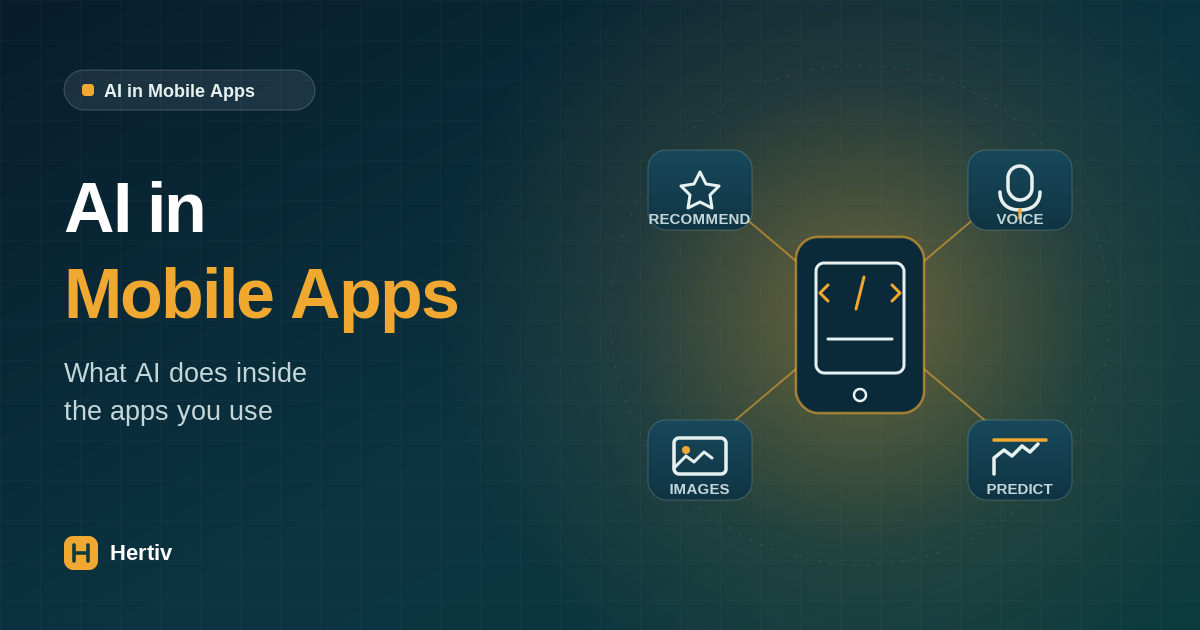
AI in mobile apps personalises feeds, answers questions, reads images and predicts what a user needs next. Here are the roles it plays, and where it runs.
On this page
Short answer
AI in mobile apps plays several roles at once: it recommends content, answers questions, recognises photos and speech, predicts what a user wants next and flags problems before they reach support. It works through models that run on the phone or on a server, and it is most useful when it does one job well, such as search or recommendations, rather than trying to do everything.
What role does AI play in mobile apps?
AI in mobile apps is the set of models inside an app that personalise what a user sees, understand what a user says or photographs, and predict what the user needs next. It is not one feature but several roles, each doing a different job inside the same app.
Most users meet AI in an app without noticing it. A feed orders itself, a keyboard suggests the next word, a camera recognises a plant, a banking app flags an unusual payment. Each of these is a model doing one narrow job, and the app feels smarter because the jobs add up.
| Role | What it does | Example in the app |
|---|---|---|
| Recommender | Orders content for each user | Feed, next video, suggested product |
| Assistant | Answers questions in plain language | Help chat, voice commands |
| Recognizer | Reads images, text and speech | Photo search, document scan, dictation |
| Predictor | Forecasts what happens next | Delivery time, spending, churn risk |
| Moderator | Checks content and behaviour | Spam filters, fraud flags, abuse reports |
| Creator | Drafts text, images and summaries | Captions, replies, meeting notes |
The roles share one pattern: the app collects a signal, a model turns it into a decision, and the app acts on it. Understanding that pattern is more useful than listing features, because it shows where AI fits and where it does not. A build guide for one of these roles is how to build an AI-powered mobile app.
How does AI personalise what a user sees?
AI personalises what a user sees by ranking content from signals the user has already given: what they tapped, watched, bought or skipped. The model scores each candidate item and the app shows the highest-scoring ones first.
Good personalisation starts with the user's own history, not with broad categories. Two people opening the same shopping app see different products because their past orders differ, and two people opening the same news app see different stories because their reading differs. The model learns from behaviour, so it improves as the user keeps using the app.
Cold start is the hard part. A new user has no history, so the app must fall back to popular items, onboarding choices or simple rules until enough signals exist. Teams that ask one or two preference questions at signup get better first sessions than teams that show the same feed to everyone.
Personalisation also needs limits. A feed that only shows what a user already likes can trap them in a narrow loop, so good apps mix in new items and give the user controls to reset or tune the feed. The goal is a feed that feels personal, not one that hides everything new.
How does AI understand text, voice and images?
AI understands text, voice and images in a mobile app by converting each input into a form a model can compare and classify. Text becomes tokens, speech becomes text, and an image becomes a set of detected objects and labels.
Text understanding powers search, chat and summaries. A user types a question in plain language, the model matches it against help articles or product data, and the app returns an answer with a source. Voice understanding adds a speech step first, so the app can take commands or transcribe a note hands-free.
Image understanding powers camera features: recognising a plant, reading a receipt, scanning a document or finding a product from a photo. The model detects objects and text in the frame and returns labels the app can act on, such as a product match or a total amount.
Each of these needs the right input quality. A noisy recording, a blurry photo or a vague question produces a weak result, so the app should guide the user: speak clearly, hold the camera steady, or ask for one detail at a time. Input quality is the cheapest accuracy improvement a team can buy.
Where does the AI run: on the phone or on a server?
AI in a mobile app runs either on the phone or on a server, and the choice depends on speed, privacy and model size. On-device models run instantly and offline, while server models can be larger and updated without an app release.
On-device models suit jobs that need instant response and no network: keyboard suggestions, face sign-in, photo sorting and offline translation. The model ships inside the app, so it works in a tunnel or on a plane, and the user's data never leaves the phone. The cost is size and power: the model must be small enough to fit and fast enough not to drain the battery.
Server models suit jobs that need large models or fresh data: complex chat answers, recommendations over a whole catalogue and anything that changes daily. The phone sends the input, the server answers, and the app shows the result. The cost is latency and dependence on a connection, plus the need to send user data to a server.
Most apps mix the two. A camera app may detect a face on the phone and recognise a product on the server, and a chat app may suggest replies on the phone and draft long answers on the server. The split follows the job, not a fashion, and it can change as phones get faster. AI is reshaping the wider mobile economy in the same way, as AI reshaping the mobile economy describes.
Example (hypothetical): a shopping app that learns what to show
Example (hypothetical): a shopping app has 20,000 users and shows the same ten products to everyone on the home screen. About 2% of users tap a product, so 400 taps a day come from the home screen.
The team adds a recommender that ranks products from each user's past orders and views. After a month, the home screen shows different products to different users, and the tap rate rises to 3%. That is 600 taps a day instead of 400, or 200 extra taps a day from the same screen.
The team also adds a photo search: a user photographs a jacket and the app finds similar items. Photo search handles 500 searches a week, and about half of them end in a product view. The lesson is not that AI sells on its own, but that one ranking job and one camera job, each measured, improved the same screen more than a broad redesign would have.
What are the common mistakes?
The most common AI mistakes in mobile apps are adding AI to every screen, ignoring the cold start and running large models where a small one would do.
- AI on every screen. A model on a screen nobody uses adds size and battery drain for no benefit. Add AI where a user already does the job by hand.
- Ignoring the cold start. A new user with no history gets the same generic feed as everyone else. Ask one or two preference questions at signup.
- Wrong model size. A server model for a job that needs instant offline answers feels slow, and an on-device model for a job that needs fresh data goes stale.
- No fallback. When the model is unsure, the app should show a simple list or a search box, not a blank screen or a wrong answer.
- Forgetting privacy. Voice and photos are sensitive. Say what leaves the phone, keep on-device data on the device, and delete server logs on a schedule.
Most of these mistakes come from treating AI as a feature to add rather than a job to do. Teams that start from the user's job, measure the result and keep a fallback ship apps that feel smarter without getting heavier. The same job-first thinking applies to product work generally, as AI product development explains.
What should a team check before adding AI?
A team should check five things before adding AI to a mobile app: the job it does, the data it needs, where it runs, what happens when it fails and what it costs to keep running.
- Name the job. Write down the exact user task the model improves, such as finding a product from a photo.
- Check the data. Confirm the app has the labelled examples or the catalogue the model needs, and a way to keep them fresh.
- Decide where it runs. Pick on-device for instant offline jobs and server for large models and fresh data.
- Design the fallback. Decide what the user sees when the model is unsure, offline or wrong.
- Budget the running cost. Count app size, battery use and server calls, and measure the result for a month before adding a second model.
Run one model through this checklist before adding a second. A team that measures the first job learns what its users actually want from AI, and that evidence is a better guide than any list of features. If the checklist points to a bigger build, mobile app development is the place to start.
Key takeaways
- AI in mobile apps plays six roles: recommender, assistant, recognizer, predictor, moderator and creator
- Personalisation works from the user's own history, and new users need a fallback until signals exist
- On-device models suit instant offline jobs; server models suit large models and fresh data
- Input quality is the cheapest accuracy improvement: clear voice, steady photos, specific questions
- Add AI where a user already does a job by hand, and keep a fallback for when the model is unsure
Frequently asked questions
Does every mobile app need AI now?
No. AI earns its place when it removes a step the user already takes, such as finding a product or answering a question. An app that works well without AI should not add a model just to follow a trend.
What is the difference between on-device and server AI?
On-device AI runs inside the app, so it works offline and keeps data on the phone, but the model must be small. Server AI can use larger models and fresh data, but it needs a connection and sends user data to a server.
How does AI personalise an app for a new user?
It cannot, at first. A new user has no history, so the app falls back to popular items or asks one or two preference questions at signup. Personalisation improves as the user taps, watches or buys.
Can AI in an app work without the internet?
Only the on-device parts can. Keyboard suggestions, face unlock and photo sorting run inside the app, while chat answers and catalogue recommendations usually need a server and a connection.
Is user data safe with AI in mobile apps?
It depends on the design. On-device processing keeps data on the phone, while server processing sends it elsewhere. Tell users what leaves the phone, limit what is collected and delete server logs on a schedule.
What is the first AI feature a team should add?
Pick one job users already do by hand, such as searching from a photo or getting a recommendation. Ship it, measure the result for a month, and only then consider a second feature.


