Open Source Gemini Alternatives: 8 Tools to Compare
Eight open source tools can replace Gemini for local chat, coding help and document work, and the best one depends on whether you want a simple app or a server.
On this page
Short answer
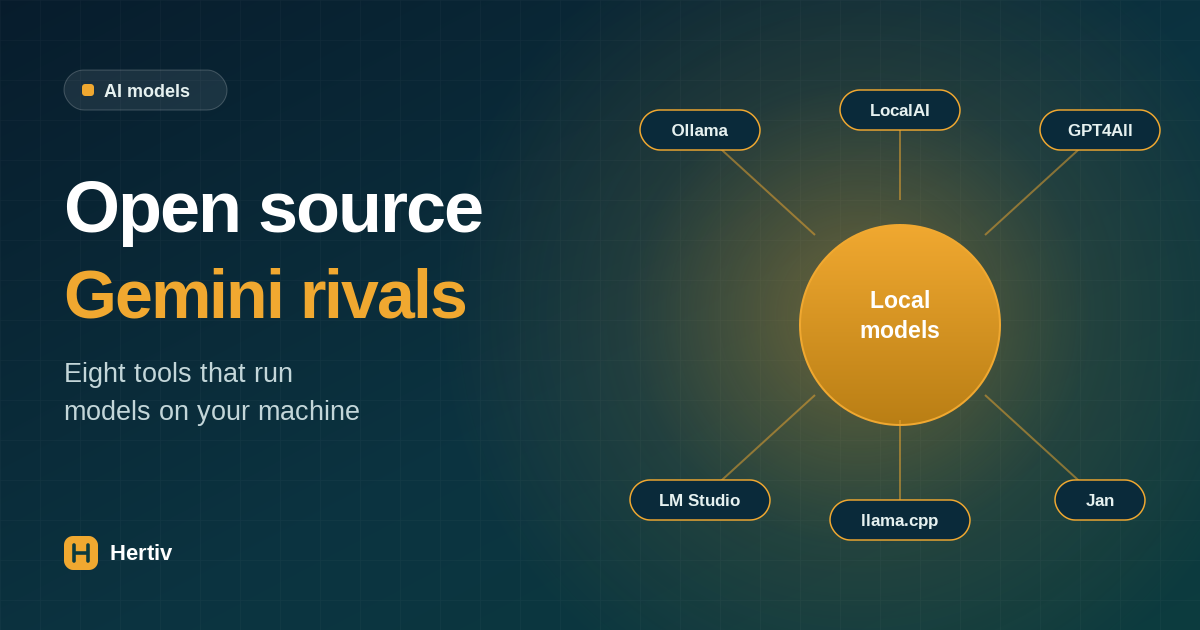
Open source Gemini alternatives are tools and models you can run on your own computer or server instead of using Google's Gemini service. The strongest options are Ollama, LM Studio, GPT4All, Jan, LocalAI, llama.cpp, Text Generation WebUI and KoboldCpp, and the right one depends on whether you want a simple desktop app, a local API or full control over the model.
Which open source Gemini alternatives are worth comparing?
Gemini is a hosted AI assistant, so every prompt you send leaves your computer. Open source alternatives change that: you download a model, run it locally, and your prompts stay on your machine. The trade-off is that you need enough memory and a reasonably fast computer, and you take on setup and updates yourself.
The eight tools below cover the main ways to run open models. Some are simple desktop apps with a chat window. Others are servers that give you an API your own apps can call. A few are bare toolkits for people who want to tune every setting. The table compares them at a glance, then each section looks at two tools in detail.
| Tool | What it is | Best for | Runs on |
|---|---|---|---|
| Ollama | Command-line model runner | Quick local chat and APIs | Windows, Mac, Linux |
| LM Studio | Desktop app with chat UI | Beginners trying local models | Windows, Mac, Linux |
| GPT4All | Desktop chat app | Private document chat | Windows, Mac, Linux |
| Jan | Desktop app, open source | Simple offline chat | Windows, Mac, Linux |
| LocalAI | Local API server | Replacing a hosted API | Linux, Docker |
| llama.cpp | Fast inference engine | Low-power and older hardware | Windows, Mac, Linux |
| Text Generation WebUI | Web interface for models | Trying many models and settings | Windows, Mac, Linux |
| KoboldCpp | Lightweight local server | Story writing and role play | Windows, Mac, Linux |
<h3>1. Ollama: best for a quick local setup</h3> <h3>2. LM Studio: best for beginners</h3>
1. Ollama: best for a quick local setup. Ollama is a small program you install from the command line, then download a model with one command and start chatting in the terminal. It also runs a local server, so your own apps can call the model the same way they would call a hosted API. It is the most common starting point for developers because the setup takes minutes and the model library is large.
Ollama works well when you want a local model behind your own tool or script. It is less suited to people who want a polished chat window, since the built-in interface is plain and most users pair it with a separate front end. Check the model size against your computer's memory before you download anything large.
Pros:
- Fast to install. One command downloads and runs a model.
- Local API included. Your apps can call the model directly.
Cons:
- Plain interface. The built-in chat view is basic.
- Command line first. Setup assumes you are comfortable with a terminal.
2. LM Studio: best for beginners. LM Studio is a desktop app with a clean chat window: search for a model, download it, and start typing. It shows how much memory each model needs and warns you before you load one that is too large. It can also run a local server, so it doubles as a back end for other apps.
LM Studio is the best pick if you want to try local models without touching a terminal. The app is free to use, and its model browser makes it easy to compare sizes and download speeds. It is heavier than Ollama and aimed more at trying models than at running a production service.
Pros:
- Friendly interface. A normal chat window, no terminal needed.
- Memory guidance. It tells you which models fit your machine.
Cons:
- Desktop only. It is not built to serve a team from a server.
- Less scriptable. Automation is possible but not the focus.
<h3>3. GPT4All: best for private document chat</h3> <h3>4. Jan: best for simple offline chat</h3>
3. GPT4All: best for private document chat. GPT4All is a desktop app built around chatting with your own files. You point it at a folder of documents, it indexes them locally, and you can ask questions that are answered from those files. Nothing is uploaded, which suits teams working with contracts, notes or research material they cannot send to a hosted service.
The app is easy to use and runs on ordinary laptops. Its answers are limited by the size and quality of the models it can run, so it is best for summarising and finding passages rather than for hard reasoning. Keep the document set small and well organised, and the results are noticeably better.
Pros:
- Local document chat. Ask questions about your own files.
- Private by design. Documents never leave your computer.
Cons:
- Smaller models. Answers are weaker than a large hosted model.
- Indexing takes time. Large folders need time to prepare.
4. Jan: best for simple offline chat. Jan is an open source desktop app that keeps the experience close to a normal chatbot: open the app, pick a model, and type. It stores your chats locally and works fully offline once the model is downloaded. The interface is clean, with threads, model switching and basic settings in one place.
Jan suits people who want a private Gemini-style chat window and nothing more. It does not try to be a server or a developer toolkit, so it stays simple. Model choice is good, though the library is smaller than Ollama's, and advanced users may miss the tuning options that other tools offer.
Pros:
- Clean chat app. Threads and model switching built in.
- Fully offline. Works with no internet once set up.
Cons:
- Smaller model library. Fewer models to choose from.
- Few developer features. No built-in API server focus.
<h3>5. LocalAI: best for replacing a hosted API</h3> <h3>6. llama.cpp: best for older hardware</h3>
5. LocalAI: best for replacing a hosted API. LocalAI is a server that speaks the same API shape as popular hosted services, so an app written against a hosted API can often point at LocalAI with only the address changed. It runs in a container, supports text, image and audio models, and suits teams that want to move a working app off a hosted service without rewriting it.
LocalAI is the most server-like option here, so it needs someone comfortable with containers and basic server care. It is also the most flexible: you can swap models, add new ones and keep everything behind your own network. Plan for enough memory and disk, and test one model at a time before you switch a live app over.
Pros:
- Drop-in API. Existing apps often need only a new address.
- Many model types. Text, image and audio in one server.
Cons:
- Server skills needed. Containers and networking are required.
- Heavier setup. More moving parts than a desktop app.
6. llama.cpp: best for older hardware. llama.cpp is the fast engine underneath many of the tools on this list. Used directly, it runs models on a CPU, a modest graphics card or even a small single-board computer. It is a command-line tool, so it suits developers who want the smallest, fastest setup and are happy to read the options.
If you only need one model running as cheaply as possible, llama.cpp is hard to beat. It is not a chat app on its own: you bring your own interface or pair it with a front end. It also rewards a little reading, since the best speed comes from picking the right model size and settings for your machine.
Pros:
- Very fast. Runs well on modest or older hardware.
- Tiny footprint. No heavy app around the model.
Cons:
- Command line only. No chat window included.
- Needs tuning. Best results take some setting changes.
<h3>7. Text Generation WebUI: best for trying many models</h3> <h3>8. KoboldCpp: best for story writing</h3>
7. Text Generation WebUI: best for trying many models. Text Generation WebUI, often called oobabooga, is a browser-based interface for loading and comparing models. It has switches for sampling, prompts, chat styles and extensions, and it can serve a model over an API too. It is the tool of choice for people who like to test several models side by side and tune the output.
The interface is powerful but busy, so it is better for enthusiasts than for first-time users. It runs on Windows, Mac and Linux, and it works with the same model files as the other tools here. Start with the default settings, change one thing at a time, and keep notes on what improves the answers.
Pros:
- Many controls. Sampling, prompts and extensions in one place.
- Easy comparison. Switch models without reinstalling.
Cons:
- Busy interface. New users can find it confusing.
- Setup takes longer. More steps than a simple desktop app.
8. KoboldCpp: best for story writing. KoboldCpp is a small, fast server built for creative writing and role play. It runs a model locally and gives you a clean web page to write in, with controls for length, repetition and style. Writers like it because the output stays focused on the story and the tool stays out of the way.
KoboldCpp is a niche pick: it is excellent for long creative text and less useful as a general assistant. It runs on modest hardware, starts quickly and needs little setup. If your main use is drafting stories or dialogue, it is worth trying before the bigger, heavier tools.
Pros:
- Built for writing. Controls tuned for long creative text.
- Light and fast. Starts quickly on ordinary hardware.
Cons:
- Narrow focus. Not built for coding or document work.
- Small community. Fewer guides than the bigger tools.
How to choose an open source Gemini alternative
Choosing comes down to three questions: where the model will run, who will use it, and what it must do. Answer those before you download anything, because the wrong shape of tool costs more time than the wrong model.
- Pick the shape first. A desktop app for one person, a server for a team, or a bare engine for a developer project.
- Check your hardware. Look at your memory and graphics card, then pick a model size that fits with room to spare.
- Test with your real prompts. Run ten prompts you actually use and compare the answers, not the model names.
- Check the licence. Some open models limit commercial use, so read the licence before you build a product on one.
- Plan for updates. Models improve often, so pick a tool with an active community and easy model swaps.
If you want one safe starting point, try Ollama for a server or LM Studio for a desktop app, then move to a more specialised tool once you know what you need. Most people end up using two tools: one for daily chat and one for a specific job such as document search.
What are the common mistakes?
The most common mistake is downloading the largest model first. A big model on a small machine answers slowly, and a slow answer feels like a bad model. Start with a small or medium model, check the speed, and only move up if your hardware handles it well.
Another mistake is expecting a local model to match a hosted one on every task. Local models are strong at drafting, summarising and answering from your own files, and weaker at hard reasoning and long, exact work. Judge them on the tasks you actually run, and keep a hosted service for the jobs where accuracy matters most.
A third mistake is forgetting about privacy in the other direction: a local model keeps your prompts private, but the model files, chats and documents still sit on your disk. Keep the machine updated, back up the files that matter, and treat the chat history the same way you would treat any other work file.
Key takeaways
- Pick the tool shape first: desktop app, server or bare engine, not the model name.
- Local models keep your prompts on your machine, but you take on setup, updates and hardware.
- Ollama and LM Studio are the easiest starting points for most people.
- LocalAI is the best fit when an app already talks to a hosted API.
- Test with your real prompts and check the model licence before building on it.
Frequently asked questions
Do open source Gemini alternatives cost anything?
The tools listed here are free to download and use, and the models are free too. Your cost is the computer that runs them: a model needs memory and, for the best speed, a graphics card, so a weak machine may need an upgrade before large models run well.
Can I run these tools on a normal laptop?
Yes, for small and medium models. Most laptops with 16 GB of memory can run a 7-8 billion parameter model at a usable speed. Larger models need more memory or a graphics card, so check the model size against your machine before you download it.
Are local models as good as Gemini?
For drafting, summarising and answering from your own files, a good local model is close enough for most daily work. For hard reasoning, long documents and exact factual work, a large hosted model is still stronger, so many people use both.
Is my data private with a local model?
Your prompts and documents stay on your own machine, since nothing is sent to a hosted service. The chats and files are still stored on your disk, so keep the machine updated and back up anything that matters.
Which tool should a beginner try first?
LM Studio is the easiest first step: it has a chat window, shows which models fit your machine, and needs no terminal. If you want a local API for your own apps, Ollama is the usual next step.
Can I use these models in a product I sell?
Some open models allow commercial use and some do not, and the licence varies by model, not by tool. Read the licence of the exact model you plan to ship before you build a product on it.


