What Is an Image-to-Text Translator App?
An image-to-text translator app reads the words in a photo and translates them. Here is how it works, where it helps, and what to check before choosing one.
On this page
Short answer
An image-to-text translator app is a mobile app that photographs printed or handwritten text, reads it with optical character recognition, and translates the result into another language. It turns a menu, sign, label or document into readable text you understand, without typing anything.
What is an image-to-text translator app?
An image-to-text translator app is a mobile app that photographs printed or handwritten text, reads it with optical character recognition, and translates the result into another language. It turns a menu, sign, label or document into readable text you understand, without typing anything.
The best-known example is the camera mode in Google Translate, which can translate text in a photo or live through the camera. Microsoft Translator and Apple Translate offer similar camera features. Dedicated apps add document scanning, batch translation and offline language packs.
The app has two jobs, and both must work: reading the text accurately, and translating it well. A perfect translation of misread text is still wrong, so accuracy depends on the image quality as much as on the language model behind it.
How does it work?
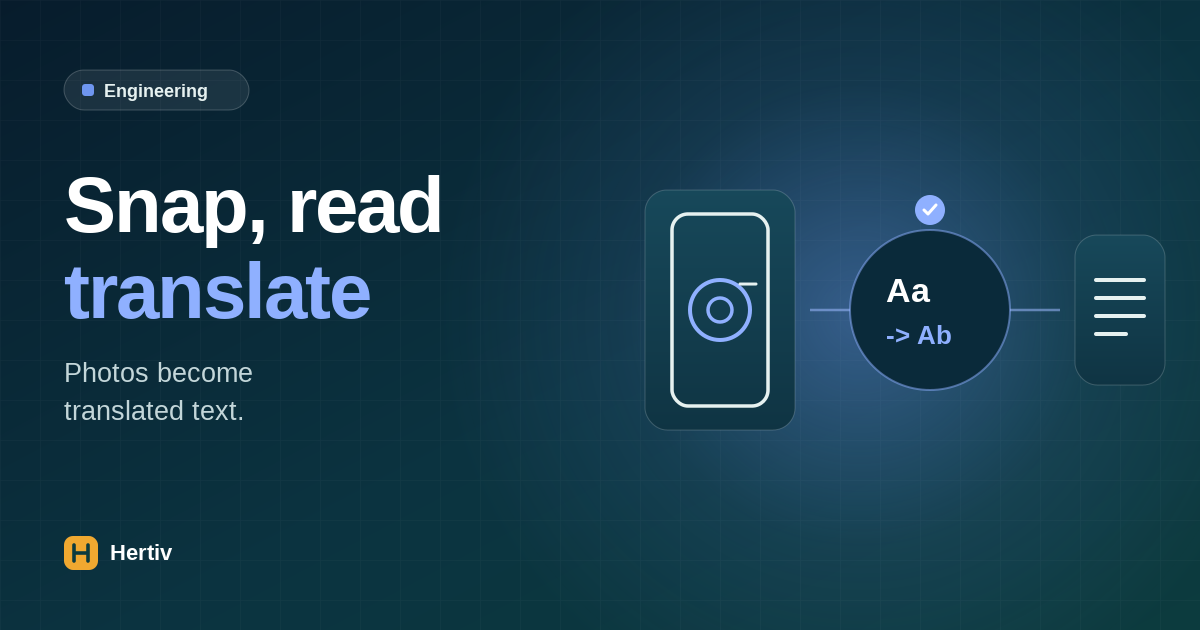
An image-to-text translator app works in four steps: capture, read, translate and show. Each step can fail, so good apps let you correct the result at every stage.
- Capture. You photograph the text or point the camera at it. The app straightens the image, boosts contrast and crops to the text area.
- Read. Optical character recognition finds the text regions and converts each character into digital text, guessing the source language if you did not set it.
- Translate. A translation model converts the recognised text into your language, using context from the whole passage rather than word by word.
- Show. The app displays the translation as text, or overlays it on the original image so you can see which words match which.
Some apps do all of this on the device, which works offline and keeps photos private. Others send the image to a server, which usually gives better accuracy for handwriting and unusual fonts but needs a connection and raises privacy questions.
Where do people use it?
People use image-to-text translator apps wherever printed text meets a language barrier: travel, shopping, work documents and study.
| Situation | What you photograph | What you get |
|---|---|---|
| Travel | Menus, signs, tickets | Instant translation while you are out |
| Shopping | Labels, ingredients, instructions | Contents and warnings in your language |
| Work documents | Contracts, invoices, forms | Searchable, translatable text |
| Study | Textbook pages, notes | Passages you can translate and save |
| Accessibility | Printed material | Text that a screen reader can speak |
| Research | Archives, old books | Digital text for search and quoting |
Travel is the most common use, because the text is short, the language pair is common, and a rough translation is usually enough. Work documents are the hardest use, because accuracy matters and the text is long, dense and full of specialist terms.
What affects accuracy?
Accuracy depends on the image, the text and the language pair. Clean printed text in a common language translates well; handwriting in a rare language often does not.
- Image quality. Good light, a straight angle and a sharp focus matter more than any setting. Glare, blur and shadows cause misreads.
- Font and layout. Plain printed text reads well. Decorative fonts, curved text and dense multi-column layouts confuse the reader.
- Handwriting. Neat handwriting reads reasonably; cursive and hurried notes often fail. Some apps handle handwriting better than others.
- Language pair. Common pairs such as English to Spanish are strong. Rare pairs and languages with different scripts are weaker.
- Context. Short phrases without context, such as single words on a sign, are harder to translate correctly than full sentences.
For important documents, treat the translation as a draft. Read the recognised text against the photo, correct errors, and have a human check anything that carries legal or financial weight. A computer vision system built for your document types will beat a general app on accuracy, because it can be trained on your layouts.
What to look for when choosing one
Choose an image-to-text translator app by language coverage, offline support, privacy and export options, in that order.
- Language coverage. Check that both your source and target languages are supported, including the script. Some apps read a language but cannot translate from it.
- Offline mode. If you travel without data, download the language packs first. Offline translation is usually weaker but still useful.
- Privacy. Check whether photos leave the device. On-device processing keeps sensitive documents private; server processing needs a clear data policy.
- Export and history. Look for saved translations, searchable history and export to text or PDF, so the work is not lost after one use.
- Batch and document mode. For multi-page documents, a scan mode that handles pages in order saves far more time than one photo at a time.
Try the app on your own worst-case photo, not a clean demo image. A menu in dim light or a faded receipt is the real test. For a business that processes documents at volume, a mobile app built around your document types is usually the better investment.
Example (hypothetical): a small import business
Example (hypothetical): a small import business receives 40 supplier invoices a month in another language. Each invoice takes a staff member about 10 minutes to read, translate with a dictionary, and type into a spreadsheet. That is 40 times 10 minutes, or 400 minutes, about 6 hours and 40 minutes a month.
With an image-to-text translator app, each invoice takes about 2 minutes to photograph, review and export. That is 40 times 2 minutes, or 80 minutes a month. The saving is 320 minutes, or about 5 hours and 20 minutes a month, which is 64 hours a year.
The saving only holds if the review step is quick. If the app misreads supplier names or amounts, the staff member spends the saved time fixing errors instead. The business checks the first ten invoices carefully, then trusts the app for routine ones and reviews the rest.
What are the common mistakes?
The most common mistakes are trusting the first translation, photographing badly, and ignoring privacy.
- Trusting the translation blindly. A misread digit can change an amount or a date. Always check numbers against the photo.
- Bad photos. Glare, tilt and blur cause most errors. Take a second photo in better light rather than fighting the first one.
- Wrong source language. Auto-detection sometimes guesses wrong. Set the language manually when the text is short.
- Photographing sensitive documents. Do not send contracts or IDs to a server-based app without checking its data policy.
- Expecting perfect handwriting recognition. Handwriting is the weakest case for most apps. Type key details instead of relying on it.
Key takeaways
- An image-to-text app photographs text, reads it and translates it
- Accuracy depends on image quality, font and language pair
- On-device processing keeps photos private; server processing is usually more accurate
- Check numbers against the photo before trusting a translation
- Try the app on your own worst-case photo, not a clean demo
Frequently asked questions
What is the best image-to-text translator app?
For most people, the camera mode in Google Translate is the best starting point: it is free, covers many languages and works live through the camera. Microsoft Translator and Apple Translate are solid alternatives, and dedicated scanning apps suit heavy document use.
Can image-to-text apps work offline?
Yes, if you download the language packs first. Offline mode works for common language pairs but is usually less accurate than online mode, especially for handwriting and rare languages.
Do image-to-text translator apps read handwriting?
Some do, but handwriting is the weakest case for most apps. Neat handwriting reads reasonably; cursive and hurried notes often fail. For important handwritten text, type the key details yourself.
Are photos sent to a server?
It depends on the app. Some process images on the device, which keeps photos private and works offline. Others send images to a server for better accuracy. Check the app's privacy policy before photographing sensitive documents.
Can I translate a whole document with an app?
Yes, with a scan mode that handles pages in order and exports the result as text or PDF. For long or important documents, review the recognised text page by page, since errors compound across pages.
What languages do these apps support?
The major apps support dozens of languages for camera translation, with the strongest results on common pairs such as English, Spanish, French, German and Chinese. Check that your specific pair and script are supported before relying on the app.