Best PDF API Integration Tools for Developers Compared
Eight PDF APIs that create, edit, sign and convert documents, compared on features, ease of use and fit. Pick the one that matches your document workflow.
On this page
Short answer
The best PDF API tools to compare are Adobe PDF Services, PDF.co, Nutrient, iLovePDF, Cloudmersive, Api2Pdf, ConvertAPI and PDFMonkey. The right choice depends on whether you create, edit, sign or convert PDFs, how many documents you process, and how much control you need over layout and output.
Which PDF API tools should you compare first?
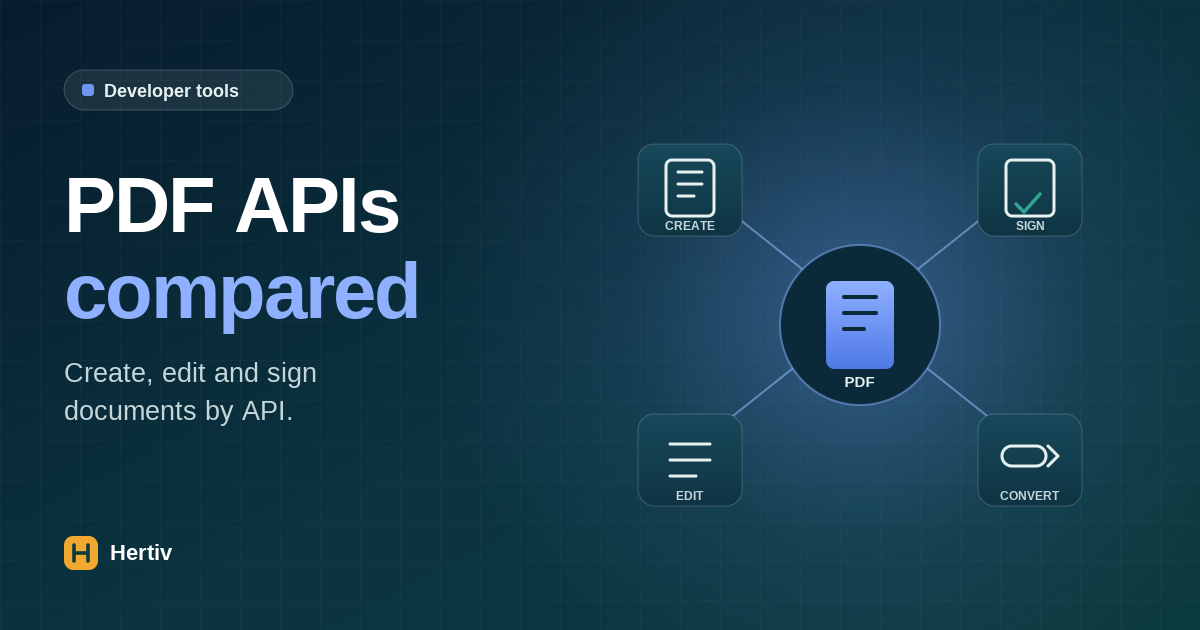
A PDF API lets your software create, edit, sign or convert PDF documents without building a document engine from scratch. Your app sends a file or some data, and the API returns a finished PDF, a filled form, or a converted file.
| Tool | Main strength | Best for | Setup |
|---|---|---|---|
| Adobe PDF Services | Create, edit, extract | Full document workflows | API key, SDKs |
| PDF.co | Wide feature set | Many document jobs | API key, SDKs |
| Nutrient | Editing and viewing | Apps with a PDF viewer | SDKs and API |
| iLovePDF | Simple everyday tasks | Merge, split, compress | API key, SDKs |
| Cloudmersive | Convert and validate | Format conversion | API key, SDKs |
| Api2Pdf | HTML to PDF | Reports from web pages | API key |
| ConvertAPI | Many formats | File conversion | API key, SDKs |
| PDFMonkey | Templates | Documents from data | API key, dashboard |
All eight handle PDFs, but they are built for different jobs. Some are strongest at creating documents from data, others at editing or converting them. The sections below pair them by job, so you can compare the two that fit yours. For document understanding, see document AI.
Full document workflows: Adobe PDF Services and PDF.co
1. Adobe PDF Services: best for full document workflows
Adobe PDF Services covers creation, editing, extraction and conversion through one API, with SDKs for common languages. It suits teams that need several document jobs in one place, such as generating a contract, extracting its text, and converting it for archive.
Its strength is breadth: one provider handles the whole document life cycle, and the output quality is reliable. Its weakness is setup. The range of options means more reading before the first working call, and pricing depends on usage, so check the plan for your volume. See vendor site for current pricing.
- Pros: wide feature set, reliable output, SDKs for common languages
- Cons: more to learn up front, pricing varies with usage
2. PDF.co: best for many document jobs
PDF.co offers a long list of PDF operations: split, merge, fill forms, add text, extract tables, convert files and more. It suits teams that need many small document jobs and want them all from one API key.
Its strength is the size of its toolbox: most everyday PDF tasks are one call away. Its weakness is that the breadth can hide the details. Check that the exact operation you need, such as table extraction, works on your documents before you commit.
- Pros: many operations in one API, simple key setup, good for varied jobs
- Cons: quality varies by operation, test your own files first
Editing and viewing: Nutrient and iLovePDF
3. Nutrient: best for apps with a PDF viewer
Nutrient, formerly PSPDFKit, pairs a PDF viewer and editor with server-side APIs. It suits apps where users open, annotate and sign documents inside the product, not only generate them in the background.
Its strength is the in-app experience: viewing, annotation and signing feel like part of your app. Its weakness is weight. A viewer SDK adds size and setup to a project, so it fits products where documents are central, not a side feature.
- Pros: strong viewer and editor, annotation and signing, SDKs and API
- Cons: heavier to integrate, best when documents are core to the app
4. iLovePDF: best for simple everyday tasks
iLovePDF covers the everyday jobs: merge, split, compress, convert, watermark and protect PDFs. It suits teams that need those tasks done well without a large document platform behind them.
Its strength is simplicity: the API is small, the calls are clear, and a first integration is quick. Its weakness is depth. It does not cover heavy document generation or extraction as well as the larger tools, so it fits simple flows best.
- Pros: simple API, quick first integration, covers common tasks well
- Cons: limited depth for generation and extraction, fewer advanced options
Conversion: Cloudmersive and Api2Pdf
5. Cloudmersive: best for format conversion
Cloudmersive converts between document formats, validates files and checks content, with a PDF API among many others. It suits teams that receive files in many formats and need them normalised into PDF or another format.
Its strength is format coverage: Office files, images and other formats convert through the same key. Its weakness is that PDF work is one part of a much larger API, so the document-specific features are thinner than a PDF-first tool.
- Pros: wide format coverage, validation tools, one key for many APIs
- Cons: thinner PDF-specific features, pricing per call adds up
6. Api2Pdf: best for reports from web pages
Api2Pdf turns HTML, URLs and Office files into PDF, and it is built around that one job. It suits teams that generate reports, invoices or receipts from a web page or a template and want the PDF to match what they see on screen.
Its strength is focus: HTML-to-PDF is fast to set up and the output follows the page layout. Its weakness is scope. It is not an editor, so filling forms or annotating documents needs another tool.
- Pros: fast HTML-to-PDF setup, output matches page layout, simple API
- Cons: no editing or signing, narrow scope by design
If your documents also need AI reading, document AI covers extraction and understanding of document content.
Templates and formats: ConvertAPI and PDFMonkey
7. ConvertAPI: best for file conversion
ConvertAPI converts files between hundreds of formats, including to and from PDF. It suits teams whose main job is conversion: a user uploads a file in one format and needs it back in another, with PDF as one of the targets.
Its strength is the format list: few tools cover as many conversions. Its weakness is that it is a converter, not a document editor, so creating or filling PDFs from data is not its job.
- Pros: very wide format support, simple API, good for conversion flows
- Cons: no document editing, pricing is per conversion
8. PDFMonkey: best for documents from data
PDFMonkey generates PDFs from templates filled with your data. You design a template once, send data through the API, and get a finished document such as an invoice, certificate or report.
Its strength is the template flow: designers edit templates in a dashboard while developers only send data. Its weakness is that it is a generator, so editing an existing PDF or converting files needs a second tool.
- Pros: template dashboard, clean data-to-PDF flow, good for invoices and reports
- Cons: generation only, no editing or conversion of existing PDFs
How to choose a PDF API
Choose by the one document job you do most, not by the longest feature list. A tool that is best at your main job and average at the rest beats a tool that is average at everything.
- Name the main job. Create from data, edit existing PDFs, convert files, or sign. One job decides the shortlist.
- Test with your own files. Send five real documents through each shortlisted API and check the output. Layout, fonts and tables break in ways a demo does not show.
- Check output quality at scale. A tool that looks fine on one file can slow down or fail on a thousand. Test a batch, not a single file.
- Count the real cost. Compare the monthly bill at your volume, including any per-call or per-page charges. See vendor site for current pricing.
- Check data handling. Where are files processed and stored, and how long are they kept. This matters when documents hold personal or client data.
Keep the shortlist to two tools and test both. A week of testing with real files tells you more than a month of reading feature pages. If the app itself is new, how to build an AI app covers the wider build the PDF step sits inside.
What are the common mistakes?
The most common mistakes are picking by feature count, testing with demo files only, and ignoring where documents are processed.
- Picking the longest feature list. Features you never use do not help, and a wide API is harder to learn. Pick for the main job.
- Testing with clean demo files. Real documents have odd fonts, scanned pages and broken tables. Test with the worst files you have, not the best.
- Ignoring per-call pricing. A cheap plan at low volume can become the most expensive at high volume. Price at your real monthly count.
- No plan for failed conversions. Some files will fail. Log them, retry once, and give the user a clear message instead of a blank page.
- Sending sensitive files without checking storage. Know where files are processed, how long they are kept, and whether the provider meets your privacy rules.
Key takeaways
- Adobe PDF Services and PDF.co cover the widest range of document jobs
- Nutrient suits apps where users view, annotate and sign inside the product
- Api2Pdf and PDFMonkey are best when documents are generated from data or web pages
- Cloudmersive and ConvertAPI lead on converting between many formats
- Test with your own worst files, not with demo files
- Price the API at your real monthly volume, not the starting plan
Frequently asked questions
What does a PDF API do?
A PDF API lets software create, edit, sign or convert PDF documents through web requests. Your app sends a file or some data, and the API returns a finished PDF, a filled form, a signed document or a converted file, without your team building a document engine.
Can a PDF API fill in forms?
Yes, several of the tools in this list fill form fields, add text and place signatures. Check that the tool supports your exact form type, and test with a real form, because field names and layouts differ between documents.
How much does a PDF API cost?
Pricing varies by provider and by volume, and most charge per document or per call, with a free tier for low use. Compare the monthly bill at your real document count, since a cheap starting plan can become expensive at scale. See vendor site for current pricing.
Is it safe to send documents to a PDF API?
It depends on the provider and your rules. Check where files are processed, how long they are stored, and whether the provider supports encryption and deletion on request. Documents with personal or client data need a provider that meets your privacy rules.
Can a PDF API convert a web page to PDF?
Yes. Api2Pdf and several others turn HTML or a URL into a PDF that follows the page layout. This is a common way to generate reports, invoices and receipts from a page your app already renders.
Do I need a PDF API if I only merge files?
For simple merging, a small library or a simple API such as iLovePDF is enough. A full PDF platform is worth it only when you also need creation, extraction, signing or conversion at volume.