8 Data Science Notebook Tools Worth Comparing
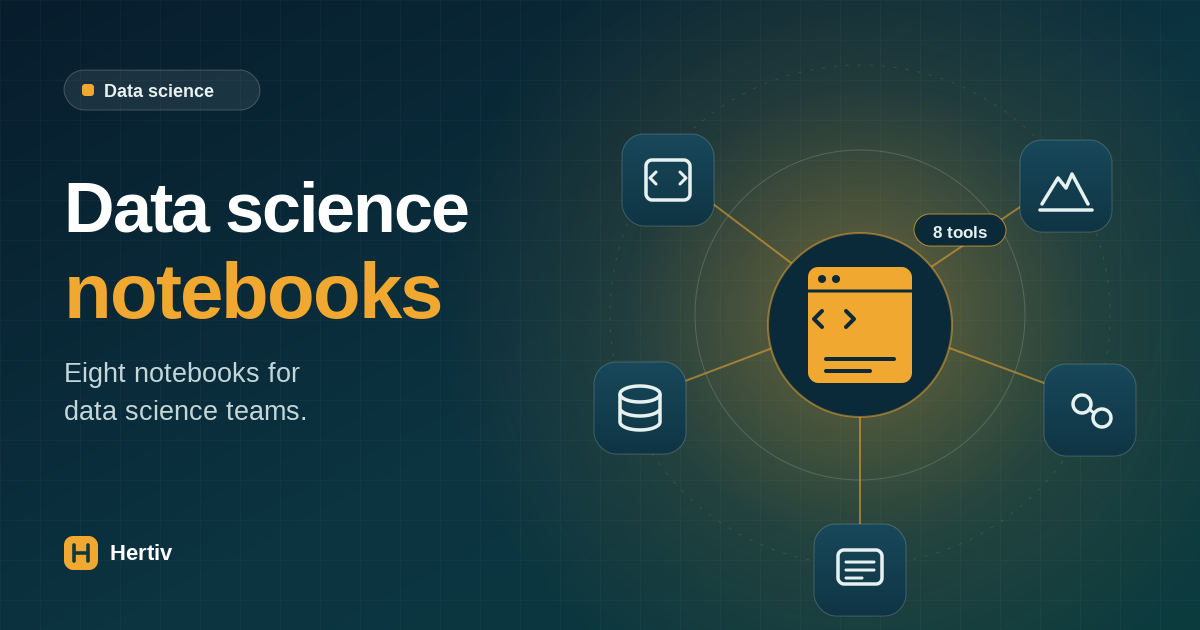
The best data science notebook software balances code, charts and notes in one place. Compare Jupyter, Colab, Databricks, Hex, Deepnote, VS Code, Zeppelin and Mode.
On this page
Short answer
The best data science notebook software for most teams is JupyterLab for local work, Google Colab for free GPU access, and Databricks or Hex when notebooks must run as scheduled jobs on shared data. The right pick depends on where your data lives, whether you need scheduled runs, and how your team shares results. All eight tools below run Python, and most support R, SQL and rich charts.
Which data science notebook tools should you compare?
The data science notebook tools worth comparing are the ones that fit where your data lives and how your team shares results. A notebook mixes code, charts and notes in one document, so the right choice depends on your data, your team size and whether notebooks must run on a schedule.
| Tool | Best for | Runs on | Price model |
|---|---|---|---|
| JupyterLab | Local, open-source work | Your machine or server | Free, open source |
| Google Colab | Free GPU access | Browser, hosted | Free tier; see vendor site |
| Databricks Notebooks | Teams on shared data | Cloud clusters | See vendor site |
| Hex | Sharing results widely | Browser, hosted | See vendor site |
| Deepnote | Real-time collaboration | Browser, hosted | See vendor site |
| VS Code | Developers in an editor | Your machine | Free editor |
| Apache Zeppelin | Multi-language big data work | Your cluster | Free, open source |
| Mode | SQL-first analysis | Browser, hosted | See vendor site |
Use the table to shortlist two or three tools, then try each with a real analysis, not a demo dataset. The tool that feels fastest on your data and your team's workflow is the one to keep. Big data analytics tools overlap with this list when the work runs on large datasets.
<h3>1. JupyterLab: best for local, open-source work</h3><h3>2. Google Colab: best for free GPU access</h3>
1. JupyterLab: best for local, open-source work
JupyterLab is the open-source notebook most data scientists start with. It runs on your own machine, supports Python, R and Julia through kernels, and stores notebooks as files you can version with Git.
It suits solo work and small teams that control their own environment. The trade-off is setup: you install and maintain the environment yourself, and sharing means sending files or hosting a server.
Pros
- Free and open source
- Large extension library
- Works offline on your machine
Cons
- You maintain the environment
- Sharing needs extra setup
- No built-in scheduling
2. Google Colab: best for free GPU access
Google Colab runs notebooks in the browser with free access to GPUs, which suits learning, experiments and small projects. Notebooks live in Google Drive, so sharing is a link.
It suits students, solo analysts and teams that need occasional GPU time without managing servers. Sessions time out after inactivity, and heavy daily use pushes you toward a paid plan.
Pros
- Free GPU access
- Nothing to install
- Easy sharing through Drive
Cons
- Sessions time out
- Limited control over the environment
- Heavy use needs a paid plan
<h3>3. Databricks Notebooks: best for teams on shared data</h3><h3>4. Hex: best for sharing results with non-technical teams</h3>
3. Databricks Notebooks: best for teams on shared data
Databricks notebooks run on shared clusters with access to the team's data lakehouse, so analysts and engineers work on the same data without copying files. Notebooks can run as scheduled jobs and feed dashboards.
It suits teams that already store data in Databricks or Spark and need scheduled, production runs. The trade-off is cost and setup: it is a platform, not a single tool, and pricing depends on usage.
Pros
- Shared data, no copies
- Scheduled runs built in
- Scales to large datasets
Cons
- Pricing depends on usage
- Heavier setup than a local tool
- Tied to the Databricks platform
4. Hex: best for sharing results with non-technical teams
Hex turns notebooks into shared apps and dashboards that colleagues can use without reading code. Analysts write SQL, Python and R in one notebook, then publish the result as an interactive page.
It suits teams whose analysis must reach product managers and executives. The trade-off is that the polished sharing layer matters more than raw notebook power, so heavy local experimentation may feel slower.
Pros
- Notebooks become shareable apps
- SQL, Python and R in one place
- Built for team sharing
Cons
- Cloud-based, needs internet
- Less suited to heavy local work
- See vendor site for pricing
<h3>5. Deepnote: best for real-time collaboration</h3><h3>6. VS Code notebooks: best for developers who live in an editor</h3>
5. Deepnote: best for real-time collaboration
Deepnote lets several people edit the same notebook at once, with comments and version history built in. It runs in the browser and connects to common data sources and warehouses.
It suits distributed teams that write analysis together. The trade-off is that it is a hosted service, so offline work is limited and large datasets depend on the connection to your warehouse.
Pros
- Real-time editing
- Comments and version history
- Connects to warehouses
Cons
- Hosted, needs internet
- Large data depends on the warehouse link
- See vendor site for pricing
6. VS Code notebooks: best for developers who live in an editor
Visual Studio Code runs Jupyter notebooks inside the editor, next to your code, tests and Git. It suits developers who already use VS Code and want notebooks in the same workflow.
It suits teams that mix analysis with software development. The trade-off is that sharing and scheduling need other tools; VS Code is an editor, not a collaboration platform.
Pros
- Notebooks beside your code
- Strong Git integration
- Free editor
Cons
- No built-in sharing
- No built-in scheduling
- Setup varies by machine
<h3>7. Apache Zeppelin: best for multi-language teams on big data stacks</h3><h3>8. Mode: best for SQL-first analysis with notebooks</h3>
7. Apache Zeppelin: best for multi-language teams on big data stacks
Apache Zeppelin is an open-source notebook that runs SQL, Python, Scala and Spark in one document. It suits teams on Hadoop and Spark clusters that need several languages in the same analysis.
It suits platform teams that already run big data infrastructure. The trade-off is setup and polish: it takes more configuration than a hosted tool, and the interface is plainer.
Pros
- Several languages in one notebook
- Built for Spark and Hadoop
- Free and open source
Cons
- Needs cluster setup
- Plainer interface
- Smaller extension library
8. Mode: best for SQL-first analysis with notebooks
Mode combines SQL queries, Python notebooks and reports in one place, so analysts can query a warehouse and build a notebook from the results. It suits teams whose analysis starts with SQL.
It suits analytics teams that report to the wider business. The trade-off is that the Python notebook side is lighter than a dedicated notebook tool, so heavy modelling may need another environment.
Pros
- SQL and Python together
- Reports built in
- Good for business reporting
Cons
- Lighter Python support
- Cloud-based, needs internet
- See vendor site for pricing
How to choose a data science notebook tool
Choose by data location, sharing needs and scheduling, not by feature count. The tool that matches your data and your team's habits will win over the one with the longest list.
- List where your data lives: local files, a warehouse, a lakehouse or a mix.
- Decide how results are shared: files, links, dashboards or scheduled reports.
- Check whether notebooks must run on a schedule or only when someone opens them.
- Try two tools with a real analysis from your own work.
- Pick the one the whole team can use, not just the most technical person.
If your team already uses a platform such as Databricks, start there. If you work alone, start with JupyterLab or Colab. See data science for business for how notebook work fits a wider programme.
What are the common mistakes?
The most common mistakes are choosing on features alone, ignoring where the data lives, and letting notebooks become the only record of an analysis.
- Picking a tool before checking where the data lives. A notebook that cannot reach your warehouse slows every analysis.
- Sharing notebooks as files when the team needs live dashboards. Files go stale the day they are sent.
- Running production jobs from a notebook nobody else can open. A job that only runs on one laptop is a risk.
- Keeping results only in notebooks, with no version control. You cannot tell which version produced a number.
- Paying for a platform when a free local tool would do the job. Match the tool to the workload.
Key takeaways
- JupyterLab suits local work; Colab suits free GPU access
- Databricks and Hex suit teams that share data and results
- Deepnote suits teams that edit together in real time
- VS Code suits developers who want notebooks beside their code
- Zeppelin suits multi-language teams on Spark and Hadoop
- Choose by data location, sharing needs and scheduling, not feature count
Frequently asked questions
Is JupyterLab still the standard data science notebook?
Yes, for local work it remains the most common choice. It is free, open source and supported by most data science libraries. Teams move to hosted tools mainly when they need sharing, scheduling or managed infrastructure that JupyterLab does not provide on its own.
Can I use a notebook for production jobs?
You can, but only with a tool that supports scheduled runs, such as Databricks or a hosted platform. A notebook on a laptop is not a production system: it stops when the laptop sleeps and nobody else can rerun it. Keep the notebook for analysis and move repeatable jobs to a scheduled pipeline.
Do data science notebooks support R and SQL?
Most do. JupyterLab supports R and SQL through kernels and extensions, Databricks and Hex support SQL, Python and R in one notebook, and Zeppelin supports several languages including Scala. Check the language list for your tool before you commit, since support varies by version.
What is the difference between a notebook and an IDE?
A notebook mixes code, output and notes in one document, which suits exploration and sharing results. An IDE organises code into files with tests and version control, which suits building software. Many data scientists use both: notebooks for analysis, an IDE for turning the best code into a product.
Are hosted notebooks safe for company data?
They can be, if the provider supports the access controls and region your company needs. Check where data is stored, who can see it, and whether the provider offers single sign-on and audit logs. For sensitive data, a self-hosted tool such as JupyterLab or Zeppelin keeps the data inside your own infrastructure.
Which notebook is best for beginners?
Google Colab is the easiest start: it runs in the browser, needs no installation and includes free GPU access. JupyterLab is the next step once you want your own environment and version control. Both are free to start with, so try Colab first and move when you outgrow it.