Best Cloud-Based Digital Signage Software for Business
Cloud signage software lets a business update every screen from a browser. These eight tools cover shops, offices, schools, kiosks and large networks.
On this page
Short answer
The best cloud-based digital signage software depends on the size of your network. Yodeck suits small teams, ScreenCloud suits offices, OptiSigns suits multi-location retail, Rise Vision suits schools, NoviSign suits interactive kiosks, TelemetryTV suits data dashboards, Raydiant suits customer experience screens and Navori QL suits large enterprise networks. All eight update screens from the cloud, so compare content tools, hardware support and pricing per screen before you choose.
Which cloud signage software should your business shortlist?
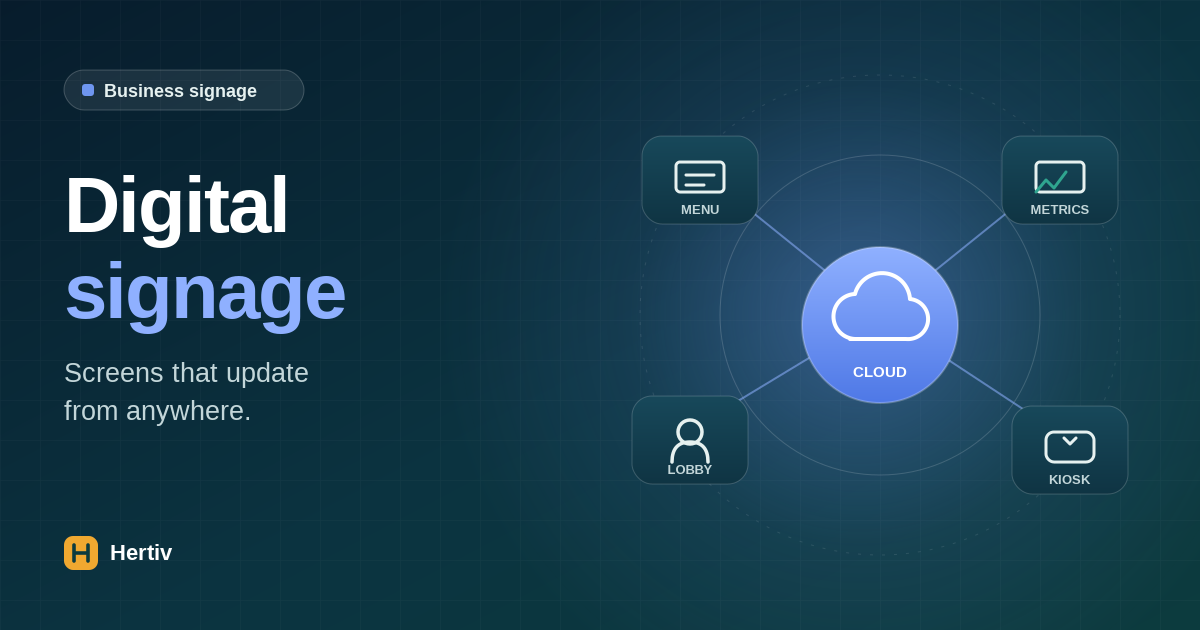
Cloud signage software runs your screens from a dashboard in the browser. You upload content once, set a schedule, and every screen in every location updates itself. That beats walking around with a USB stick, which is still how many small businesses run their screens.
Use the table to shortlist. The right tool depends on how many screens you run, what you show on them, and whether staff in each location need to update their own content.
| Tool | Best for | Hardware | Standout feature |
|---|---|---|---|
| Yodeck | Small teams, first screen | Raspberry Pi, players | Free tier for one screen |
| ScreenCloud | Offices, internal comms | Many players, smart TVs | App library and templates |
| OptiSigns | Multi-location retail | Many players, sticks | Fast multi-screen setup |
| Rise Vision | Schools and nonprofits | Chrome, players | Education templates |
| NoviSign | Interactive kiosks | Touchscreens, players | Touch and kiosk mode |
| TelemetryTV | Data dashboards | Players, smart TVs | Live metrics boards |
| Raydiant | Customer experience | Players, tablets | Menus and promotions |
| Navori QL | Large enterprise networks | Players, PCs | Deep network control |
Prices change often and are usually charged per screen per month, so check each vendor's current pricing on their own site; see vendor site for live prices. Start with a trial on one or two screens before you commit the whole network.
1. Yodeck: best for small teams and a first screen
1. Yodeck: best for small teams and a first screen
Yodeck is a simple cloud signage tool built around low-cost players. You plug in a player, log into the dashboard, and push images, video or web pages to the screen. It suits a cafe, a clinic or a small shop that wants one or two screens without an IT project.
Its free tier covers a single screen, which makes it a low-risk way to learn what signage can do for a business. The template library is small but covers the basics: menus, opening hours and announcements.
Pros:
- Simple setup with low-cost players
- Free tier for a single screen
Cons:
- Fewer advanced features than enterprise tools
- Template library is limited
2. ScreenCloud: best for offices and internal comms
ScreenCloud is built for workplaces that want screens in lobbies, break rooms and meeting areas. It offers a large library of apps and templates, so a team can show news, social feeds, meeting room schedules and company announcements without designing each slide.
It works with many players and smart TVs, and it lets different teams manage their own screens while head office keeps control of the brand. That split suits companies with several offices.
Pros:
- Large app and template library
- Works with many players and smart TVs
Cons:
- Costs add up as the screen count grows
- Some apps need extra setup
3. OptiSigns: best for multi-location retail
3. OptiSigns: best for multi-location retail
OptiSigns is built for retailers that run the same content across many shops. You create a playlist once, assign it to a group of screens, and every shop updates at the same time. Local managers can still swap in a store-specific offer without touching the main playlist.
It supports a wide range of cheap players and sticks, which keeps the hardware bill low when you roll out dozens of screens. The scheduling tools are strong, with dayparting that changes content by time of day.
Pros:
- Fast rollout across many locations
- Strong scheduling and dayparting
Cons:
- Design tools are basic compared with dedicated editors
- Large networks need care with user permissions
4. Rise Vision: best for schools and nonprofits
Rise Vision is a signage tool aimed at schools, churches and nonprofits. It offers ready-made templates for announcements, lunch menus, event boards and emergency notices, and it runs well on low-cost Chrome devices that schools already own.
Its pricing suits tight budgets, with a free option for basic use. The trade-off is a smaller feature set than business tools, but for a school hallway the basics are usually enough.
Pros:
- Templates made for schools and nonprofits
- Runs on low-cost Chrome hardware
Cons:
- Fewer features for commercial use
- Limited options for complex networks
5. NoviSign: best for interactive kiosks
5. NoviSign: best for interactive kiosks
NoviSign stands out for touchscreens and kiosks. It lets you build interactive layouts where visitors tap through a menu, a catalogue or a wayfinding map, and it locks the screen into kiosk mode so nobody can exit to the home screen.
It also handles standard signage well, with playlists, scheduling and remote updates. It suits museums, showrooms and retail stores that want one screen to both attract and serve visitors.
Pros:
- Strong touch and kiosk features
- Good for wayfinding and catalogues
Cons:
- Touch hardware costs more than a plain screen
- Interactive layouts take longer to build
6. TelemetryTV: best for real-time data dashboards
TelemetryTV is built for screens that show live data: sales figures, production counts, support queues and team metrics. It connects to common business tools and turns their numbers into boards that update on their own.
It also covers normal signage content such as images and video, so one tool can run both the office dashboard and the lobby welcome screen. It suits operations teams that want numbers visible without opening a laptop.
Pros:
- Live data boards from business tools
- One tool for dashboards and signage
Cons:
- Setup takes longer when many sources connect
- Less focus on creative design tools
7. Raydiant: best for customer experience screens
7. Raydiant: best for customer experience screens
Raydiant targets restaurants, cafes and retail stores that use screens to shape the visit. It covers digital menus, promotions, waitlists and music, so a store can run the whole front-of-house experience from one dashboard.
Its menu tools are the strongest part, with easy price and item changes that push to every screen at once. That matters when a menu changes daily and a printed board would be out of date by lunch.
Pros:
- Strong menu and promotion tools
- One dashboard for screens, music and waitlists
Cons:
- Best suited to hospitality and retail
- Costs more than basic signage tools
8. Navori QL: best for large enterprise networks
Navori QL is an enterprise signage platform built for networks of hundreds or thousands of screens. It offers deep control over users, permissions and content approval, so a head office can approve every playlist before it reaches a screen.
It supports a wide range of players and PCs, and it handles complex layouts with multiple zones per screen. It suits banks, transport hubs and large retailers where control and uptime matter more than a quick setup.
Pros:
- Deep control over users and approvals
- Built for very large screen networks
Cons:
- Setup and training take longer
- Priced for enterprise budgets
How to choose cloud signage software for your business
Start by counting screens and naming who updates them. A single screen in one shop needs a simple tool; a hundred screens across ten sites needs permissions, approvals and central scheduling. Buying the bigger tool for a small job wastes money, and buying the small tool for a big job wastes time.
- Count the screens and sites. The number decides whether you need central control or a simple dashboard.
- List the content types. Menus, dashboards, videos and touchscreens each favour a different tool.
- Check the hardware you own. Pick a tool that runs on your players or smart TVs before buying new ones.
- Test content updates end to end. Upload, schedule and push to a real screen during the trial, not just in a demo.
- Compare the per-screen cost. Add up software, players and install time for a year, then compare the totals.
Run the trial on the screen that matters most, such as the shop window or the lobby. If staff can update it without calling IT, the tool fits.
Common mistakes with cloud digital signage
The most common mistake is buying screens before choosing software. The software decides what the screen can show and how it is updated, so pick the tool first and let it set the hardware list.
Another mistake is filling screens with too much content. A screen that rotates twenty slides is read by nobody; three clear messages with a slow rotation work better. Signage is a glance medium, not a website.
Finally, do not forget who owns updates. A network with no named owner goes stale within weeks, and stale screens are worse than none. Assign one person per site, give them a simple template, and check the screens monthly.
Key takeaways
- Cloud signage updates every screen from a browser, so pick software before buying hardware.
- Yodeck and Rise Vision suit small budgets; OptiSigns and Navori QL suit large networks.
- Match the tool to the content: menus, dashboards, touchscreens and offices each favour a different one.
- Compare the full per-screen cost for a year, not just the monthly software price.
- Assign one owner per site and keep each screen to three clear messages.
Frequently asked questions
What is cloud-based digital signage software?
Cloud-based digital signage software is a dashboard in the browser that manages screens in any location. You upload images, video or web pages once, set a schedule, and the players on each screen download and show the content. No one needs to visit the screen to change it.
How much does digital signage software cost?
Most tools charge per screen per month, and the price varies with features and screen count. Hardware, install and content design add to the total. Check each vendor's current pricing on their own site, since prices change often and free tiers vary.
What hardware do I need for digital signage?
You need a screen and a player, which can be a small media player, a stick, a PC or a smart TV with built-in software. The software you choose decides which players work, so confirm compatibility before buying hardware.
Can I run signage on a smart TV?
Yes, many tools offer apps for common smart TVs, and some screens come with signage software built in. A dedicated player is more reliable for large networks, but a smart TV is fine for one or two screens.
How often should signage content change?
Change the main message weekly and rotate supporting content monthly. Screens that never change get ignored, while screens that change every hour feel noisy. A slow rotation of three messages is a good starting point.
Do I need internet at every screen?
Yes, cloud signage needs an internet connection to receive new content, though most players keep showing the last playlist if the connection drops. A stable connection matters most when content changes often or shows live data.