Why Businesses Choose Android App Bundles Over APKs
Android App Bundles let Google Play build a smaller APK for each device, cutting download size and failed installs. Here is why businesses switch and what changes.
On this page
Short answer
Businesses choose Android App Bundles because Google Play builds a smaller APK for each device from one bundle, which cuts download size, speeds up installs and reduces failed downloads. Since August 2021 the bundle has been the required format for new apps on Google Play, and it also enables on-demand features and large asset delivery that a single APK cannot offer.
What is an Android App Bundle?
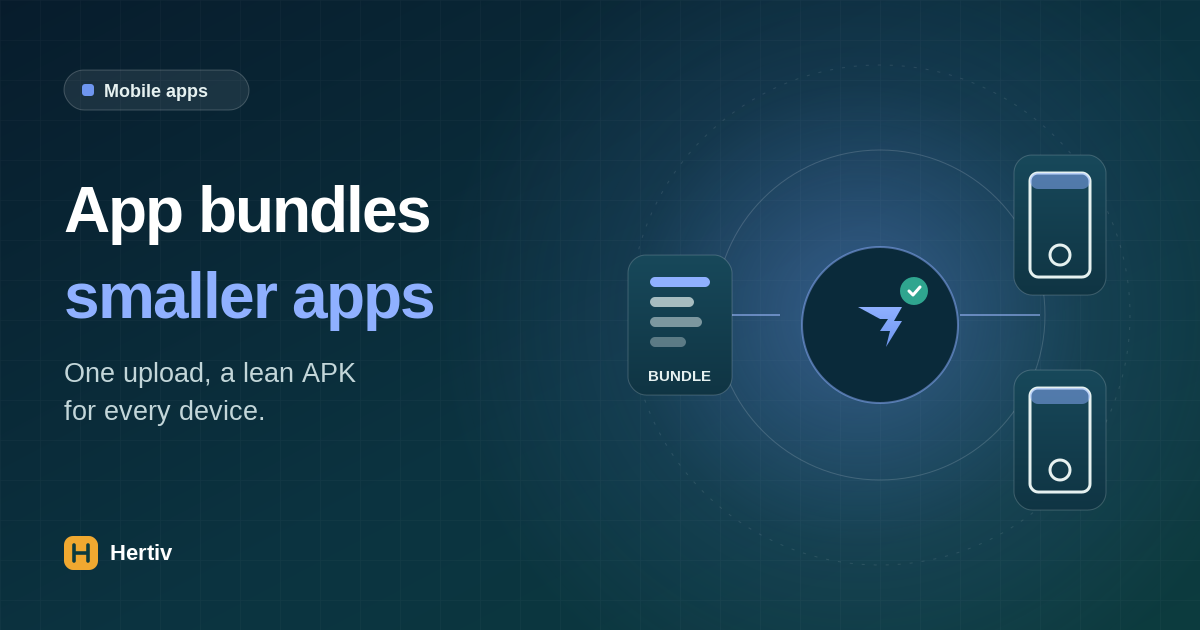
An Android App Bundle is the publishing format Google Play uses for Android apps. Instead of uploading one finished APK that contains every language, screen size and processor variant, a developer uploads a single bundle with all the compiled code and resources, and Google Play builds a smaller APK for each device from it.
The bundle was introduced in 2018 and became the required format for new apps on Google Play in August 2021. A bundle contains a base module with the core code, plus optional feature modules and asset packs. Google Play signs the generated APKs through Play App Signing, which the developer must enrol in before publishing.
The practical difference is that users download only what their device needs. A phone with a low-density screen does not receive high-density images, and a device with one processor type does not receive native libraries built for another. Google reports that top apps switching to bundles save an average of 15% in download size compared with a universal APK.
How does Dynamic Delivery work?
Dynamic Delivery is the system Google Play uses to turn a bundle into device-specific APKs. When a user installs an app, Play reads the device configuration, including screen density, processor architecture and language, and assembles an APK that contains only the matching code and resources.
The bundle is split into modules. The base module is always installed first, because it holds the code every user needs. Feature modules can be set to install at first run, download on demand when the user opens a feature, or install only on devices that meet a condition, such as having a specific hardware feature.
Asset packs handle large files such as game levels, audio libraries and video. They can be delivered at install time, on demand, or in fast-follow mode just after install. This matters because Play requires apps with assets or features over 150 MB to use Play Asset Delivery or Play Feature Delivery instead of the older expansion files.
For the team shipping the app, the workflow stays familiar: build once, upload the bundle, and let Play handle the variants. The release track, staged rollout and review process in Play Console work the same way they did for APKs.
Android App Bundle vs APK: what changes?
The move from APK to bundle changes how the app is packaged and delivered, not how it is written. The table below shows the main differences a business should plan around.
| Area | APK | Android App Bundle |
|---|---|---|
| What you upload | One finished APK with all variants | One bundle; Play builds per-device APKs |
| Download size | Same large file for every device | Smaller, device-specific download |
| Feature delivery | All features ship in the install | Features can install on demand |
| Large assets | Expansion files, now retired for new apps | Play Asset Delivery |
| App signing | Developer signs the APK | Play App Signing required |
| Distribution | Works on any store or by sideload | Built for Google Play delivery |
The last row is the one teams most often miss. A bundle is a Play format, so an app that also ships through other stores or direct download still needs an APK build for those channels. Plan for two artefacts if you distribute outside Play.
Why do businesses choose app bundles?
Businesses choose app bundles mainly because smaller downloads convert better. A user on a slow connection or a phone with little free storage is more likely to finish installing a 40 MB app than an 80 MB one, and fewer failed installs means fewer lost customers at the most expensive point in the funnel.
Smaller downloads also cut update size. Play delivers only the changed parts of an app, so a bundle-based app typically updates faster and uses less of the user's data. That matters for apps that ship weekly, where a large update can push users to delay or skip it.
On-demand features change the first-run experience. A business can ship a small core app and download a heavy feature, such as augmented reality or a video editor, only when the user asks for it. The first install stays light, and the user never pays the download cost of features they never open.
There is also a simpler release process. One bundle replaces the matrix of APKs a team used to build for each processor and screen density. Fewer artefacts mean fewer chances to ship the wrong file to the wrong device, and Play Console handles the variant logic instead of the build pipeline. For teams planning the move alongside a wider Android roadmap, mobile app development covers the planning and release work around it.
Play Feature Delivery and Play Asset Delivery
Play Feature Delivery and Play Asset Delivery are the two delivery systems that only work with app bundles. Feature Delivery controls when code modules arrive, and Asset Delivery controls when large files arrive.
| Delivery mode | How it works | Best for |
|---|---|---|
| Install-time | Module or asset ships with the first install | Core features and assets every user needs |
| On-demand | Downloaded only when the user opens the feature | Heavy features used by a minority of users |
| Conditional | Installed only on devices that meet a condition | Hardware-specific features such as AR |
| Fast-follow | Downloaded automatically just after install | Large assets needed soon after first run |
Choosing the mode is a product decision, not a technical one. Put in install-time delivery only what the first session needs. Everything else should be on demand or fast-follow, so the first download stays as small as possible and the user sees value before the app asks for more storage.
How to move an app to Android App Bundles
You move an app to Android App Bundles by changing the build output, enrolling in Play App Signing, and testing the generated APKs before the first bundle release.
- Enable the bundle in the build. Switch the release task from building an APK to building a bundle, and confirm the bundle includes the base module and any feature modules you already split out.
- Enrol in Play App Signing. Upload your existing signing key to Play, or let Play generate one. This step is required, and it changes how key loss is handled, so record who holds the upload key.
- Split large assets. Move files over the 150 MB threshold into asset packs, and choose install-time, fast-follow or on-demand delivery for each pack.
- Test with bundletool. Use Google's bundletool to generate APKs from the bundle for your test devices and confirm each variant installs and runs.
- Run an internal track first. Ship the bundle to an internal test track, check install size on several device types, and compare it with the old APK.
- Roll out in stages. Release to a small share of users, watch install success and crash rates, then widen the rollout. Keep the last APK build available as a fallback for a short period.
Most teams finish the switch in a few weeks. The work is in the signing and asset decisions, not in rewriting the app, and the app code itself usually needs no changes. If the app is built with a cross-platform framework, check how that framework packages bundles before starting; see what is Flutter for one common case.
Example (hypothetical): a retail app cuts its download size
Example (hypothetical): a retail app ships as a universal APK of 96 MB. The team moves to an Android App Bundle, and Play starts generating device-specific APKs that average 78 MB, which is 18 MB smaller, or about 19% less than the universal APK.
Each month the app gets 10,000 download attempts and 8,200 of them complete, an 82% install success rate. After the switch, the smaller download lifts completions by 5% relative to before, so 8,200 becomes 8,610 completed installs, or 410 more installs a month from the same number of attempts.
The team also moves its product video library into an on-demand asset pack, so the first install drops further to 61 MB. Most shoppers never open the video library, so they never download it, and the app's first-run experience gets faster without losing any feature.
What are the common mistakes?
The most common mistakes are treating the bundle as a one-line build change, forgetting the signing step, and shipping every feature in the base module.
- Skipping bundletool testing. A bundle that builds cleanly can still generate a broken APK for one device type. Test the generated APKs, not just the bundle.
- Losing track of the upload key. Play App Signing changes key management. If nobody records who holds the upload key, a staff change can block releases.
- Putting everything in the base module. If all features install at first run, the size saving disappears. Split out anything most users never open.
- Forgetting other stores. A bundle is a Play format. Apps distributed through other stores still need APK builds, so keep that pipeline working.
- Ignoring TV and large-screen rules. Since June 2023, TV app updates on Play must use bundles too, so the same switch applies to the TV build.
If the app is part of a wider product rebuild, a partner for custom software development can plan the bundle switch alongside the rest of the release work.
Key takeaways
- An Android App Bundle lets Google Play build a smaller APK for each device from one upload
- Bundles have been required for new apps on Google Play since August 2021
- Google reports top apps save an average of 15% in download size versus a universal APK
- Play Feature Delivery and Play Asset Delivery let heavy features download only when needed
- Play App Signing enrolment is required, so plan key management before the first bundle release
Frequently asked questions
Is an Android App Bundle the same as an APK?
No. An APK is the finished install file for one device, while a bundle is the publishing format that Google Play uses to generate device-specific APKs. You upload a bundle, and Play builds and signs the APK each user downloads.
Do existing apps have to switch to app bundles?
New apps have had to use bundles since August 2021, and TV app updates must use them since June 2023. Existing phone apps can still update with APKs in many cases, but switching brings the size and delivery benefits, so most teams move anyway.
How much smaller is a bundle-based download?
Google reports that top apps switching to bundles save an average of 15% in download size compared with a universal APK. The saving depends on how many languages, screen densities and processor variants the old APK carried.
What is Play App Signing?
Play App Signing is the system where Google Play holds the app signing key and signs the APKs it generates from your bundle. You sign the bundle with an upload key instead. Enrolment is required before you can publish a bundle.
Can I still distribute my app outside Google Play?
Yes, but a bundle is a Play format, so other stores and direct downloads still need an APK. Keep an APK build in your pipeline if you distribute outside Play, and treat the bundle as the Play artefact.
Do app bundles change how my app is coded?
Usually not. The app code stays the same; only the packaging changes. The work is in the build settings, the signing enrolment, and deciding which features and assets become on-demand modules or asset packs.